Slow Unreal Build Upload? How to Check Your Speed and Fix It on Eagle 3D Streaming
A slow Unreal build upload usually comes from the route or the number of pieces sent at once. Run the Connection test, resume, or let Eagle fetch your link.
 Rafshan Tashin
October 23, 2026
8 min read
A slow Unreal build upload is one of the most common complaints, and it often looks strange. Dropbox finishes the same file quickly, a speed test site says your line is fine, and yet your build crawls. The docs explain why, and they give you a short path to fix it: measure the real route, tune the upload, resume if it stops, or skip the upload entirely (source).
This guide walks through each step in order.
Why a Slow Unreal Build Upload Happens
Three things usually explain it (source).
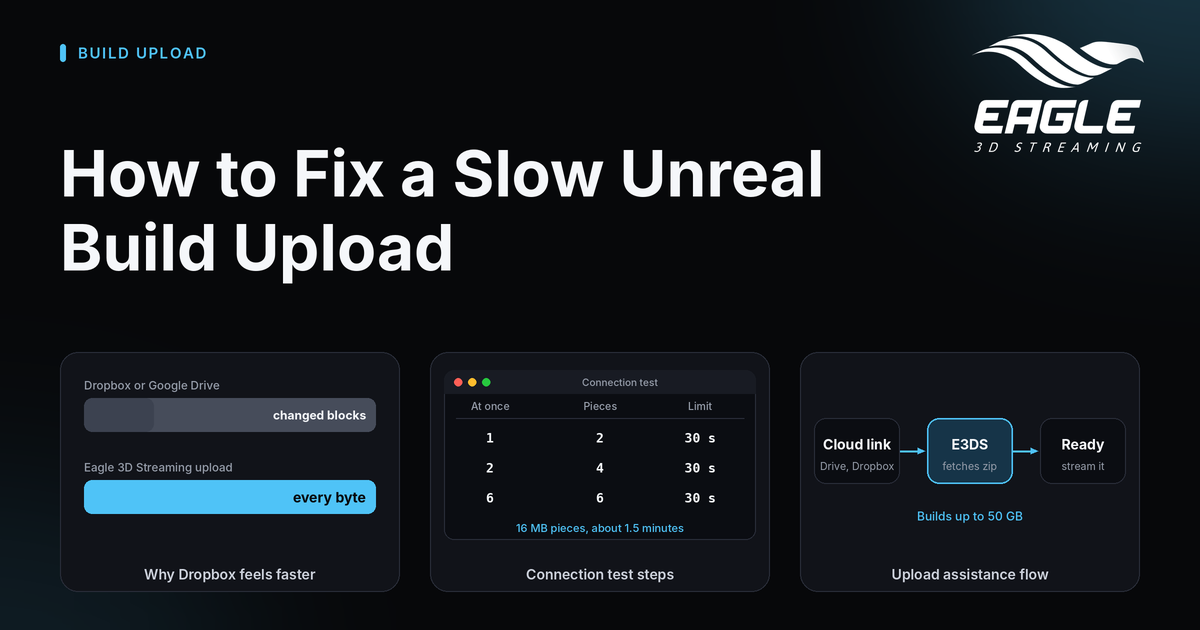
Dropbox and Google Drive send less data. Their desktop apps split files into small blocks and reuse blocks they already have. A new build is mostly identical to the last one, so only the changed blocks travel. The progress bar finishes early because only part of the file moved.
Eagle 3D Streaming sends every byte. An upload sends the whole zip every time. Each build is checked, unpacked and test-launched on its own, so nothing is skipped. A 5 GB zip means 5 GB of upload.
The route is different. Your browser connects to the nearest Cloudflare entry point, then to Eagle 3D Streaming storage in Western North America. Dropbox and speed test sites use other servers and routes, so one route can be congested while another is fine.
Your connection may also struggle with several simultaneous uploads. That detail matters in the next section.
Run the Connection Test to Measure Your Real Upload Speed
The Connection test sends real 16 MB pieces from your browser to Eagle 3D Streaming storage, the same way a build upload does. It takes up to about 1.5 minutes, uses none of your storage and deletes its test pieces afterward (source).
You can start it from three places:
- Utilities, then Connection test in the Control Panel
- The "Test your connection to our storage" link in the upload window in Your Projects, which opens in a new tab so a running upload is not interrupted
- My Account, then Settings, then Upload settings
The test runs in three steps, and each step stops after 30 seconds.
| Step | Pieces sent at once | Test pieces | Time limit |
|---|---|---|---|
| 1 | 1 | 2 | 30 s |
| 2 | 2 | 4 | 30 s |
| 3 | 6 | 6 | 30 s |
Each step shows the speed, the number of failed pieces and the estimated time for a 5 GB build. Because of the time limit, even a slow line finishes in about 1.5 minutes (source).
Pick the Right Number of Pieces at a Time
A line under the results table names the best setting. Apply it in My Account, then Settings, then Upload settings before your next upload. Here is how to read the results (source).
| What you see | What it means | What to do |
|---|---|---|
| Fast at every step, no failures | The connection is fine | Use 6 at a time |
| Fastest at 2, failures at 6 | The connection cannot hold several uploads together | Use 2 at a time |
| Failures already at 2 | The connection drops under load | Use 1 at a time |
| Slow or failing at every step | The route to storage is congested or unstable | Try another network or a later time, or use Upload assistance |
The docs do not define what counts as fast, and they do not give speed thresholds. Compare the estimated time for a 5 GB build against what you can accept, and let the recommended setting do the rest.
Resume an Upload That Stopped
If an upload stops partway, you do not need to start over. In Your Projects, choose the same file again and press Continue upload. Pieces already sent are kept (source). Fewer pieces at a time also lowers the chance of a stop on an unstable line.
For large builds, turn on email updates in the upload window. The Control Panel then notifies you when the app is ready, so you do not have to watch the page (source).
Skip the Upload With Upload Assistance
If your build already lives in a cloud service, you can skip your home connection entirely. With Upload assistance, Eagle's servers fetch the zip from your link. It works with Dropbox, Google Drive, OneDrive, Box or your own server, for builds up to 50 GB (source).
Your steps:
- Set the zip's link so anyone with the link can open it.
- In the Control Panel, open Utilities, then Upload assistance.
- Enter the app name. Reusing an existing app name adds the build as its next version.
- Paste the link to the zip and press Upload from this link.
The servers then check the link and compare the file size with your free storage, download the zip, run the usual checks, send the build to storage, and unpack and test-launch it once. A build that does not fit stops early with a "Not enough storage" message. You can close the progress page, because the work continues on the servers, and a failed step names its reason (source).
Two limits apply. Links to private or internal network addresses are refused, and links that need a sign-in cannot be fetched.
What to Do When the Control Panel Asks You to Type AGREE
Sometimes the Control Panel asks you to type AGREE before the upload starts. This happens when the Control Panel does not find a Samples/PixelStreaming folder (or Samples/PixelStreaming2) in your zip's file list. The check reads only the list of files and does not open the app, so a missing folder does not prove that the plugin is absent (source).
Typical causes are a trimmed build, a custom setup, or an archive format the check cannot read, such as .7z, .rar or .tar. Typing AGREE confirms that the plugin is enabled and packaged. The build is still unpacked and test-launched before it is accepted.
If the test launch fails and the app starts without video, enable Pixel Streaming under Edit, then Plugins, package again and upload the new zip. A build that fails its test launch uses no storage (source). Remember that the Control Panel accepts .zip files only, up to 50 GB, with unique app names in your account (source).
Once you upload often, consider automating build uploads from the Unreal Editor and the CI/CD app upload automation feature. To change a build without a full re-upload, read how to patch an Unreal app with a pak file. If a finished app streams badly after upload, the connection speed test for streams covers the viewer side.
Conclusion: Fix a Slow Unreal Build Upload in Four Moves
Run the Connection test, apply the recommended number of pieces, press Continue upload when a transfer stops, and use Upload assistance when your line is the problem. Together, these cover almost every slow Unreal build upload the docs describe.
Ready to try it? Open Utilities in the Control Panel, run the Connection test once, and note the result for next time. If your numbers still look wrong, send support a screenshot of the results table and the time you ran it. Reach out through any channel below.
Need help?
If you need any assistance, feel free to reach out through any of the following channels:
🛠️ Support Portal: Contact Our Support Team
💬 Discord Community (Faster Support): Join Our Discord Community
📧 Email Support: support@eagle3dstreaming.com
Follow us on:
Facebook | GitHub | LinkedIn | YouTube
FAQ
Why is my Unreal build upload slower than Dropbox?
Dropbox and Google Drive send only the changed blocks of a file, while Eagle 3D Streaming sends every byte of the zip each time. Different network routes add to the gap (source).
What does the Connection test measure?
It sends real 16 MB pieces from your browser to Eagle 3D Streaming storage, at 1, 2 and then 6 pieces at a time. It reports speed, failed pieces and the estimated time for a 5 GB build (source).
Where do I change the number of uploads at a time?
Go to My Account, then Settings, then Upload settings. The Connection test names the best setting for your line (source).
What can I do if my upload stops partway?
In Your Projects, select the same file again and press Continue upload. Pieces already sent are kept (source).
How big can an Upload assistance build be?
Builds can be up to 50 GB, and they must fit in your free storage. The servers check this before the download starts (source).
Should I type AGREE when the plugin is not detected?
Type it only if Pixel Streaming is enabled in your project and packaged with the build. The check reads folder names, so it can warn on a working build, and the test launch still decides whether the build is accepted (source).
Share this article