Pixel Streaming Game Controller Support: Gamepads, On-Screen Keyboard and Device Detection
Pixel Streaming game controller support needs no setup. Learn how gamepads, the on-screen keyboard and device detection work, with fixes for input issues.
 Rafshan Tashin
October 23, 2026
9 min read
Viewers do not all arrive with a mouse and keyboard. Some bring a gamepad, and many hold a phone. Pixel Streaming game controller support works without any configuration on Eagle 3D Streaming, and the on-screen keyboard needs no plugin or code either. The part that needs your attention is your Unreal project: its input mappings, its text widgets and the way it reacts to the viewer's device (source).
This guide covers all three, with the fixes for the problems that show up most.
How Pixel Streaming Game Controller Support Works
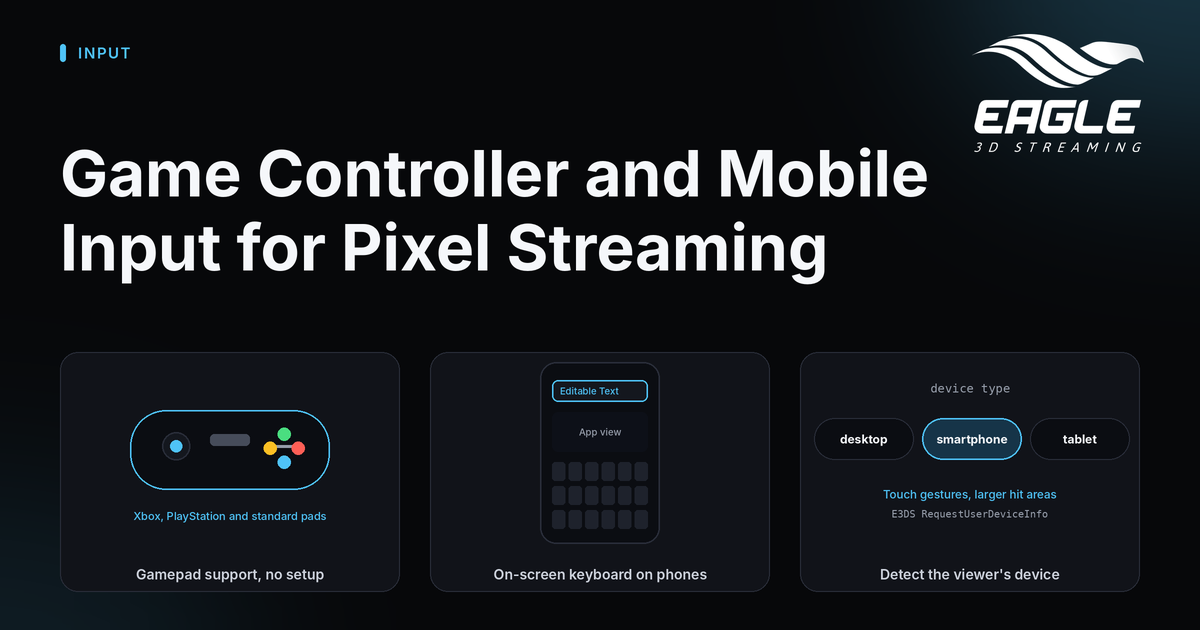
The viewer's browser detects the controller and maps its inputs to your streamed app. Button presses, joystick movement and trigger inputs reach the app in real time. The docs list PlayStation, Xbox and other standard gamepads, and they report tests with an Xbox controller and a PlayStation controller, each in its own session (source).
Setup for the viewer takes three steps:
- Connect the controller by USB or Bluetooth. The operating system must recognize it.
- Open your Eagle 3D Streaming app URL.
- Use the controller right away.
Streaming needs a browser with the Gamepad API, and the docs recommend Chrome or Edge.
What your Unreal project needs
If you started from an Epic Games template, such as the Third Person Template, controller support comes built in. You need no extra setup when you keep the default controller input mappings and package the project as it is (source).
You may need to do more work if:
- You use a custom project or a third-party project kit.
- Someone removed or changed the controller input mappings.
- The project came from a custom source template without controller bindings.
In those cases, restore or reconfigure the original controller input mappings in Unreal Engine.
Fix Common Game Controller Problems
Most controller problems come from the connection, the browser or the project mappings. This table shows what to check first (source).
| Problem | Likely cause | What to do |
|---|---|---|
| Controller not detected | Not connected properly | Connect by USB or pair by Bluetooth, and confirm the operating system sees it |
| Buttons or sticks do not respond | The browser or session does not detect the controller | Refresh the tab, reconnect the controller and use Chrome or Edge |
| Inputs are inconsistent | Several controllers or interference | Disconnect the extra controllers and check with a testing tool |
| Works in the operating system but not in the app | An input mapping problem in the project | Check that the app maps the inputs and review the Unreal Engine input settings |
| Lag or delayed response | Network latency | Use a stable connection and close bandwidth-heavy apps |
To isolate the cause, test the controller on a gamepad tester such as gpadtester.com or hardwaretester.com. Then try the same controller on the E3DS demo app. If it works there but not in your app, the mappings in your project are the place to look (source).
Two controllers connected at once can cause inconsistent input. Plan for one controller per viewer.
The On-Screen Keyboard on Phones and Tablets
On a phone or tablet, the device's own keyboard opens when a text field in your streamed app takes focus. The stream does not draw the keyboard. You need no plugin, configuration or code. It works on Unreal Engine 5.6 and later, and typed input is applied in real time (source).
Two rules decide whether it appears:
- The focused field must be an Editable Text or Editable Text Box widget.
- A connected physical keyboard suppresses the on-screen keyboard. On a tablet with a keyboard case, that is expected.
Because it is the device's keyboard, its look varies a little between browsers and devices. Keystrokes also travel to the server and back, so typing can feel slow on weak networks or in heavy scenes.
| Symptom | Cause | Fix |
|---|---|---|
| No keyboard appears | The field is not an Editable Text or Editable Text Box, or a physical keyboard is connected | Use one of those widgets, or disconnect the keyboard |
| The keyboard covers or clips the field | Mobile viewport and scaling | Put the stream in fullscreen |
| Typing feels delayed | Network conditions or heavy rendering | Check the network requirements |
For the network side, see the docs page on networks and firewalls (source).
If typing works on mobile but not on your page
When you embed the stream in an <iframe>, keyboard events go to whichever frame the browser treats as focused. After a visitor clicks a button on your page, the focus stays on your page, and the stream stops receiving keys, even though the mouse still works. The docs recommend returning focus to the frame after clicks on your page, while skipping inputs, selects and text areas. They also describe an optional Keyboard Focus Notice that you can turn on in the Control Panel (source). To pick between embedding methods, see iframe vs Web SDK.
Detect the Viewer's Device and Adapt Your Controls
The streaming machine is always Windows or Linux with no touchscreen, so Unreal's own platform checks do not describe your viewer. Ask the browser instead. With the E3DS Features plugin, add BP_E3DS_PS_Actor to your level and call E3DS RequestUserDeviceInfo. The reply message has the type takeUserDeviceInfo and includes the operating system and browser details (source).
To read the reply in Blueprints, either parse the JSON yourself or add the interface BI_E3DS_PixelStreaming and implement the event E3DS On Arrival of UserDeviceInfo Message. It gives you the os name, the device type (for example desktop, smartphone or tablet) and the client name of the browser.
Use the result to:
- Switch control schemes: touch gestures and larger hit areas on phones and tablets, mouse and keyboard on desktops.
- Change on-screen hints, so touch users do not see instructions for a right-click.
One caveat applies. Detection relies on the browser's User-Agent, and Safari on iPadOS 13 and newer reports a desktop Mac. An iPad may therefore show up as a desktop, so do not count on it to catch every tablet. Branch on the device type for input choices, and use the OS name only for platform differences such as keyboard modifiers (source).
Mouse Cursor and Mouse Mode
Cursor settings affect how responsive the stream feels. The browser draws its own cursor locally, so it responds immediately. A cursor drawn by Unreal lags behind the hand because it is part of the video. Using both gives you two competing cursors (source).
- Keep Show Browser Mouse on. It sits on the Common tab of your app's configuration and is on by default.
- Turn off
Show Mouse Cursorin the Player Controller. - Call E3DS Change Mouse Control Scheme to switch between
HoveringMousefor menus and buttons, andLockedMousefor looking around in a first-person view. A locked-mouse change takes effect on the viewer's next click.
Test Input on a Real Device
The best test uses the real thing. Run your build locally, find your computer's IPv4 address, and open it on a phone. The docs say this shows how the interface behaves at that screen size, whether touch reaches the controls and whether text fields open the on-screen keyboard (source). Our guide to testing Pixel Streaming locally covers the full steps.
Conclusion: Build for Every Input Your Viewers Bring
Pixel Streaming game controller support works as soon as the operating system sees the gamepad and your project keeps its input mappings. The on-screen keyboard works on Unreal Engine 5.6 and later when your fields use Editable Text widgets. Add device detection and a browser-drawn cursor, and your app feels natural on a phone, a gamepad or a desktop.
Ready to try it? Create a free account, upload your build and open the stream link on a phone and with a controller. If you want a second opinion on your setup, reach out through any channel below, or explore the Features plugin and the any-device streaming feature.
Need help?
If you need any assistance, feel free to reach out through any of the following channels:
🛠️ Support Portal: Contact Our Support Team
💬 Discord Community (Faster Support): Join Our Discord Community
📧 Email Support: support@eagle3dstreaming.com
Follow us on:
Facebook | GitHub | LinkedIn | YouTube
FAQ
Does Pixel Streaming support Xbox and PlayStation controllers?
Yes. The docs list PlayStation, Xbox and other standard gamepads, and they report tests with both an Xbox and a PlayStation controller (source).
Do I need to configure anything to use a game controller?
No configuration is needed on Eagle 3D Streaming. Connect the controller by USB or Bluetooth, open the app URL and use it (source).
Why does my controller work in the operating system but not in my app?
The cause is usually an input mapping issue in the project. Check that the app maps the inputs, and review the Unreal Engine input settings (source).
Which Unreal Engine version does the on-screen keyboard need?
It works on Unreal Engine 5.6 and later, with text fields built from Editable Text or Editable Text Box widgets. No plugin, setting or code is required (source).
Why does no keyboard appear on my tablet?
The focused field may not be an Editable Text or Editable Text Box widget, or a physical keyboard may be connected, which suppresses the on-screen keyboard (source).
How can my app tell whether the viewer is on a phone?
Call E3DS RequestUserDeviceInfo from the Features plugin and read the device type in the reply. Safari on iPadOS may report a desktop Mac, so do not rely on it for every tablet (source).
Share this article