Test Pixel Streaming Locally: Check Your Unreal Build Before You Upload It
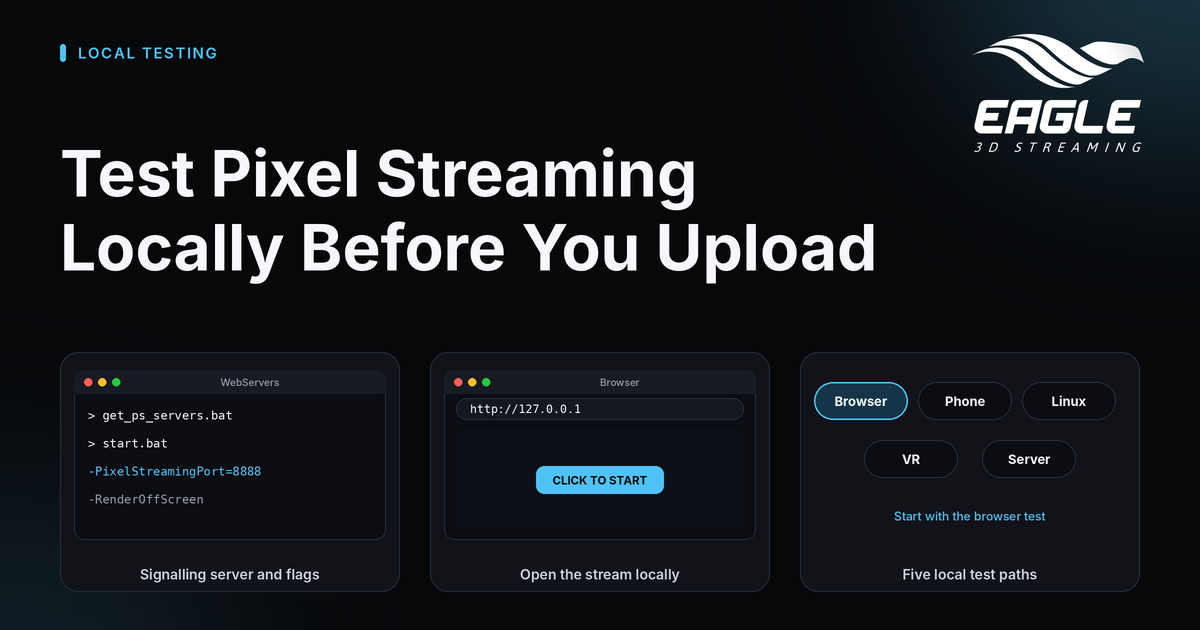
Test Pixel Streaming locally in minutes: start the signalling server, launch your build with the right flags, and check it on a phone, in VR or on a server.
 Rafshan Tashin
October 23, 2026
9 min read
You can test Pixel Streaming locally in a few minutes, and it saves you a failed upload. An upload also tests your app, but only at phase 6, after four other phases, and the result shows up as a red bar instead of a readable log. A local test shows the same failure in a terminal, in seconds, with no upload at all (source).
This guide covers the base test in your own browser, then the variations for another device, a Linux build, a VR headset and a dedicated server.
What a Local Pixel Streaming Test Proves
A local test checks three things: the build is valid, Pixel Streaming is enabled in it, and the app streams and accepts input. The docs say that almost every upload that fails at testing fails one of these three, and all three show up locally (source).
You need a packaged Unreal app and Epic's Pixel Streaming signalling server, which runs on your own machine. Pick the simplest path that reproduces your problem.
| Path | What you test | What it adds |
|---|---|---|
| From your own browser | A Windows build on the same computer | The base case, with no network involved |
| From another device | The same build on a phone or second computer | A second device on your network |
| A Linux build | A build packaged for Linux | A launch script instead of a shortcut |
| A VR app | A VR-configured Windows build | HTTPS and a headset |
| A dedicated server | A server build and a client build | Two players in one session |
Start with the first row. It removes the network completely, so if the test fails there, phones, VR and servers are not the cause (source).
Test Pixel Streaming Locally From Your Own Browser
You need a packaged Windows build with the Pixel Streaming plugin enabled (source).
- Confirm the build launches. Double-click the
.exe. It should open as a normal desktop app. If it does not, the package is invalid, and no streaming setup will fix that. - Fetch the signalling server. Open the folder named after your project, next to the
.exe, and runSamples\PixelStreaming2\WebServers\get_ps_servers.bat. A terminal downloads the files and closes by itself. - Start the signalling server. In the same
WebServersfolder, runSignallingWebServer\platform_scripts\cmd\start.bat. The first run takes a few minutes. Keep the terminal open, and do not click inside the black window, because a click pauses everything in it. Press Esc to resume. - Launch the app with streaming arguments. Add this line after the quoted
.exepath, either in a shortcut's Target field or in Command Prompt:
-log -AudioMixer -PixelStreamingIP=127.0.0.1 -PixelStreamingPort=8888 -RenderOffScreen -AllowPixelStreamingCommands
- Open the stream. Go to
http://127.0.0.1and click CLICK TO START. If the page does not load, tryhttp://localhost, because one of the two addresses is blocked on some Windows machines.
If your app appears in the browser and responds to input, the build is not the cause of an upload failure (source).
What the streaming flags do
| Flag | Purpose |
|---|---|
-log | Turns on logging |
-AudioMixer | Turns on the audio mixer |
-PixelStreamingIP=127.0.0.1 | Points the app at the signalling server on localhost |
-PixelStreamingPort=8888 | Sets the port |
-RenderOffScreen | Renders without opening a window |
-AllowPixelStreamingCommands | Lets the browser page send commands to the app |
If the page loads but the app never appears
The signalling server works, but no app has connected to it. Confirm the app from step 4 is still running. If it is, the build probably lacks Pixel Streaming. Enable the plugin, package again and retry. The docs say this matches the yellow warning shown in phase 1 of an upload (source).
Test Pixel Streaming Locally on Another Device: Phone or Second Computer
Once the browser test works, check a phone. This shows how your interface behaves at a small screen size, whether touch reaches the controls, and whether text fields open the on-screen keyboard. It does not measure real-world latency, because all traffic stays on your network (source).
- Start the app and the signalling server as above, and keep both open.
- Run
ipconfigon the host and note the IPv4 Address. - On the second device, open a browser, enter that address and click CLICK TO START.
If the address does not load, suspect the network before the app. The two devices may sit on different networks, such as guest Wi-Fi and mobile data, or Windows Firewall may block the port. To tell which, open the same address on the host itself. If it fails there, the problem is on the host. If it works there but not on the phone, the devices are probably on different networks (source). For network rules beyond your desk, see the docs page on networks and firewalls.
Test a Linux Pixel Streaming Build Locally
On a Linux machine, packaged for Linux with the plugin enabled, the flow is similar with shell commands (source).
- Run
chmod +x YourProjectName.sh, then./YourProjectName.sh, to check the build opens. - In
<App Folder>/Samples/PixelStreaming2/WebServers, run./get_ps_servers.shto download the signalling server. - In
SignalingWebServer/platform_scripts/bash, run./run_local.shand keep that terminal open. - Create a launch script in the app's root folder, because Linux has no shortcut Target field. It starts the project binary with
-log -AudioMixer -PixelStreamingIP=localhost -PixelStreamingPort=8888 -RenderOffScreen "$@". - Run the script, open
localhostin a browser and click CLICK TO START.
If get_ps_servers.sh fails with "No such file or directory", the error is misleading. Check that curl is installed (which curl), and if it still fails, the script may have Windows line endings. Convert it with dos2unix and retry (source). For packaging and hosting details, see Linux Pixel Streaming for Unreal Engine.
Test a VR App Locally
VR adds one requirement: HTTPS. WebXR, the browser API that puts the stream into the headset, works only on a secure page. Over plain HTTP the stream still runs as a flat picture, but the XR button never appears (source).
You need a packaged Windows build of a VR-configured project and a headset on the same network as your computer. In short:
- Fetch the signalling server, but do not start it yet.
- Set
"https": trueinconfig.jsonin theSignallingWebServerfolder. - Extract the docs' self-signed certificate ZIP into that folder. The headset browser shows a warning, which you accept.
- Start the signalling server.
- Launch the app with the usual flags plus
-PixelStreamingEnableHMD -ResX=1920 -ResY=1080. - In the headset browser, open
https://<your IPv4 address>and press the XR button.
Keep the resolution flags. A VR app renders two eyes, so its frame is much wider than a flat app's. Without them, the log reports "Encoder pending resolution exceeds device max capabilities" (source). The full story is in the VR Pixel Streaming getting started guide.
Test a Dedicated Server Locally
Multiplayer needs two builds: a server (YourProjectServer.exe, no window, console only) and a client (YourProject.exe) (source).
- Make a shortcut to the server, add
-logto its Target field, and run it. - Read the listening port from the server log. It is usually 7777, but if another instance is running, Unreal moves up to the next port, such as 7778. Use the port in the log.
- Start a client, press ~ to open the console, and type
open 127.0.0.1:7777with your port. - Start a second client and repeat the command.
If both clients see each other, the server accepts connections and replication works. Establish that before you add streaming or scaling. Two YourProjectServer.exe entries in Task Manager are normal, because a small launcher starts the real server. End both when you stop. Ending only the launcher leaves the real server holding the port (source). To go further, see multiplayer Pixel Streaming with a dedicated server.
Local Test Troubleshooting at a Glance
| Symptom | Likely cause | Fix |
|---|---|---|
The .exe does not launch | The package is invalid | Fix the packaging first |
| Everything freezes after a click | You clicked inside a black terminal window | Select the window and press Esc |
| The page loads but no app appears | No app connected, or Pixel Streaming is missing from the build | Confirm the app is running, then enable the plugin and package again |
http://127.0.0.1 will not load | One address is blocked on your Windows machine | Try http://localhost |
| The phone cannot reach the address | Different networks or a firewall | Compare with the host browser |
If your startup flags are the suspect, 5 command-line mistakes that break UE5 Pixel Streaming deployments is a good next read.
Conclusion: Make Local Testing Part of Every Release
A local test turns a vague red bar into a clear answer in seconds. Run the browser test first, then add a phone, a headset or a server only if your problem needs one. When the local stream works, you can upload with confidence.
Ready to upload? Create a free account and use the Control Panel's upload flow once your local test passes. If you want a second opinion on your setup, reach out through any channel below.
Need help?
If you need any assistance, feel free to reach out through any of the following channels:
🛠️ Support Portal: Contact Our Support Team
💬 Discord Community (Faster Support): Join Our Discord Community
📧 Email Support: support@eagle3dstreaming.com
Follow us on:
Facebook | GitHub | LinkedIn | YouTube
FAQ
Why should I test Pixel Streaming locally before uploading?
An upload tests your app only at phase 6, and the result appears as a red bar. A local test shows the same failure in a terminal within seconds, with no upload needed (source).
What do I need to test Pixel Streaming locally?
You need a packaged Unreal app with the Pixel Streaming plugin enabled, plus Epic's signalling server running on your own machine (source).
Why does my local stream page load but show no app?
The signalling server works, but no app has connected. Check that your app is still running with the streaming flags. If it is, the build probably lacks Pixel Streaming (source).
Why can't my phone open the local stream?
The phone and computer may be on different networks, or Windows Firewall may block the port. Open the same address on the host to tell which one it is (source).
Why is there no XR button in my headset?
WebXR needs HTTPS. Set "https": true in config.json, add the certificate, restart the signalling server and open the https:// address (source).
Which port does my dedicated server use?
It is usually 7777, but Unreal increments the port if another instance is running. Read the actual port from the server log (source).
Share this article