How to Patch an Unreal App on Eagle 3D Streaming With a Pak File
Learn how to patch an Unreal app on Eagle 3D Streaming. Build a pak file with two launch profiles, test it locally, and send it without a full re-upload.
 MD Rafshan Tashin Eshan
October 16, 2026
8 min read
To patch an Unreal app on Eagle 3D Streaming, you upload a small patch file instead of the whole build. A packaged Unreal build runs to gigabytes, so re-sending it for a moved object or a changed material wastes time. A patch carries only what changed, and the app loads it on top of the original build (patching overview).
This guide walks through the full path: why patching helps, how to set up two launch profiles, how to build and test a pak file, and how to send it.
Why Patch an Unreal App Instead of Re-Uploading the Build?
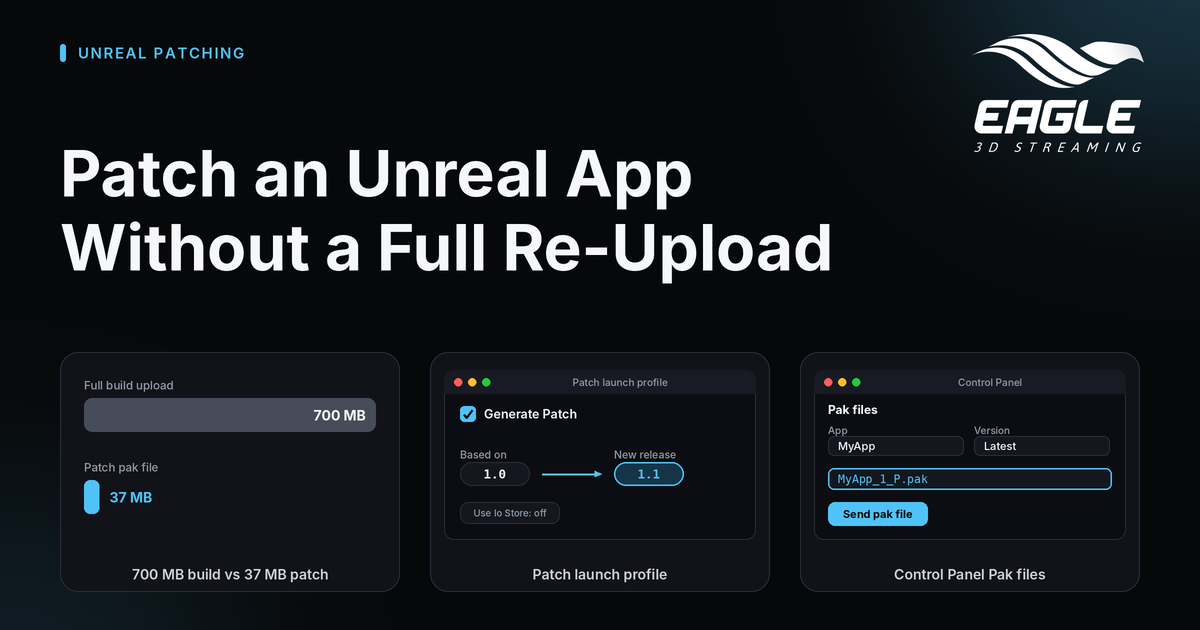
A patch is a .pak file that holds only the changed content. It sits on top of the base build, and the app loads both. You get much smaller and faster updates. In the official demo, the build is 700 MB and the patch pak file is 37 MB (demo page).
The price is a versioning scheme you have to keep straight. Build a patch against the wrong base version and the app stops running, with no error message to guide you (source).
| Full re-upload | Patch | |
|---|---|---|
| What you send | The whole packaged build | One small .pak file |
| Waiting | The whole upload sequence, every time | A much smaller transfer |
| Version effect | Creates a new version | Attaches to the version that was live at upload |
| Main risk | Slow turnaround | A patch built against the wrong base |
For a full new version, the Applications and versions page covers the other route.
The Three Stages of Patching
Eagle 3D Streaming splits patching into three stages (source):
- Try it on a demo app. Upload a prepared build and a ready-made patch, and watch the app change before your own project is involved (demo guide).
- Set up the launch profiles. You need one profile for the base build and one for patches. This stage has to be right (profile guide).
- Make and send your own patch (patch guide).
The demo is the fastest way to understand the mechanism. It needs no Unreal Engine, only the packaged demo project from the documentation.
Set Up Launch Profiles for the Base Build and the Patch
Patching needs two custom launch profiles in Unreal's Project Launcher. Find them under Platforms, then Project Launcher, then Add a Custom Launch Profile. Keep both, because the base profile is not a one-off (source).
Before you build anything, turn off "Use Io Store" in Project Settings, under Packaging. With it on, Unreal splits content into .utoc and .ucas containers, and the patch is no longer a single .pak file. Use the same setting for the base build and every patch made against it.
| Setting | Base build profile | Patch profile |
|---|---|---|
| Cook Mode | By The Book | By The Book |
| Platform, culture, maps | Windows, en, your working map | Same as the base |
| Release or version | Create a release version of the game for distribution, version 1.0 | New release version 1.1, based on 1.0 |
| Generate Patch | Not used | Enabled |
| Patch tier | Not used | Off for _0_P, on for the next tier _1_P |
| Advanced | Iterative Cooking, Compress Content, single file (unrealPak) | Compress Content, single file (unrealPak) |
| Package | Package and store locally, retain the staged directory | Package and store locally, retain the staged directory |
| Deploy | Do not deploy | Do not deploy |
The release option is what makes patching possible. It records the state of the base build, so a later patch can be computed as the difference. A base packaged without it cannot be patched, and you only find out when you try to build the patch.
The two version fields form the whole mechanism. "Based on" names the build you compare against, and "new release version" names what you produce. Point the patch at the wrong base and you get a file that looks fine but fails against the build you shipped.
Build the Pak File and Test the Patch Locally
Once the profiles exist, making a patch takes three steps (source):
- Make your change in Unreal, such as editing a level, changing a Blueprint or adding an object, and save everything.
- Open Platforms, then Project Launcher, pick your patch profile, and click Launch.
- Collect the file from
Saved\StagedBuilds\Windows\[ProjectName]\Content\Paks.
Then test it before you upload. Copy the new .pak into the Content\Paks folder of your base game and run the base game. Your change should appear. This takes about a minute, and it tells you whether a failure comes from a bad build or a bad upload.
Send the Pak File and Update a Streamed App
Your base game must already be live through the Control Panel upload. Sending patch pak files currently lives in the beta Control Panel, under Utilities, then Pak files (source). Follow these steps:
- Choose the app.
- Choose the version the patch is for. The newest version is preselected, and the list shows patches already sent.
- Choose the patch
.pakfile. If your build also made.utocand.ucasfiles for the patch, choose them together with it. - Tick the box that confirms the patch was built against that version and carries a higher number, then click Send pak file.
The Control Panel refuses files that are not pak files, pak names without a patch number, and patches numbered no higher than one already sent. Unreal names a patch <n>_<number>_P.pak and loads the higher number last, so a lower number would lose to the older patch. Sending a file with an existing name replaces it.
Open the app link again to see the change. Eagle 3D Streaming downloads the patch before the app starts. Patches arrive at launch, so running sessions, and instances already waiting for a viewer, keep the old content until they restart.
Rules That Break a Patched App
Most patch failures trace back to a few habits (source):
- Never remove the base
.pakfile. A patch adds to the build. Without the base pak, the app will not run at all. - Upload the base first, then patches in order. Higher-numbered patches override lower ones, so sequence carries meaning.
- Name files consistently. With "Add a new patch tier" off, every patch is
_0_P, holds all changes since1.0, and replaces the previous one. Turn it on to produce_1_P, which loads on top of_0_P. - Re-send patches after a new base. A patch belongs to one uploaded version, so a new base build starts with no patches (source).
- Keep old patch files. Removing a patch does not revert the app today, because machines only add or replace patches. To roll back, upload a new base version, or ask support to clear the patch from the machines.
If the app runs but shows old content, check three things in order: whether this is a new session, whether the base was re-uploaded after the patch, and whether the patch numbering sorts below an existing patch (source).
Conclusion: Patch an Unreal App and Ship Updates Faster
When you patch an Unreal app, you send megabytes instead of gigabytes and keep your stream link intact. The work lies in the setup: a release base build, a matching patch profile, consistent pak names, and a local test before every upload.
Want to try it first? Download the demo project from the documentation, send its patch, and watch the trees appear. If you get stuck on profiles or version numbers, our team can help through any channel below. You can also read how to revert a bad Unreal Engine build, or explore CI/CD app upload automation.
Need help?
If you need any assistance, feel free to reach out through any of the following channels:
🛠️ Support Portal: Contact Our Support Team
💬 Discord Community (Faster Support): Join Our Discord Community
📧 Email Support: support@eagle3dstreaming.com
Follow us on:
Facebook | GitHub | LinkedIn | YouTube
FAQ
What is a pak file patch?
A patch is a .pak file that holds only what changed since the base build. The app loads it on top of the base pak files (source).
Why turn off "Use Io Store" before patching?
With it on, Unreal splits content into .utoc and .ucas containers, so the patch is not a single .pak file. Use the same setting for the base build and every patch (source).
Can I remove a patch to roll back an update?
Not today. Removing a patch does not revert the app, because machines that already have a patch keep it. Upload a new base version, or ask support to clear the patch from the machines (source).
Why does my app still show the old content?
Patches load at launch, so running sessions and waiting instances keep old content until they restart. Also check whether you re-uploaded the base after the patch, and whether the patch number sorts below an existing one (source).
Do I need to send patches again after a new base build?
Yes. A patch belongs to one uploaded version, and a new base build starts that version with no patches (source).
What happens if my patch number is too low?
The Control Panel refuses a patch numbered no higher than one already sent for that version. Unreal loads the higher number last, so a lower one would be overruled by the older patch (source).
Share this article