Project Packaging
View docsPackages your Unreal Pixel Streaming project for you, so no build starts with doing it by hand.
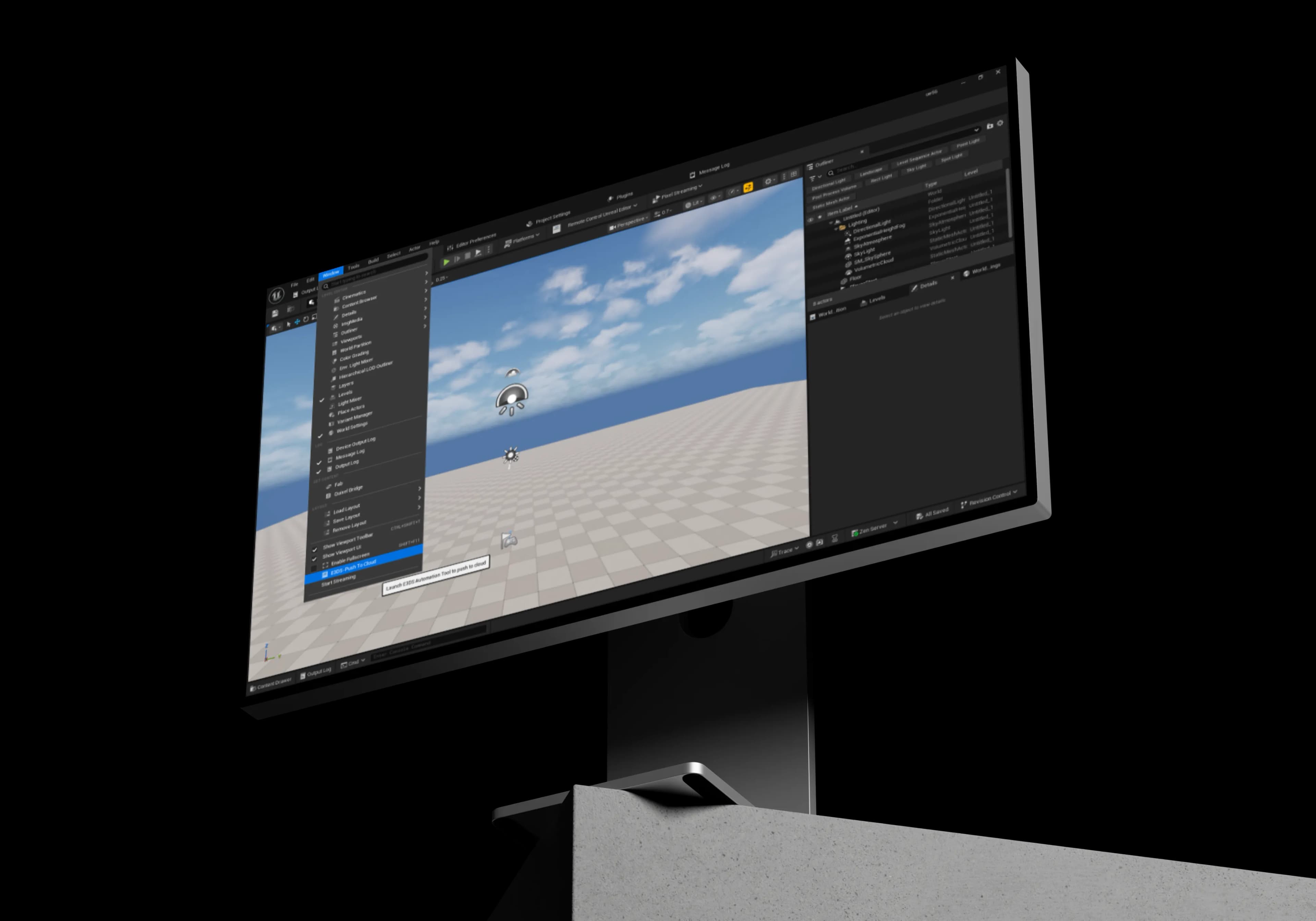
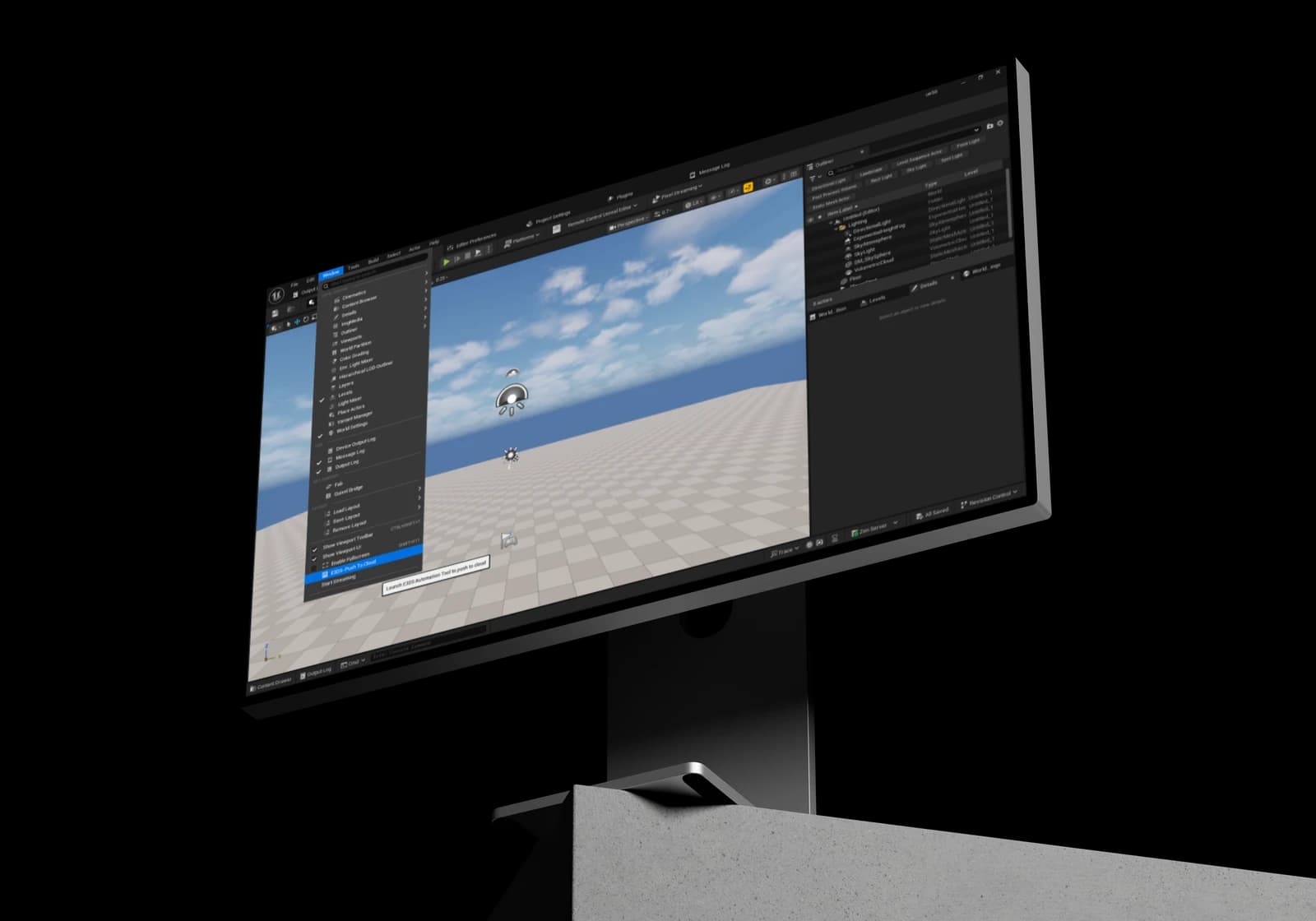
E3DS Automation Tools packages your project, compresses it with 7-Zip and uploads it to Eagle 3D Streaming, from inside the editor. Set it up once and you stop running those steps yourself.
Built for teams iterating on Unreal pixel streaming apps every day


Getting a Pixel Streaming build onto Eagle 3D Streaming means packaging the project, compressing it, then uploading it. None of it is difficult. All of it is manual, and
it comes back every time you ship.It pulls you out of the editor into separate tools, and the next build starts the same way.
Build and package the
Unreal Engine project for deployment.
Compress the packaged
build into an archive for uploading.
Upload the compressed build to Eagle 3D Streaming.
Make changes and prepare the next version of the application.
Repeat the packaging, compression, and upload process for each new build.
Configure it once. After that, Launch E3DS Automation Tool packages the project,
compresses it with 7-Zip and uploads it, without you leaving the editor.This demo app was uploaded that way.
Without The Plugin
With The Plugin
A single-click deployment pipeline that runs from inside Unreal Editor — packaging your Pixel Streaming project, compressing it with 7-Zip, and uploading it to Eagle 3D Streaming, all automatically.
Packages your Unreal Pixel Streaming project for you, so no build starts with doing it by hand.
Compresses the packaged build with 7-Zip, which gets it smaller than standard zipping does.
Sends the compressed build straight to Eagle 3D Streaming. No separate upload step.
End remote control at any time from the plugin menu. Streaming stops and the active browser session closes.
Once, and then not again
Install the plugin, enable it along with Pixel Streaming in the Plugins section, then restart the editor.
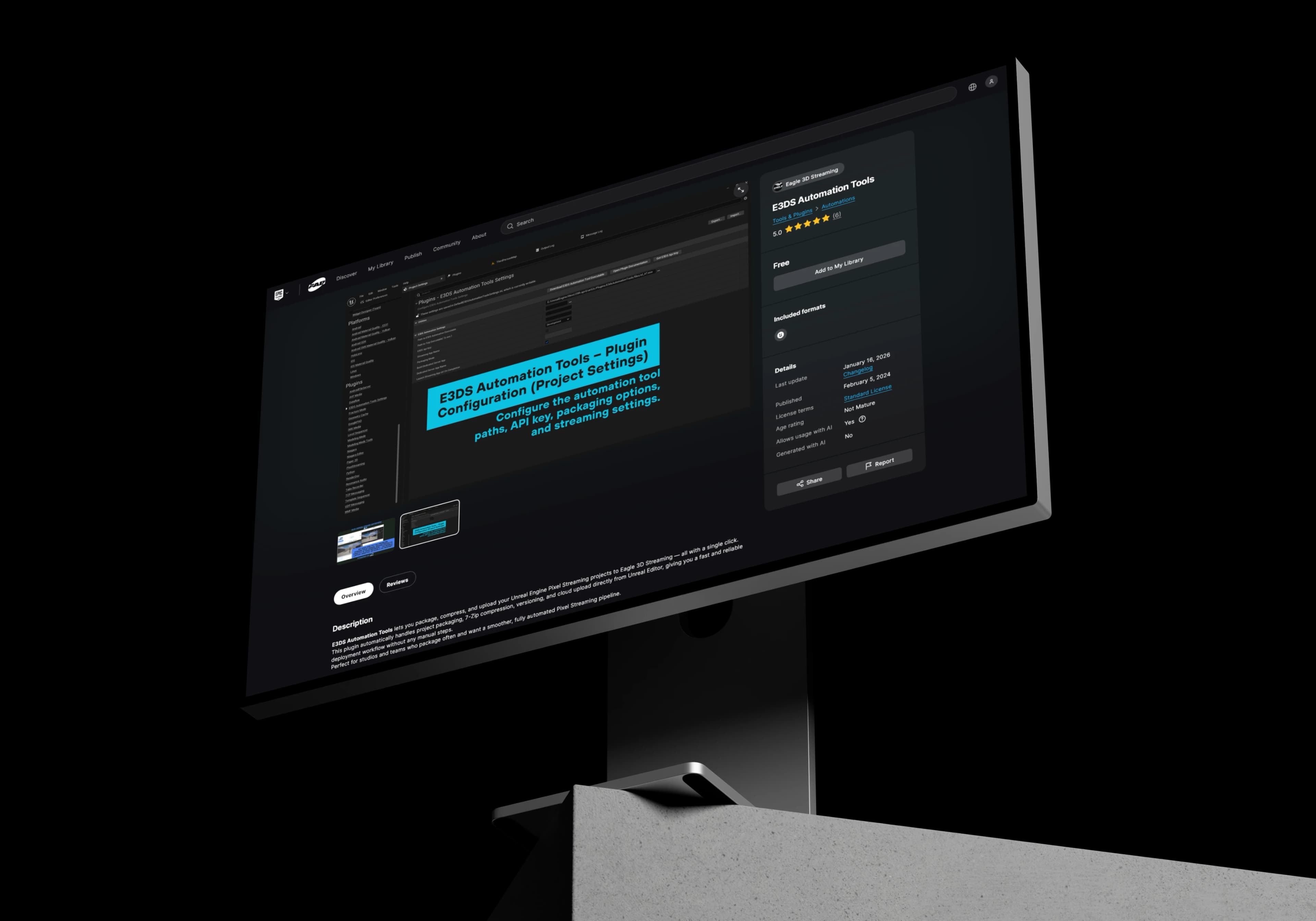
In Project Settings, open E3DS Automation Tools Settings and add the automation executable path, your 7-Zip path, your API key and the app name.
Hit Launch E3DS Automation Tool. The project packages, compresses and uploads on its own.
Want the stream to open when it finishes? Leave Automatically Open Browser on Stream Start on, or turn it off and open the URL yourself.
Eagle 3D Streaming has two ways to automate an upload. The difference
is whether a person is there when the build ships.
This Plugin
You package by hand, from the editor. One click runs the whole routine without you leaving Unreal. This is the one you want if nothing in your setup is scripted.
A pipeline ships your builds and nobody is watching. The Kit is a Node package that runs the same upload from a script, triggered by a commit or a schedule. See the CI/CD tools ›
The pieces the automation pipeline depends on
Installed separately, then point the plugin at it
7-Zip
Download the E3DS Automation Tool executable separately and point the plugin at it
Get your E3DS API key from the Eagle 3D Streaming control panel and paste it into the settings
The plugin has to be enabled in your project
Pixel Streaming