Pixel Streaming Connection Speed Test: How to Check Stream Health and Live Connection State
Run a Pixel Streaming connection speed test without hurting the stream. Learn when to test, and how live connection state shows packet loss and round trip time.
 MD Rafshan Tashin Eshan
October 16, 2026
8 min read
A Pixel Streaming connection speed test tells you how well a viewer's internet can carry your stream, but timing matters. Run it at the wrong moment and the test itself makes the video worse. This guide shows when to test, what each test measures, and how live connection state gives you stream statistics for free once the video starts (Connection speed and health).
The Three Parts of a Pixel Streaming Connection
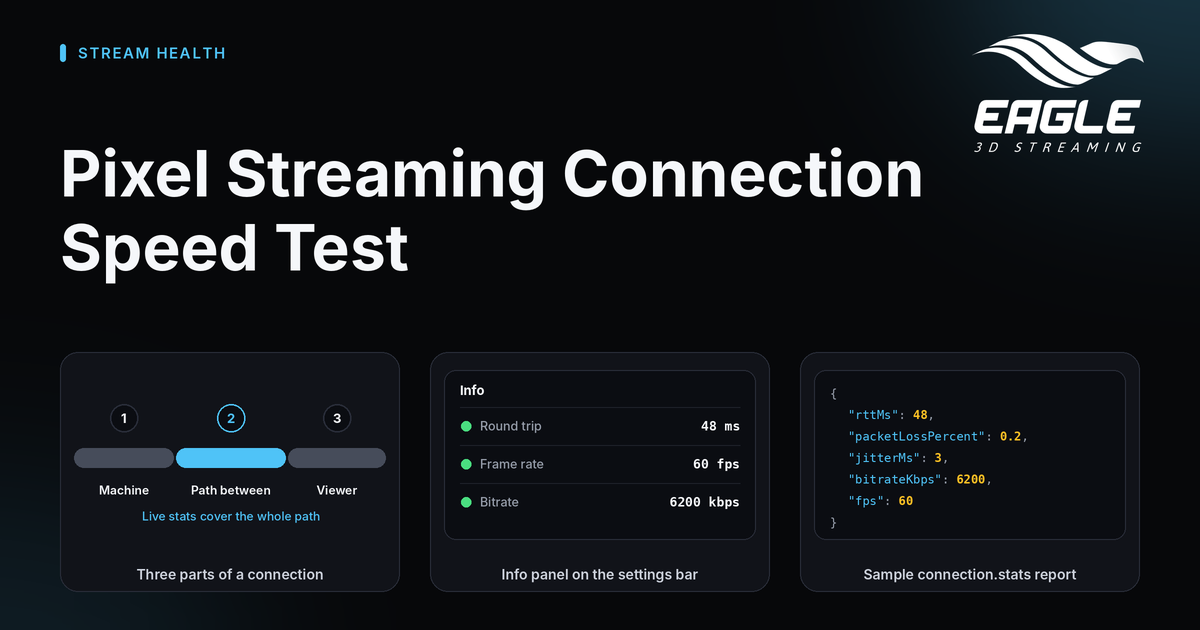
An Eagle 3D Streaming stream travels over three parts: the streaming machine's internet connection, the internet in between, and the viewer's internet connection. You test each part a different way, and a test at one end says nothing about the other end (source).
| Part | How to test it | If you test during the stream |
|---|---|---|
| 1. The streaming machine's connection | From inside your Unreal app: download and upload a file, and time both | The test shares the machine's upload with the video, so the stream can suffer |
| 2. Everything in between | Only WebRTC, the connection the video travels on, measures it. Your page receives it as live connection state | Costs nothing, because the numbers come from the video itself |
| 3. The viewer's connection | From the web page, with a speed test such as Cloudflare's | The test shares the viewer's connection with the video |
Only the video's own numbers cover the whole way from the Unreal app to the viewer. That is why part 2 matters most once the stream is running.
What a Pixel Streaming Connection Speed Test Does to the Stream
A speed test downloads and uploads as much data as the connection can carry, as fast as it can. The video needs that same connection, so the moment you run the test decides whether the viewer notices (source).
Before the video starts, the test has no effect. Nothing else uses the line yet, so the test measures it fully, and the video starts afterward on a free connection.
During the stream, the test and the video compete for a few seconds:
- On a fast connection, nothing visible happens.
- On a limited or unsteady connection, WebRTC lowers the video quality, so the picture turns blurry or blocky.
- Lost packets make the video stutter or freeze for a moment.
- Clicks and key presses respond late, because data waits in a queue behind the test.
After the test ends, WebRTC raises the quality again within seconds, and nothing is lost permanently. The test result also comes out lower than the line can really do, because the video was using part of it. The same logic applies on the machine side: a test run from inside your Unreal app uses the upload the video travels on.
How and When to Run the Speed Test
Run the test before the video starts. Your page can test before it sets the <iframe> address or starts the Web SDK, or at any point until it learns the video has begun (source).
Your page learns the video has started in two ways:
- iframe: the
stream.playingmessage - Web SDK: the
onDataChannelOpencallback
Test the viewer's line from the web page with a public speed test. Test the streaming machine's line from inside your Unreal app. Part 2, the path in between, has no test of its own.
Keep one caveat in mind. A public speed test measures the connection to that company's nearest server, not to the machine that streams to the viewer, which can sit in another region. It is a useful check of the viewer's own line, not of the path the video takes. A test file served from the streaming region is not available yet, and you can ask support about it.
For a rough estimate with no test, Chrome and Edge give every page navigator.connection.downlink (megabits per second) and navigator.connection.rtt (milliseconds). The values are rounded guesses about the viewer's last link, and Safari and Firefox do not provide them.
Live Connection State: Read Stream Statistics During the Session
Once the video starts, the stream reports how well it reaches the viewer every 5 seconds. The report covers round trip, lost packets, jitter, bitrate, frame rate and picture size, and it adds nothing to the connection (Live connection state).
You can read it in three places:
- Streaming page: press the Info button on the settings bar, which needs no setup. See the settings bar.
- iframe: listen on your page for a message with
typeset toconnection.stats. - Web SDK: assign
e3ds_controller.callbacks.onConnectionStats.
Reports arrive every 5 seconds by default. Send the iframe command setConnectionStatsInterval, or call e3ds_controller.setConnectionStatsInterval(2) in the SDK, to choose 1 to 60 seconds, or 0 to stop them. A shorter interval has no noticeable cost, because the reports reuse numbers the browser already collects about once a second. Embed details live in Embed with an iframe and Embed with the Web SDK.
These numbers exist only after the first video frame. Before that, use a speed test.
What Packet Loss, Round Trip Time and Other Numbers Mean
The numbers describe two separate experiences: how fast the app reacts (response) and how the video looks (picture). A poor round trip does not mean a poor picture. It means input reaches the app late, even if the image looks sharp (source).
| Field | Good | Fair | Poor | What poor feels like |
|---|---|---|---|---|
rttMs (round trip time) | Up to 100 | 101 to 250 | Over 250 | Clicks show results a quarter second late |
jitterMs | Up to 20 | 21 to 50 | Over 50 | Response is uneven |
fps | 25 or more | 15 to 24 | Under 15 | Choppy movement |
packetLossPercent | Up to 1 | 1 to 5 | Over 5 | Blocky patches, short freezes |
framesDropped (per report) | 0 to 5 | 6 to 30 | Over 30 | Stutter from the viewer's device |
bitrateKbps (1920x1080, moving scene) | 4000 or more | 1500 to 4000 | Under 1500 | Soft, smeared detail |
Read bitrate with care. A still scene needs far less than a moving one, so judge it only while the picture moves. Steady dropped frames point to the viewer's device, not the connection.
Eagle 3D Streaming sends numbers, not a verdict. A walkthrough tolerates more delay than a game, so set limits that suit your app. The documentation includes sample rating functions you can copy and adjust. Some fields come back as null when a browser does not report them, and Safari reports fewer, so treat null as unknown.
Why the Live Numbers Are the Better Measure
The video travels over WebRTC, which measures the connection the whole time. It raises quality step by step, watches for the network to push back, then lowers quality a little and tries again. Within seconds it settles close to what the connection can carry (source).
So during a stream, the live numbers describe the real path from the streaming machine to the viewer, and reading them costs nothing. This adjustment is built into WebRTC, inside the browser and inside Unreal's Pixel Streaming. It is not a setting on Eagle 3D Streaming.
Conclusion: A Smarter Pixel Streaming Connection Speed Test
Test before the video starts, then switch to live connection state once it plays. That order protects the viewer's experience and still gives you honest numbers. Match your own rules to your app, and separate response problems from picture problems when you talk to viewers.
Want help building a connection check into your page? Reach out through any channel below. You can also read how Eagle 3D Streaming handles datacenter routing and what developers and viewers need, or start streaming for free.
Need help?
If you need any assistance, feel free to reach out through any of the following channels:
🛠️ Support Portal: Contact Our Support Team
💬 Discord Community (Faster Support): Join Our Discord Community
📧 Email Support: support@eagle3dstreaming.com
Follow us on:
Facebook | GitHub | LinkedIn | YouTube
FAQ
Does a speed test affect the stream?
Before the video starts, no. During the stream, the test competes with the video. On a limited connection the picture turns blurry or stutters, and input responds late until the test ends (source).
When should I run a Pixel Streaming connection speed test?
Run it before the video starts, either before your page sets the <iframe> address or starts the Web SDK, or until it receives stream.playing or onDataChannelOpen (source).
How often does live connection state update, and can I change it?
It updates every 5 seconds by default. You can set an interval from 1 to 60 seconds, or 0 to stop reports, in both the iframe and the Web SDK (source).
What counts as good packet loss and round trip time?
Packet loss up to 1% is good, and over 5% looks like stutter or blur. A round trip up to 100 ms is good, and over 250 ms feels slow (source).
Why are some stream statistics fields null?
Some browsers do not report every number, and Safari reports fewer. Treat null as unknown in your own rules (source).
Does a shorter reporting interval cost anything?
No noticeable cost. Nothing extra goes to your Unreal app, and a report every 2 seconds instead of 5 adds only a small message to your page (source).
Share this article