Pixel Streaming Meeting Links: How to Host a Live Client Review
Pixel streaming meeting links let one host share a single live session with guests. Learn how to create one, pass control and end it cleanly.
 Rafshan Tashin
November 13, 2026
4 min read
Pixel streaming meeting links solve a problem every visualization studio hits. You send a stream link to four stakeholders, and each one lands in a separate copy of the app, looking at a different part of the model. Nobody sees what you are pointing at.
One session, everyone in it
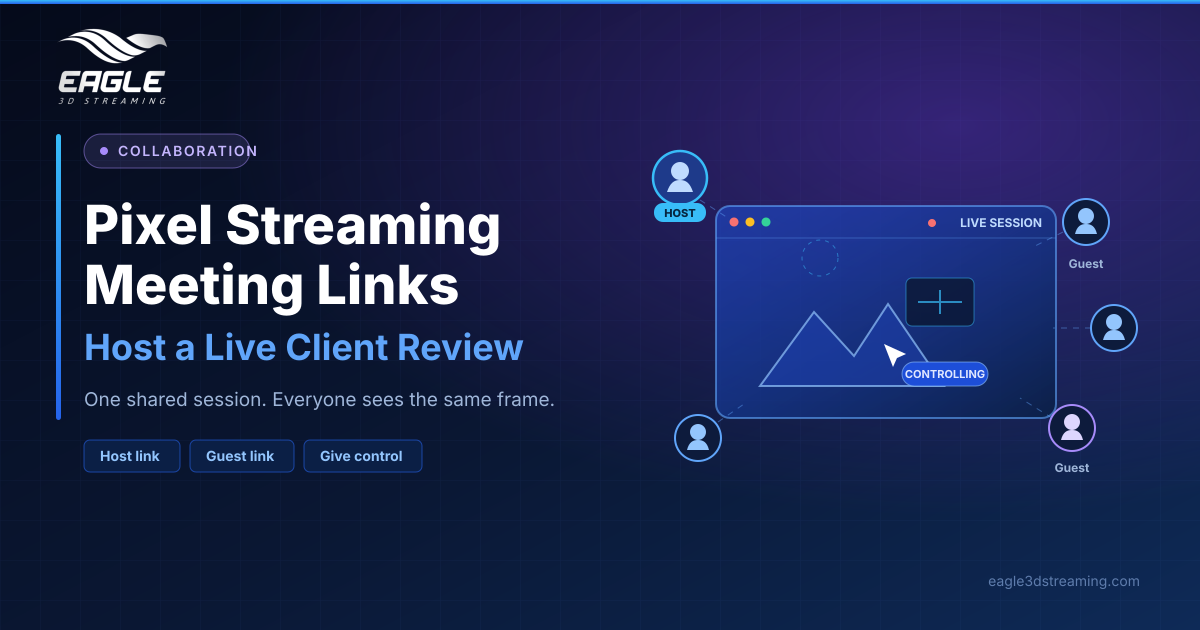
A normal stream link gives each viewer a private session. A meeting link works differently: one person hosts a live session, others join it, and everyone shares the same running instance and sees the same state at the same moment. Guests need no account, only the host does.
That makes meetings right for showing something to a group, such as client reviews, walkthroughs and demos, rather than letting people explore independently. For the difference between session types, read our guide to dedicated vs shared game views.
Creating a meeting link
Sign in to the Control Panel, open your app, go to Meeting Links, and choose Create New Meeting Link. You get two links: one for the host and one for guests.
Running the meeting as host
Open the host link and press play, which starts the machine, the app and the stream. Nothing exists for guests until you do, so start a few minutes early. Then send the guest link, and opening it joins the session already running.
Guests arrive as viewers and can set a display name, which appears in your participant list.
Passing control to a client
Two host controls cover most of what a review needs. Give control lets a guest drive the app with mouse, keyboard or whatever input it accepts, and the same action takes control back. Remove drops a guest from the stream immediately, though they can rejoin with the link.
Grant control to one person at a time. Two people driving the same instance will fight each other.
This is also why input matters: users control the experience from their browsers, sending keyboard, mouse and touch events back to Unreal Engine.
Two things to watch
Security is simple but worth stating. The guest link is the only access control, so anyone holding it can join while the meeting runs, including someone it was forwarded to.
Billing deserves the same attention. End the session when the meeting ends, because a session left running stays open and consumes minutes. Our stream monitor guide shows how to spot and close forgotten sessions.
Where meetings fit your workflow
Studios use them for milestone reviews, sales walkthroughs and internal design critiques. See collaboration and meetings for more patterns, or the meeting feature page for the feature summary. Studios weighing this against a video call may also like the new standard for client reviews.
FAQs
Do guests need an Eagle 3D Streaming account?
No. Only the host needs one.
How many guests can join one meeting?
The docs state no maximum. Size your plan by concurrent capacity, explained in what a CCU is.
Can two people control the app at once?
Technically yes, but they will conflict. Hand control to one person at a time.
Can I revoke a guest link after the call?
Removing a guest is immediate, but the link still works while the meeting runs. (Meeting links)
Is a meeting the same as multiplayer?
No. A meeting shares one instance, while multiplayer runs separate instances in a shared world.
Conclusion
Pixel streaming meeting links turn a scattered review into one conversation around a single live model. Create the link, host it yourself, pass control deliberately, and close the session when you finish.
Ready to run your next review this way? Try a live demo or start a free trial.
Need help? support@eagle3dstreaming.com · Discord