Pixel Streaming Microphone Setup: Send Voice to Your App
Pixel streaming microphone setup in a few steps: enable browser capture, handle permissions, tune bitrate and fix the most common audio faults.
 Rafshan Tashin
November 13, 2026
4 min read
A pixel streaming microphone turns a one-way demo into a conversation. Voice-driven configurators, AI characters and guided walkthroughs all need the viewer's audio to reach the Unreal app, and the setup takes only a few settings once you know where they live.
Turn on browser-side capture
Open the Control Panel, pick your app, edit a stream link's configuration with the pencil icon, switch on Advanced Options, and open the Microphone tab. Turn on Use Browser side Microphone first, because every other setting stays greyed out until you do.
Leave fields blank to keep standard behaviour, and change only what you need. Changes also take effect gradually: saved settings apply the next time a viewer opens the stream, while anyone already watching keeps the old ones until they reload.
Permissions sit with the viewer, not with you
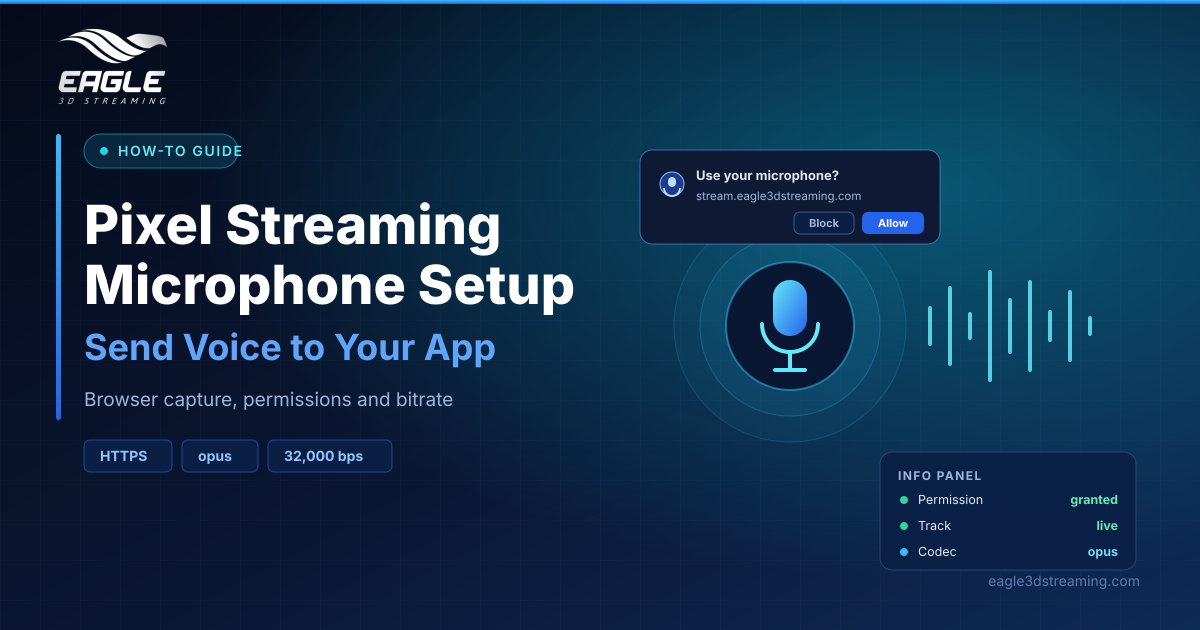
The browser asks each viewer for microphone permission the first time they open the stream. If they decline, no setting on the tab can override it.
The web platform enforces this strictly. getUserMedia only works in a secure context, meaning a page served over HTTPS, and user permission is always required. Embedding matters too: only a top-level document can request permission, unless it grants a specific iframe that right through Permissions Policy. If you embed streams, compare approaches in our guide to iframe vs Web SDK.
Read the info panel instead of guessing
Microphone info appears in the info panel by default, and it reports only. The Permission row shows granted, denied, prompt or unavailable, where unavailable simply means the browser does not report a state. The panel also reports track state, latency, jitter, input level and the codec, which is always opus.
Sound processing options
All three start switched off. Echo cancellation stops the app's own audio re-entering the microphone and helps viewers on speakers, at the cost of slight delay. Noise suppression filters steady background noise but can clip the start of very quiet speech. Automatic gain control evens out loud and quiet voices, though background sound may become faintly audible in silence.
Limits worth knowing
Max bitrate accepts 6,000 to 510,000 bits per second, defaults to 510,000, and the docs suggest 32,000. Sample rate accepts 8,000 to 48,000 Hz, channels accept 1 or 2 with 1 as default, and out-of-range values simply stop the settings saving rather than being adjusted silently.
Latency, bit depth and volume are fixed by the streaming plugin and cannot be configured. For video-side tuning, see pixel streaming video quality.
Fixing the five common faults
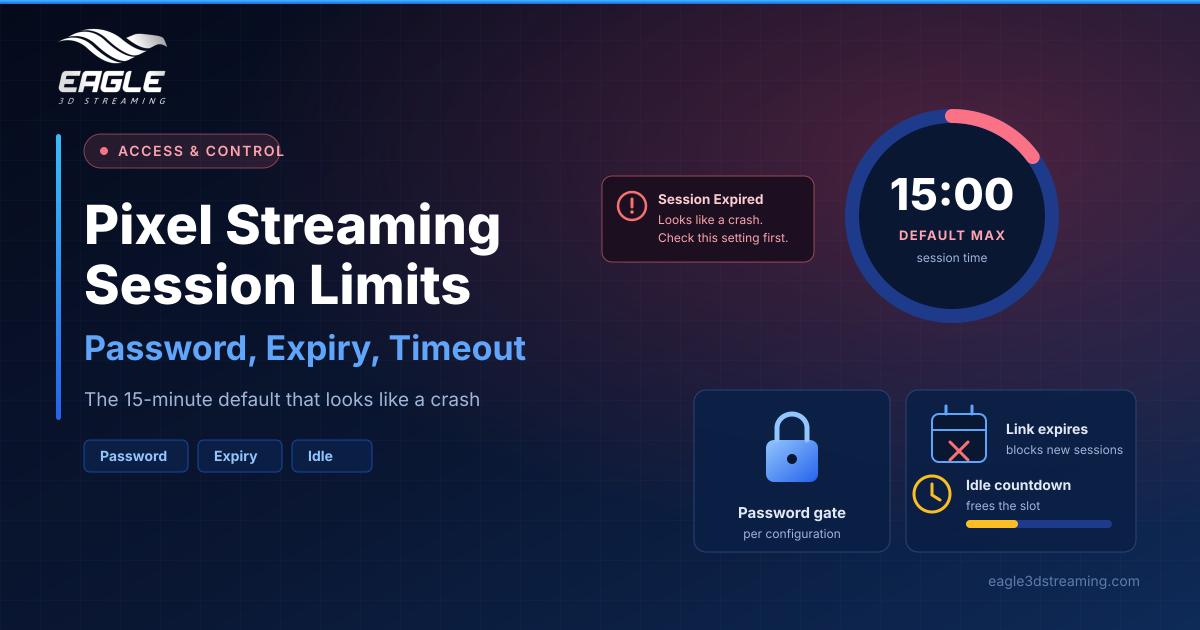
- No sound reaching the app: check whether Permission reads denied, then ask the viewer to allow it and reload.
- Audio stopped partway: Track reads ended, and only a page reload restarts it.
- A setting looks ignored: a bracketed note means the device refused it.
- The app hears itself: enable echo cancellation or ask for headphones.
- Video dips during speech: set max bitrate to 32,000.
Want a working example? Read adding Convai voice AI to a pixel-streamed Unreal app, or browse the audio and microphone FAQ.
FAQs
Does the pixel streaming microphone need HTTPS?
Yes. Browsers expose microphone capture only in secure contexts.
Why does re-granting permission mid-stream not help?
The track has already ended, so the viewer must reload the page.
Which bitrate should I use?
The documentation suggests 32,000 rather than the 510,000 default.
Can I pick the viewer's microphone for them?
No, though a device choice page exists. (Choose the microphone)
Does this work inside an iframe?
Yes, provided the parent page allows the microphone permission. (MDN)
Conclusion
A pixel streaming microphone takes one toggle, one browser permission and a little tuning. Enable browser-side capture, serve the page over HTTPS, watch the info panel when something misbehaves, and drop the bitrate if video quality suffers during speech.
Building something voice-driven? Start a free trial or book a demo meeting.
Need help? support@eagle3dstreaming.com · Discord