Dedicated vs Shared Game Views in Eagle 3D Streaming With Unreal Engine Pixel Streaming
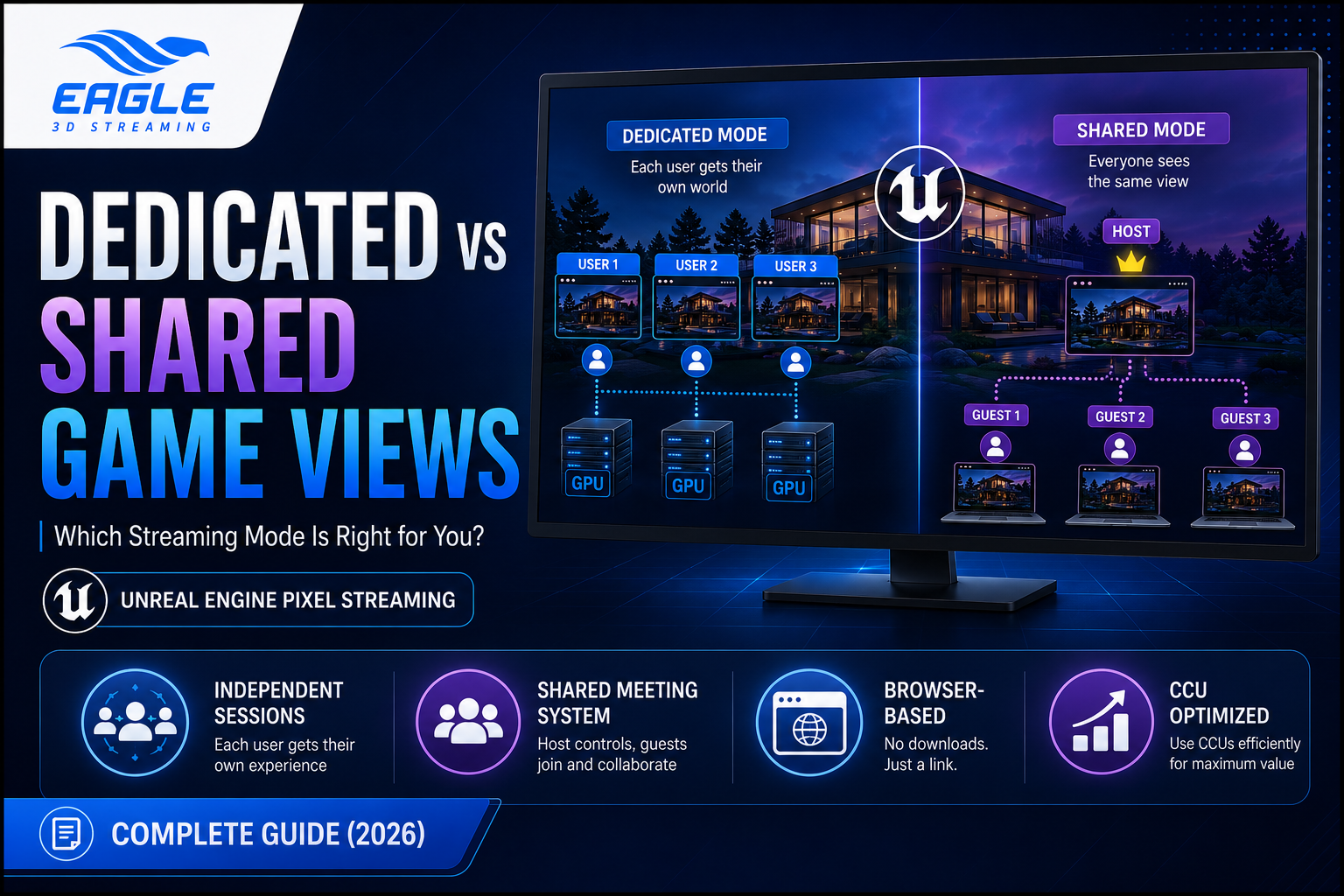
Learn the difference between Dedicated and Shared Game Views in Eagle 3D Streaming. Discover which Unreal Engine pixel streaming mode fits your use case — interactive demos, client walkthroughs, or collaborative sessions.
 MD Rafshan Tashin Eshan
June 19, 2026
9 min read
Introduction
Streaming a high-fidelity Unreal Engine application to clients used to require expensive on-site hardware, complicated setups, and a single person at the controls while everyone else watched passively.
Eagle 3D Streaming changes that entirely.
With Eagle 3D Streaming's pixel streaming platform, you can deliver immersive 3D experiences directly in a web browser — no GPU on the viewer's side, no software to install, no hardware limits. But there's a choice every developer and business needs to make before going live: should each user get their own independent session, or should everyone share the same view?
That's exactly what Dedicated and Shared Game Views solve — and understanding the difference can significantly impact your CCU usage, your workflow, and your user experience.
This guide breaks down both modes in full detail, with a direct comparison, real-world use cases, and answers to the most common questions.
What Is Eagle 3D Streaming?
Eagle 3D Streaming (E3DS) is a cloud-based pixel streaming platform built for Unreal Engine applications. It allows developers, architects, product designers, and enterprise teams to stream interactive 3D experiences to any browser — on desktop, mobile, or VR headsets — without requiring the end user to have any specialized hardware.
Under the hood, E3DS assigns GPU-powered cloud machines to render and stream the Unreal Engine application in real time, forwarding user input (keyboard, mouse, touch) back to the app and streaming the output to the browser via WebRTC.
Understanding the Two Streaming Modes
Eagle 3D Streaming offers two distinct ways for users to interact with a streamed Unreal Engine application:
- Dedicated Game Views and Controls — each user gets their own independent session
- Shared Game Views and Controls — multiple users share one session via the Meeting System
Let's explore each in depth.
H2: What Is Dedicated Game Views and Controls?
In Dedicated Mode, every user who opens the App URL receives a completely independent streaming session powered by its own GPU machine.
How Dedicated Mode Works
When a user opens the App URL:
- The E3DS system receives the connection request
- It locates an available GPU machine and assigns it exclusively to that user
- The application files are loaded from cloud storage to the GPU machine (first-time load) or launched directly (if already prepared)
- The user's browser begins receiving the pixel stream
- Keyboard and mouse inputs from the browser are forwarded to the Unreal Engine app in real time
Each user's session is fully isolated — one user's actions have zero effect on another user's view or controls.
What Each User Gets in Dedicated Mode
- Their own game view
- Their own input control (keyboard, mouse)
- Their own streaming session
- Their own assigned GPU machine
- A fully independent application experience
CCU Usage in Dedicated Mode
Each connected user in Dedicated Mode consumes one CCU (Concurrent User slot).
For example, with 10 CCUs available:
| User Event | CCUs Used | CCUs Remaining |
|---|---|---|
| User 1 joins | 1 | 9 |
| User 2 joins | 2 | 8 |
| User 3 joins | 3 | 7 |
| User 1 disconnects | 2 | 8 |
Best Use Cases for Dedicated Mode
- Product configurators — each customer customizes and explores the product independently
- Training simulations — every trainee goes through the experience at their own pace
- Interactive architecture walkthroughs — each client explores a 3D building model on their own
- E-learning modules — learners interact with educational 3D environments independently
- Multiplayer-style applications where each participant needs full control
H2: What Is Shared Game Views and Controls?
Shared Mode is built on Eagle 3D Streaming's Meeting System. One user acts as the Host and starts a session; other users join as Guests using a Guest Link shared by the Host.
All Guests see exactly what the Host sees — in real time.
How the Meeting System Works
- The Host generates a Meeting Link from the E3DS Control Panel
- The Host opens the Host Link to start the session — this activates the meeting
- The Host shares the Guest Link with participants
- Guests open the Guest Link and join — they immediately see the Host's application view
- By default, Guests are viewers only — they cannot control the app
- The Host can grant full control to a selected Guest at any time
- The Host can revoke control, kick individual Guests, or end the meeting
Host vs Guest Permissions
| Feature | Host | Guest |
|---|---|---|
| Default Control | Full control | View only |
| Can Give Control | Yes — to any Guest | No |
| Can Remove Control | Yes | No |
| Can Kick Guests | Yes (individual or all) | No |
| View Type | Shared meeting view | Mirrors Host's view |
| Ends Meeting | When Host leaves | Meeting ends if Host leaves |
| CCU Usage | 1 CCU | 0 CCU |
CCU Usage in Shared Mode — The Big Advantage
This is one of the most powerful aspects of Shared Mode: only the Host consumes a CCU. Guests join for free.
With 10 CCUs available:
| Event | CCUs Used | CCUs Remaining |
|---|---|---|
| Host joins | 1 | 9 |
| Guest 1 joins | 1 | 9 |
| Guest 2 joins | 1 | 9 |
| Guest 3 joins | 1 | 9 |
You can run a live session with a Host and dozens of Guests while only spending one CCU.
Best Use Cases for Shared Mode
- Client walkthroughs — present a 3D architectural model to a client team remotely
- Live product demos — showcase a product configurator to a sales audience
- Architecture and design reviews — walk stakeholders through a building or space
- Remote collaboration — multiple team members review the same 3D asset in real time
- Training presentations — instructor leads, learners observe (and can take control when invited)
H2: Dedicated vs Shared — Side-by-Side Comparison
| Feature | Dedicated Mode | Shared Mode (Meeting System) |
|---|---|---|
| Session Type | Independent per user | Shared — all see Host's view |
| GPU Assignment | One GPU per user | One GPU for the Host only |
| User Control | Every user has full control | Host controls; Guests view by default |
| Guest Control | Not applicable | Host can grant/revoke |
| CCU per User | 1 CCU per user | 1 CCU for Host; Guests are free |
| Best For | Individual interactive experiences | Presentations, demos, reviews |
| Use Case Examples | Product configurators, simulations | Client walkthroughs, live demos |
| Hardware Required (Viewer) | None — browser only | None — browser only |
| Software Required (Viewer) | None | None |
H2: How to Choose the Right Mode
Ask yourself these questions:
Does each user need to interact with the app independently? → Use Dedicated Mode. Product configurators, simulations, and training tools all benefit from this.
Are you presenting to a group where one person leads and others observe? → Use Shared Mode. Client demos, architecture reviews, and live presentations are ideal here.
Are you concerned about CCU costs with a large audience? → Shared Mode is far more CCU-efficient. One Host, unlimited Guests, one CCU consumed.
Do you need to hand over control to specific participants? → Shared Mode supports this natively — the Host can grant and revoke control on demand.
H2: Technical Requirements
Both modes work entirely in the browser. There are no special hardware or software requirements on the viewer's side.
| Requirement | Details |
|---|---|
| Viewer Hardware | Standard laptop, desktop, tablet, or mobile |
| Viewer Software | Modern web browser (Chrome, Edge, Safari, Firefox) |
| GPU on Viewer Side | Not required |
| Internet Connection | Stable broadband recommended |
| Unreal Engine Version | Compatible with E3DS Pixel Streaming plugin |
| E3DS Account | Required for the Host / App owner |
H2: Getting Started with Eagle 3D Streaming
- Create a free account at the E3DS Control Panel
- Upload and configure your Unreal Engine application
- Choose your streaming mode — Dedicated or Shared (Meeting System)
- For Shared Mode: generate a Meeting Link from the Control Panel, then distribute the Guest Link
- Share the App URL (Dedicated) or Guest Link (Shared) with your users
Full documentation is available at: 👉 https://docs.eagle3dstreaming.com/wiki/the-dedicated-and-shared-game-views-and-controls
H2: Frequently Asked Questions (FAQ)
What is the difference between Dedicated and Shared Game Views in Eagle 3D Streaming?
In Dedicated Mode, each user gets their own independent GPU session and full control of the application. In Shared Mode (Meeting System), all users see the same view as the Host. Only the Host controls the app by default, though control can be granted to Guests.
Does Shared Mode use more CCUs than Dedicated Mode?
No — Shared Mode is significantly more CCU-efficient. Only the Host consumes one CCU regardless of how many Guests join. In Dedicated Mode, every connected user consumes one CCU.
Can Guests control the application in Shared Mode?
Guests are viewers by default. However, the Host can grant full control to any individual Guest at any time, and can also revoke that control when needed.
What happens when the Host leaves a Shared Mode meeting?
When the Host disconnects or leaves, the meeting ends for all participants. Guests receive a meeting-ended notification.
Do viewers need to install any software or have a GPU to use Eagle 3D Streaming?
No. Both Dedicated and Shared sessions run entirely in a web browser. Viewers do not need a GPU, specialized hardware, or any software installation.
What Unreal Engine applications are compatible with Eagle 3D Streaming?
Any Unreal Engine application configured with the Pixel Streaming plugin is compatible with E3DS. For setup guidance, refer to the E3DS Developer Guides.
How many Guests can join a Shared Mode session?
The number of Guests is not directly limited by CCUs (since Guests do not consume CCUs). Platform limits may apply — check the E3DS FAQ for current limits.
Can I embed the stream into my own website?
Yes. Eagle 3D Streaming supports embedding the stream directly into a webpage. See the Embed Stream into Webpage guide.
Conclusion: Stream Smarter with the Right Mode
Eagle 3D Streaming's Dedicated and Shared Game View modes give you full flexibility over how users experience your Unreal Engine application — whether that's an independent product configurator for each customer or a live presentation to an entire client team.
The right choice comes down to your use case:
- Dedicated Mode for independent, interactive per-user experiences
- Shared Mode for cost-efficient, collaborative, and presentation-style sessions
Both modes work entirely in the browser, with no hardware requirements on the viewer's side — making high-fidelity 3D streaming accessible to anyone with a link.
Ready to Get Started?
🆓 Start for free: https://lnkd.in/g4FsvQTD
💬 Join our Discord community: https://lnkd.in/gtG-YW5E
🛠️ Talk to support: https://lnkd.in/gEzQXVkZ
📖 Full documentation: https://docs.eagle3dstreaming.com/wiki/the-dedicated-and-shared-game-views-and-controls
#UnrealEngine #PixelStreaming #Eagle3DStreaming #3DStreaming #CloudRendering #ArchViz #ProductVisualization #WebRTC #GameDev #InteractiveExperiences
Share this article