Self-Hosted Pixel Streaming: Stream From Your Own GPU With E3DS Stream Host
Self-hosted Pixel Streaming with E3DS Stream Host lets you stream from your own GPU. Learn setup, preallocated apps and updates. Free for non-commercial use.
 MD Rafshan Tashin Eshan
October 16, 2026
10 min read
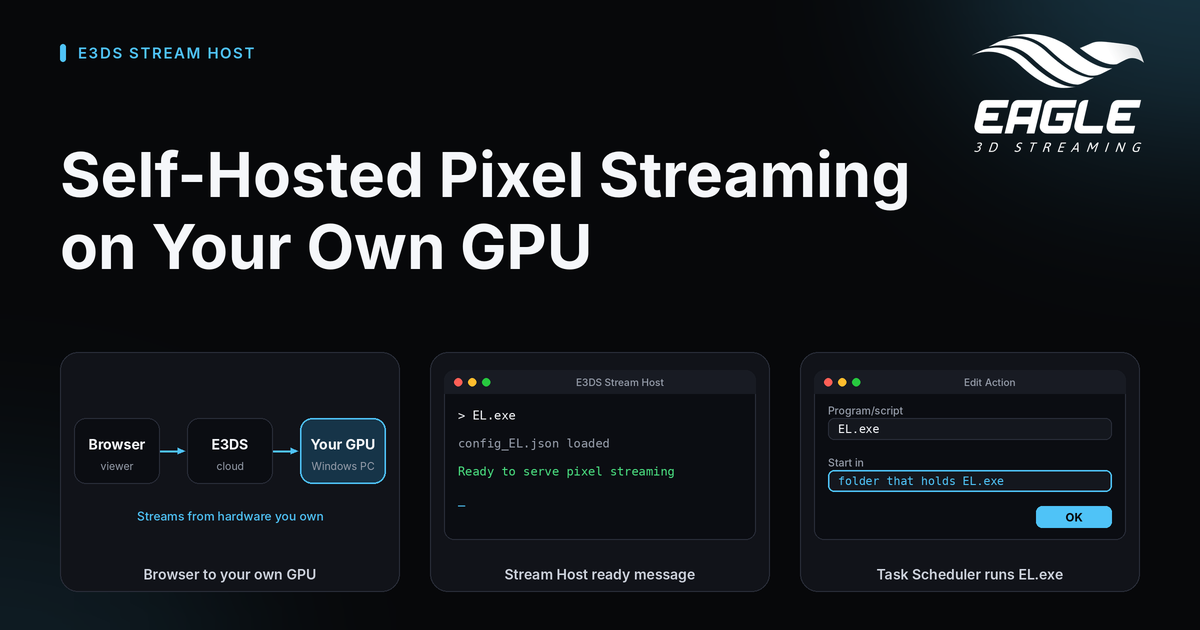
Self-hosted Pixel Streaming lets your own Windows GPU machine run your Unreal app while Eagle 3D Streaming handles the link, the session and the connection. You install one small program, E3DS Stream Host, and viewers open the same kind of link they would open for any uploaded app. Streaming from your own hardware is free for non-commercial use, as the E3DS Stream Host guide explains.
This post covers what Stream Host does, when it makes sense, how to install it, and how to keep your app fast and current.
What Is Self-Hosted Pixel Streaming With E3DS Stream Host?
E3DS Stream Host is an agent: a small program that runs on your machine and keeps it connected to Eagle 3D Streaming. Your app stays on your hardware. Eagle 3D Streaming handles the connection, the link and the session (source).
Here is how the pieces fit together:
- You install Stream Host on a Windows machine and give it your API key. It connects to Eagle 3D Streaming and reports that the machine is ready.
- A viewer opens your link in any browser, on any device.
- Eagle 3D Streaming sends that viewer to your machine. Stream Host starts your app there, and the picture travels from your machine straight to the viewer's browser. Mouse, keyboard and touch input travel back the same way.
Everything else works as it does for an uploaded app. The link, the page the viewer sees, sessions, passwords and configuration stay the same (source).
When to Stream From Your Own GPU (and When Not To)
Self-hosting trades convenience for control. This table shows the main differences.
| Uploading to Eagle 3D Streaming | E3DS Stream Host on your machine | |
|---|---|---|
| Where the app runs | Eagle 3D Streaming GPU machines | Your own Windows machine with a GPU |
| What viewers open | An Eagle 3D Streaming link | The same kind of link, so nothing changes for them |
| Who keeps the machine running | Eagle 3D Streaming | You: power, updates and internet |
| Cost | Your plan | Free for non-commercial use |
Stream Host is a good fit in three cases (source):
- You already own capable hardware that sits idle much of the time.
- Your app cannot leave your network, for licensing or security reasons.
- You want a machine reserved for one app, always ready.
Otherwise, uploading is less to maintain. If your machine is off, asleep or offline, nobody can stream from it.
One cost remains even on a free stream. Most viewers connect directly to your machine, but some sit behind company, school or mobile networks that block direct connections. Their stream passes through a relay server (a TURN server), and Eagle 3D Streaming pays for that relay. Students and research projects can ask support to sponsor it.
What You Need Before You Install E3DS Stream Host
Check these items first (source):
- An Eagle 3D Streaming account, for the API key
- Windows 10, 11 or Server, with a GPU and a good internet connection
- 7-Zip, plus the Unreal Engine prerequisites for the engine version you build with
- Free disk space on the
C:drive
Disk space is the item people underestimate. Stream Host stores apps in C:\e3ds_streaming_apps, and you need this much room:
zipped app size + extracted app size + the largest extracted app you already have
The third term matters because an update unpacks next to the existing copy before it replaces it. The peak is higher than the steady state, so a shortage shows up mid-update.
Hardware needs a test too. All GPUs are supported, but not every app runs on every GPU. Some apps will not stream from an RTX 2080, so test your real app before you commit to a machine.
How to Install E3DS Stream Host and Open Your Stream
Install and connect
- Install the prerequisites. Get 7-Zip and the Unreal Engine prerequisites from their own sources.
- Add 7-Zip to the system PATH. Open Advanced system settings, edit the
Pathvariable, and add your 7-Zip folder (usuallyC:\Program Files\7-Zip). Restart the machine afterward, or Stream Host will not find 7-Zip. - Download Stream Host. In the Control Panel, go to Utilities, then Downloadable Contents, and use the EL Launcher card. Save
EL.ziptoC:\and extract it there. The folder holdsEL.exeandrplm.exe, and Stream Host managesrplm.exeitself. - Run
EL.exeand add your API key. If no key exists yet, Stream Host offers to sign you in to the Control Panel and fetch it. If you say no, or wait 15 seconds, it writesconfig_EL.jsonwith a placeholder key and closes. Paste your key into that file and runEL.exeagain. The API keys and tokens page shows where to find the key. - Wait for the ready message. Connecting takes one to two minutes. You are done when the window prints "Ready to serve pixel streaming".
Until that message appears, Stream Host runs but Eagle 3D Streaming cannot see it, so a stream sent to it waits for a machine that never answers.
Open the stream with the connector_binary address
Machines running Stream Host connect to connector_binary.eagle3dstreaming.com, not to the usual connector.eagle3dstreaming.com. Your stream link must use the same address:
https://connector_binary.eagle3dstreaming.com/v5/<username>/<appName>/<configName>
A link that starts with connector.eagle3dstreaming.com never reaches your machine, because only Eagle 3D Streaming's own machines serve that address. Upload your app in the Control Panel as usual (upload steps). Stream Host downloads it the first time someone streams it.
Start Stream Host automatically with Windows
Stream Host does not install itself as a service. If the machine reboots overnight, nothing brings it back. In Task Scheduler, create a task that runs at log on for any user and starts EL.exe. Fill in the "Start in" field with the same folder, because without it Stream Host cannot find config_EL.json and does nothing (source).
Preallocated Apps: Faster Starts for Self-Hosted Pixel Streaming
Normally a session launches your app when someone opens the link, so the viewer waits through the boot. With preallocated apps, Stream Host keeps the app running, and the viewer waits only for the connection, which takes a few seconds (source).
It is a trade, because you pay for a machine that runs whether or not anyone watches.
| Turn it on when | Leave it off when |
|---|---|
| You run a live demo or event where the first impression counts | Usage is occasional or comes in bursts |
| People arrive at a public experience without warning | The app shares a machine with other apps |
| The machine would rarely sit idle anyway | You would pay all day for a wait that happens a few times |
Preallocation serves only this one app, one session at a time. Add four keys to config_EL.json: preAllocateApps set to true, preAllocateApp_name, preAllocateApp_configurationName, and your apiKey. The app must belong to the account that owns the key, so you cannot preallocate someone else's demo. Launch EL.exe and the app starts at once.
Watch GPU and memory while it runs, since a continuous app exposes leaks that a short session hides. Turn the setting off when your event ends. An app left preallocated keeps costing the same as it did during the event. The load time guide explains why start-up waits happen in the first place.
Update an App Without Re-Uploading to the Control Panel
Sometimes a build cannot leave your machine, because of a security policy, a customer contract or restricted content. In that case you can replace the files directly on your streamer machine. The app entry, the configuration and the stream link all stay the same (source).
For ordinary updates, upload through the Control Panel instead. It is simpler and versioned.
The first time, set up like this:
- Upload a first build under the app name you will really use. A small placeholder works, but it needs the real name, because Stream Host builds the local folder path from it.
- Install and configure Stream Host on the hosting machine.
- Stream the app once. This step creates the local folders, so skipping it leaves nothing to replace.
You can also skip the upload entirely. Every account has the E3DS Starter App in the Control Panel's Demo Apps section. Its files are stored once and shared, so it adds nothing to your storage. Copy its link, swap in your Stream Host domain, and open it once. Stream Host downloads the app (about 0.45 GB). Your build must then use the executable name E3DS_StarterApp.exe.
To replace the build, work in C:\e3ds_streaming_apps\<username>\<application-name>\1:
- Stop any session, then back up the folder.
- Delete the old files, but keep the
.metafolder, which Stream Host uses to recognize the app. - Copy in the complete packaged build.
- Name the executable exactly like the app in the Control Panel, for example
MyApp.exe.
Two warnings apply. A later Control Panel upload creates a new version folder, which can replace your hand-placed build. Also, every machine needs the same manual update, so a forgotten machine keeps serving the old build.
Conclusion: Is Self-Hosted Pixel Streaming Right for You?
Self-hosted Pixel Streaming makes sense when you own the hardware, need your app to stay on your network, or want one machine dedicated to one experience. Install E3DS Stream Host, use the connector_binary address, and plan your disk space and restarts. Add preallocated apps for live events, and turn them off afterward.
Ready to stream from your own GPU? Create a free account, download Stream Host from Utilities in the Control Panel, and follow the install steps above. If you want a second opinion on your setup, reach out through any channel below, or read about self-hosting on Eagle 3D Streaming and the system requirements for developers and viewers.
Need help?
If you need any assistance, feel free to reach out through any of the following channels:
🛠️ Support Portal: Contact Our Support Team
💬 Discord Community (Faster Support): Join Our Discord Community
📧 Email Support: support@eagle3dstreaming.com
Follow us on:
Facebook | GitHub | LinkedIn | YouTube
FAQ
Is self-hosted Pixel Streaming free?
Streaming from your own hardware costs nothing for non-commercial use. Students and research projects can also ask support to sponsor the relay server, which is the one part Eagle 3D Streaming pays for (source).
What do I need to run E3DS Stream Host?
You need an Eagle 3D Streaming account for the API key, a Windows 10, 11 or Server machine with a GPU, a good internet connection, 7-Zip, and the Unreal Engine prerequisites for your engine version (source).
Why does my stream link never reach my machine?
Your link probably starts with connector.eagle3dstreaming.com. Machines running Stream Host use connector_binary.eagle3dstreaming.com, so change the address and keep the rest of the link as it is (source).
How long does Stream Host take to connect?
Connecting takes one to two minutes. Wait for the "Ready to serve pixel streaming" message before you test a stream (source).
Does Stream Host restart after a reboot?
No. It does not install as a service, so create a Task Scheduler task that runs EL.exe at log on and sets the "Start in" folder (source).
Should I turn on preallocated apps?
Turn them on for live demos and busy public experiences, where a few seconds of connection time beats a full launch. Leave them off for occasional use, and switch them off after an event to avoid continuous cost (source).
Share this article