Eagle 3D Streaming system requirements: what developers and viewers need
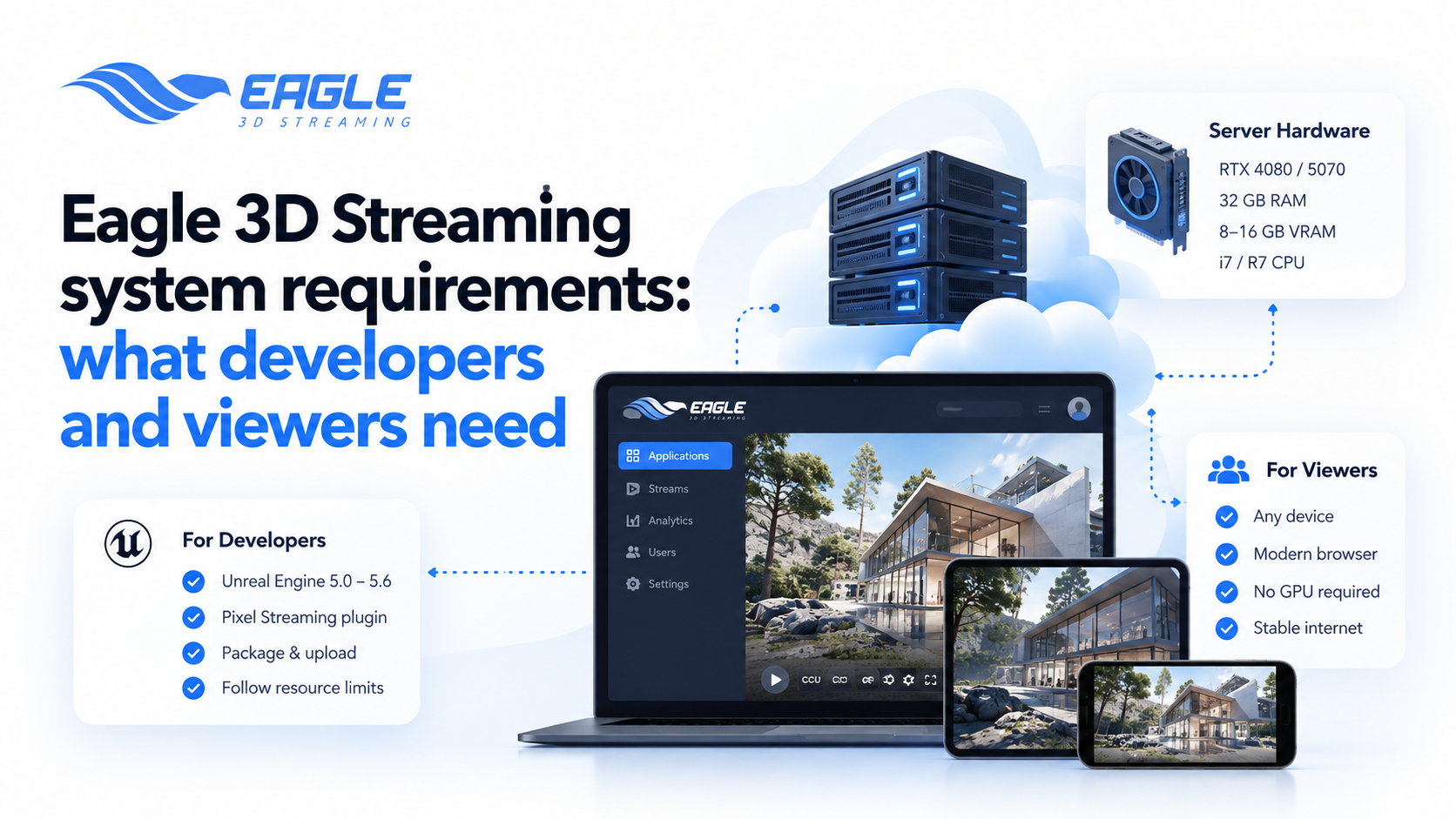
What developers and viewers need for Eagle 3D Streaming: supported UE versions, server GPU specs, memory limits, and firewall domains and ports.
 Eagle 3d Streaming
September 24, 2026
7 min read
Pixel streaming moves the heavy work off the viewer's device. The GPU rendering happens on an Eagle 3D Streaming server, and the viewer only receives video. That doesn't mean there are no requirements, though.
Your app still has to fit on Eagle 3D Streaming's servers. Your viewers still need a working browser and a network that lets the stream through. This guide covers the requirements on both sides, based on Eagle 3D Streaming's system requirements docs.
What viewers need to watch an Eagle 3D Streaming app
Viewers need very little. Any desktop or mobile device with a modern browser can run an Eagle 3D Streaming app. That includes Chrome, Firefox, Edge, Safari, Brave and Opera.
They don't need a GPU or any downloads, since all the rendering happens in the cloud. What they do need is a stable broadband connection. A weak or congested network shows up as lag long before the device itself becomes a problem.
That's the main selling point of pixel streaming. The post on running an Unreal Engine app without a GPU goes deeper on how this works. Eagle 3D Streaming's any-device streaming page covers the device side.
What developers need to build for Eagle 3D Streaming
On the build side, Eagle 3D Streaming supports Unreal Engine 5.0 through 5.6. Your project needs the Pixel Streaming plugin enabled before you package it. You can package and deploy from Windows.
Package the project, compress it and upload it through the Control Panel. The upload guide lists ZIP, RAR and 7Z as supported archive formats. Before you upload, test the build locally with Epic's Signaling Server to catch problems early.
Eagle 3D Streaming server hardware specs
Your app runs on Eagle 3D Streaming's production servers. According to the hardware and software specifications, each server has:
- 32 GB RAM
- 8 GB or 16 GB GPU VRAM
- An i7 or R7 processor
- An RTX 4080 or 5070 GPU
The main streaming servers are in the United States and Europe. Eagle 3D Streaming also deploys on GCP, Azure and AWS. Cloud VMs have their own specs, listed in the Cloud VM hardware specifications.
How much of that your app should use
Having 32 GB on the server doesn't mean your app should use all of it. Eagle 3D Streaming lists preferred maximums for Unreal Engine apps:
- Up to 20 GB RAM
- 4–6 GB GPU VRAM
- 50–70% CPU utilisation
- 50–70% GPU utilisation
Stay inside those limits and your app runs on the standard production system. Go over them and it may crash during upload testing or mid-stream. The most common failure is "Out of Video Memory".
Fixing an app that uses too much
The first fix is optimisation. Cut GPU VRAM and memory use in your Unreal project, then upload again. Texture sizes, draw distances and post-processing are common places to start.
Eagle 3D Streaming's performance optimization guide is a good place to start. If frame rate is the problem, see 5 reasons your stream is dropping frames. The docs also have a page on optimizing app performance.
Eagle 3D Streaming's recommended stream settings
Eagle 3D Streaming recommends a 1280 x 720 resolution at 30 frames per second. Full HD 1080p and higher are supported too. The lower default keeps bandwidth and GPU load down for most viewers.
The same page recommends disabling PAK files in Project Settings. Check this against your release process before you change it. Some workflows, like patching, rely on PAK files, so confirm with support if you use them.
When your app needs more hardware
Some apps can't be optimised enough. Needs more RAM, VRAM or a stronger GPU? You'll need an Eagle 3D Streaming Enterprise Plan with custom hardware. Support will meet with you to review the specs you need.
Eagle 3D Streaming recommends testing on your own hardware first. The E3DS Streaming Agent, also called the Binary EL, streams from your own machine. It gives you an environment similar to the Enterprise setup, without provisioning cloud hardware.
Requirements for streaming from your own hardware
The Streaming Agent has its own requirements. You need a powerful machine or VM with a GPU, running Windows 10, 11 or Server. A good internet connection matters too, since that machine becomes the streamer.
All GPUs are supported, but the docs note some apps may not stream from an RTX 2080. You also need enough disk space on the C drive. Plan for the zipped app, the extracted app and your largest extracted app combined.
For the full walkthrough, see streaming Unreal Engine apps from your own hardware. Eagle 3D Streaming's own hardware feature page covers the use cases.
Network and firewall requirements
This is the requirement people forget. Corporate and public Wi-Fi networks often have strict firewall rules. They can block the ports or protocols pixel streaming needs, so the app never connects. Ask your IT team to whitelist these Eagle 3D Streaming domains:
*.eagle3dstreaming.com*.eaglepixelstreaming.comd35e1ftufisrhj.cloudfront.com
A few more are only needed for specific features. amazonaws.com and googleapis.com are needed for any in-game upload system. cdn.jsdelivr.net is needed for VOIP, and ipgeolocation.abstractapi.com affects load time.
TURN server domains and ports
The stream also relies on Twilio's TURN and STUN servers. Whitelist global.turn.twilio.com and global.stun.twilio.com. The TURN server usually does the job, but STUN can lower latency on some networks. Open these ports as well:
| Port | Type |
|---|---|
| 3478 | TCP and UDP |
| 5349 | TCP |
| 49152–65535 | UDP |
| 443 | TCP |
A VPN can get around some network blocks. The docs warn it can cause heavy lag and quality problems, though. Whitelisting through your IT team is the better fix.
Conclusion
Most Eagle 3D Streaming requirements sit on the developer side. Viewers need a modern browser, a stable connection and a network that allows the stream. Your app needs to fit within 20 GB RAM and 4–6 GB VRAM on the standard servers.
Optimise first, and test on your own hardware before you move to Enterprise. Send the firewall list to your client's IT team before a big demo. That one email can save you a failed demo.
Ready to test your app? Start your free 7-day trial with 1 CCU and see how it runs on Eagle 3D Streaming's servers. Need custom hardware? Book a demo to talk through an Enterprise setup. Stuck on a firewall or crash? Contact support or ask in the Discord community.
FAQs
Do viewers need a powerful computer for Eagle 3D Streaming?
No, rendering happens on Eagle 3D Streaming's cloud GPUs. Any desktop or mobile device with a modern browser works. A stable broadband connection matters more than the device.
Which Unreal Engine versions does Eagle 3D Streaming support?
Eagle 3D Streaming supports UE 5.0 through 5.6. Enable the Pixel Streaming plugin before you package. You can package and deploy from Windows.
What GPU do Eagle 3D Streaming servers use?
The standard servers use RTX 4080 or 5070 GPUs with 8 GB or 16 GB VRAM. They also have 32 GB RAM and an i7 or R7 processor. Cloud deployments use their own VM specs.
How much memory can my app use on Eagle 3D Streaming?
Aim for up to 20 GB RAM and 4–6 GB GPU VRAM. Keep CPU and GPU use between 50% and 70%. Going over can cause crashes, often with an "Out of Video Memory" error.
What resolution does Eagle 3D Streaming recommend?
The recommended setting is 1280 x 720 at 30 frames per second. Full HD 1080p and higher are also supported. You can set the resolution from the Control Panel.
Why won't my Eagle 3D Streaming app load on a corporate network?
A firewall is probably blocking the stream. Ask IT to whitelist *.eagle3dstreaming.com, *.eaglepixelstreaming.com and the Twilio TURN and STUN servers. They also need to open ports 3478, 5349, 443 and 49152–65535.
For every spec and error screenshot, see Eagle 3D Streaming's system requirements docs. The firewall restrictions page has the full whitelist.
Share this article