iframe vs Web SDK: Which Way Should You Embed Pixel Streaming?
iframe vs Web SDK for Pixel Streaming: compare setup, session tokens, access control and updates, then pick the right way to embed your Unreal app.
 MD Rafshan Tashin Eshan
October 16, 2026
7 min read
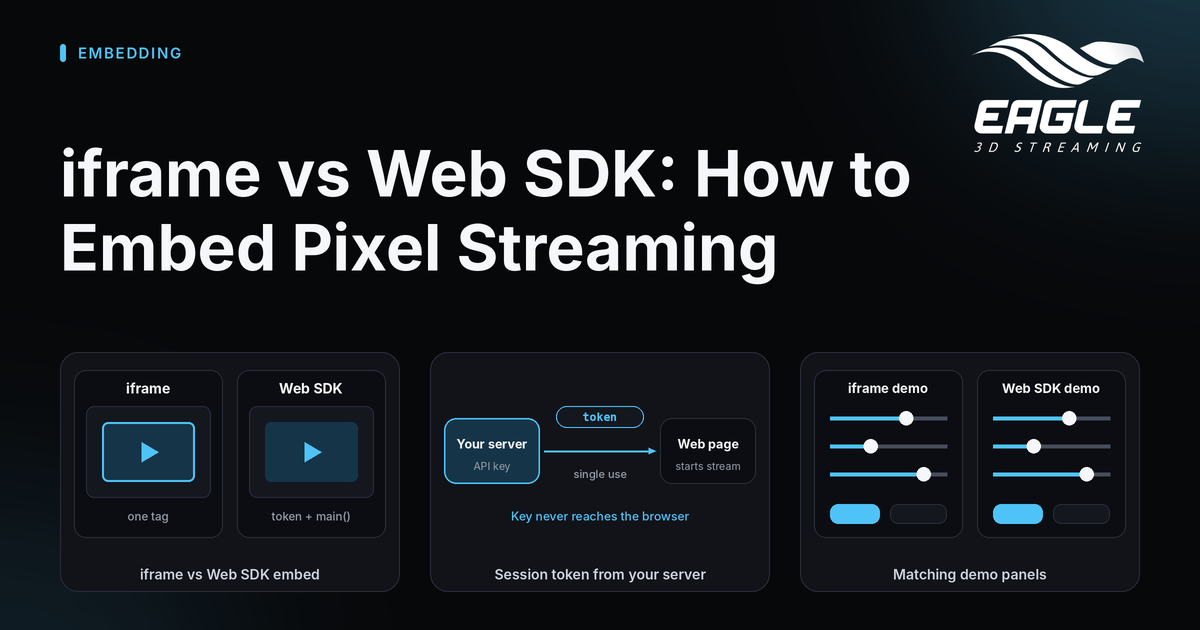
The iframe vs Web SDK choice decides how you embed Pixel Streaming in your own page. Both reach the same platform, run the same apps and offer the same controls. What differs is who holds the video element and who decides whether a session may start (iframe or Web SDK).
This guide compares the two methods on setup, updates, access and syntax, then suggests an order to try them in.
How the iframe and Web SDK Differ
The short answer: an iframe embeds faster, and the Web SDK gives you control over who streams and what the page around the video can do (source).
| iframe | Web SDK | |
|---|---|---|
| To embed | One <iframe> tag | A script, a token and a main() call |
| Streaming API key | Not needed | Needed, to create session tokens |
| Video element | Inside the frame, on the Eagle 3D Streaming site | In your page |
| Who may start a session | Anyone with the link | Whoever your server gives a token |
| Talking to the app | postMessage at the frame | Direct calls on e3ds_controller |
| Hearing back | A message event | A callback you assign |
| Loading and ended screens | Yes, your own | Yes, your own |
| Fixes and new features | Arrive on their own | When you update the bundle |
| Styling around the video | Around the frame | Anywhere, including over it |
A plain streaming URL sits at the simple end of the range. It is a link, so there is nothing to build and nothing to control. The Web SDK overview compares all three methods.
Who Gets Fixes and Updates: iframe vs Web SDK
This point is easy to miss when you choose, and it matters for as long as the integration lives.
An iframe loads the player from Eagle 3D Streaming. When a bug is fixed or a feature ships, it goes live on your site as soon as Eagle 3D Streaming deploys it. You do not redeploy or test a new version, and the player cannot fall behind.
The Web SDK is a file you host. The version on your site stays at the version you last copied there. A fix reaches your visitors at the end of this chain (source):
- Eagle 3D Streaming fixes the bug and publishes a new SDK build.
- You learn that the build exists.
- You download it and add it to your site.
- You test it against the rest of your page.
- You deploy.
Each step needs someone to make time, so a fix that took an afternoon can sit unused for months. Eagle 3D Streaming is working on getting SDK updates to sites with less manual effort, but no date exists yet.
Neither side wins outright. Teams that do not want to maintain an integration benefit from automatic iframe updates. Teams with a release process and change approval prefer to pin a version and test first. If you pick the SDK, schedule your updates instead of waiting for something to break.
Access Control: Why the Session Token Often Decides It
For most teams, access settles the iframe vs Web SDK question. With an iframe, the URL is the access. You can add a password, but you cannot revoke access for one person, and the address in your page source works as a link for anyone who reads it (source).
With the Web SDK, your backend decides who gets a token, when, and for which app. The Streaming API key creates session tokens, and a token is single use and expires in the time you set. A leaked token does no harm. No iframe setting can give you that kind of control.
The key itself needs protection. Keep it on your server, not in the browser. Three docs pages cover this: Streaming API key and tokens, keeping your API key off the browser, and the token and e3ds_controller.main().
Same Features, Different Syntax in the Web SDK
Every control in one demo exists in the other. Moving a page across is mostly a matter of how you phrase each call, and the pattern is mechanical (source).
| Task | iframe | Web SDK |
|---|---|---|
| Set a quality level | { cmd: "setVideoDetailLevel", value: "high" } | setVideoDetailLevel("high") |
| Fix the resolution | { cmd: "freezeResolutionAt", x: 1920, y: 1080 } | setResolution(w, h) |
| Send a console command | { cmd: "sendConsoleCommandToUE", value: "stat fps" } | sendConsoleCommandToUE("stat fps") |
| Send data to Unreal | { cmd: "sendDataToUE", value: {…} } | sendDataToUE({…}) |
| Know the stream is ready | { type: "readyToReceiveMessage" } | callbacks.onDataChannelOpen |
| Know the session is ending | { type: "sessionEnding" } | callbacks.onSessionEnding |
A few commands in the full mapping arrive in the next platform release, and the current production player ignores them without an error. Check the Controlling the stream page for the current list.
The Web SDK builds on Epic's PixelStreamingInfrastructure frontend and adds the parts that library lacks: finding a machine, launching your app, queueing, session tokens and expiry (source).
A Practical Order to Embed Pixel Streaming
Start with an iframe. It takes one line and proves the whole path: your app, your account, your network and your page. Move to the Web SDK when you need to decide who may stream, or when you want the video element itself (source).
Nothing is wasted by starting small. What you learn about sending and receiving messages carries over, because the command set is the same.
Two practical notes help along the way:
- Try both demos. The panels match on purpose. Open the iframe demo and the Web SDK demo, and compare only what truly differs. The source code is on GitHub for the iframe demo and the Web SDK.
- Watch keyboard focus in an iframe. The browser sends typing to whichever frame it considers focused, so keys can go to your page instead of the app. It is easy to handle once you know. See Typing does not reach the app: keyboard focus.
Conclusion: Choose Between iframe vs Web SDK by Control, Not Looks
Choose the iframe when you want the quickest embed and automatic fixes. Choose the Web SDK when your server must decide who streams, or when the video element has to live in your own page. Starting with an iframe costs you nothing, and you can switch later.
Ready to try it? Create a free account, open the demos, and embed your first stream in minutes. If you want help weighing the trade-offs for your project, reach out through any channel below. You can also learn more about the Web SDK or read the solutions for front-end developers.
Need help?
If you need any assistance, feel free to reach out through any of the following channels:
🛠️ Support Portal: Contact Our Support Team
💬 Discord Community (Faster Support): Join Our Discord Community
📧 Email Support: support@eagle3dstreaming.com
Follow us on:
Facebook | GitHub | LinkedIn | YouTube
FAQ
Do I need a Streaming API key for an iframe?
No. An iframe needs no key. The Web SDK needs one, because your server uses it to create session tokens (source).
Why would I choose the Web SDK over an iframe?
Choose it when your server must decide who may start a session, or when you want the video inside your own page. Tokens are single use and expire, so a leaked one is harmless (source).
Do the iframe and Web SDK offer the same controls?
Yes. Every control in one demo exists in the other. Only the syntax changes: the iframe takes postMessage commands, and the SDK takes direct function calls (source).
How do Web SDK fixes reach my site?
You host the SDK file, so a fix arrives only after you download the new build, test it and deploy it. An iframe receives fixes automatically (source).
Why does typing not reach my app inside an iframe?
The browser sends keyboard input to the frame it considers focused, so typing can go to your page instead. The SDK avoids this because the video lives in your own document (source).
Can I start with an iframe and move to the Web SDK later?
Yes. The iframe proves the full path with one line, and what you learn about messages carries over because the command set is the same (source).
Share this article