Pixel Streaming Version Rollback: How to Revert a Bad Unreal Engine Build
Pixel streaming version rollback on E3DS works two ways. Compare re-uploading a previous build with the Enterprise shared drive method and its risks.
 MD Rafshan Tashin Eshan
October 9, 2026
6 min read
You pushed a new build, and now the stream is broken. Pixel streaming version rollback is how you get back to the last version that worked.
Eagle 3D Streaming (E3DS) documents two routes. One works on every plan and leaves shared infrastructure alone. The other moves faster, but it runs on Enterprise only and carries real risk. This guide compares both so you can pick the right one. Every step and warning below comes from the E3DS documentation (Version Rollback).
When You Need Pixel Streaming Version Rollback
The documentation frames rollback as the way to revert to a previous working version of your app after an update or a new deployment. Think of it as the undo button for a release that misbehaves in production.
Before you reach for it, remember that a fresh upload needs time to sync. The docs say a new version may still be syncing and extracting for about 10 minutes after upload (Phases After Accessing the Streaming URL). So if the symptom is a stuck load rather than broken behavior, wait first.
Method 1: Re-upload a Previous Build on Any Plan
The page recommends this option. It works on all plans, it leaves shared infrastructure untouched, and it carries minimal deployment risk. The trade-off is time (Version Rollback).
Two steps:
- Download the previous working build. Enterprise customers can pull it from their S3 storage. Customers on any plan can get it from the Old Control Panel.
- Upload that build as a new version.
The current Control Panel also lets you download a build from an app's version history, where you can check each build's description, upload time, and size (Uploaded Build History and Details).
To upload the older build, click the update icon, browse to your archive, then click Save twice. After that, open the version drop-down on your app in the main Control Panel to confirm the new version appears (Update App).
If you automate uploads, the E3DS API reference guide and the CI/CD app upload automation page show what runs outside the Control Panel.
Method 2: Shared Drive Rollback for Enterprise
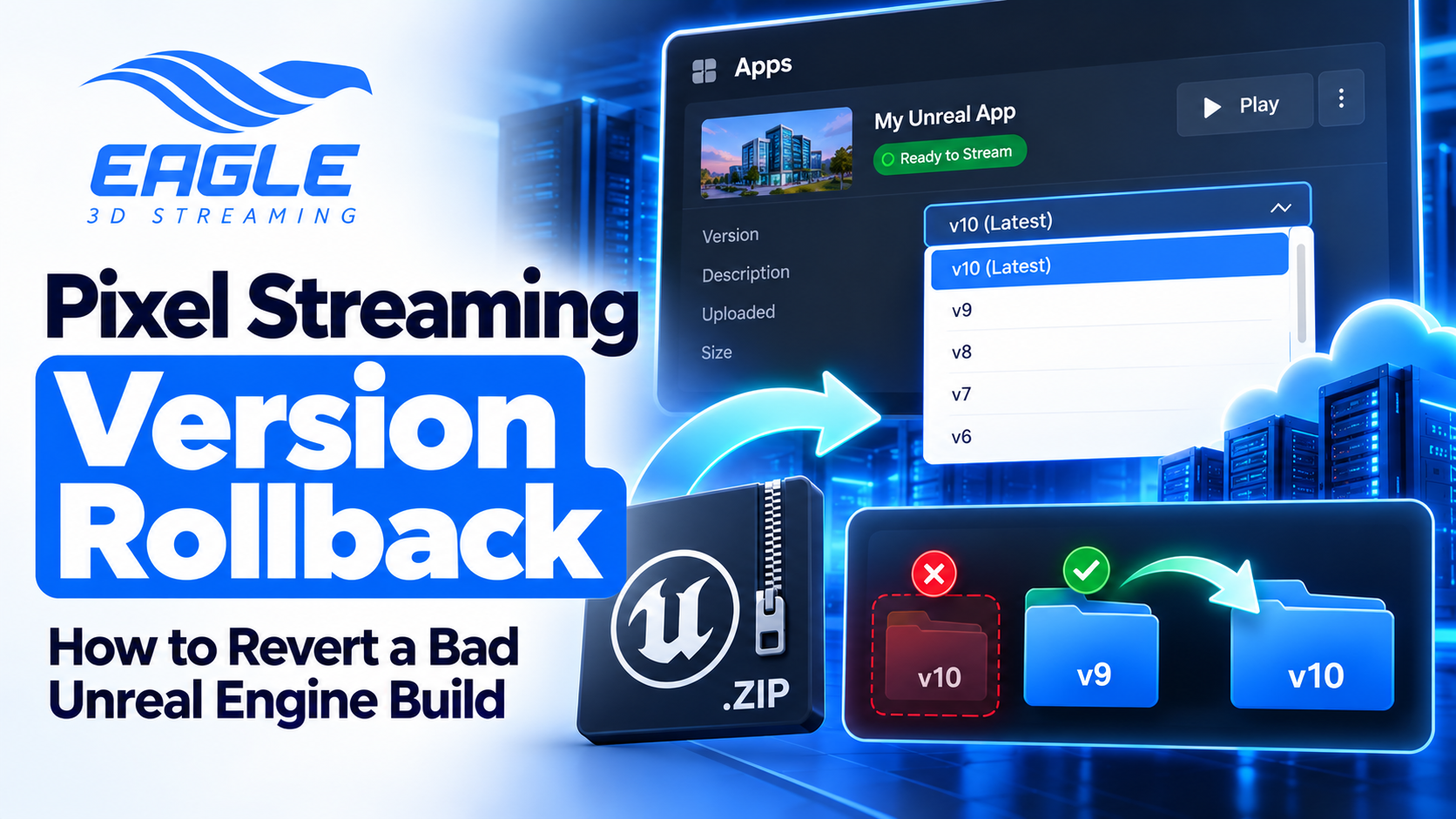
This route belongs to Enterprise only. Rather than uploading again, you change which version the shared drive treats as the latest. The documentation walks through it with v9 as the last working build and v10 as the bad one (Version Rollback):
| Step | Action | Example |
|---|---|---|
| 1 | Disable the "delete old version" feature on the shared drive | Do this before any change |
| 2 | Access the shared drive on your VM | Open the drive from your VM |
| 3 | Delete the problematic latest version | Delete v10 |
| 4 | Rename the last working version to the latest version name | Rename v9 to v10 |
After step 4, the app runs v9 as the active version. The change takes effect immediately across all running instances, which is why this method suits teams that need fast recovery.
App Version Management Risks to Plan For
Speed costs something here. The page lists three warnings (Version Rollback):
- Manual handling. A mistake while renaming or deleting can break the deployment.
- Shared drive rebuilds. If someone deletes or rebuilds the shared drive machine, it pulls the latest uploaded version, and older versions may be lost.
- Storage. Keeping old versions can fill the drive and cause operational problems. Clean-up is the customer's responsibility.
Sound app version management on this path means a clear clean-up routine, plus a second pair of eyes on any rename or delete.
Which Way to Roll Back an Unreal Engine App Fits Your Plan?
Here is the comparison the documentation supports (Version Rollback):
| Re-upload a previous build | Shared drive rollback | |
|---|---|---|
| Plan availability | All plans | Enterprise only |
| Speed | Time-consuming | Fast, immediate across all running instances |
| Risk | Minimal deployment risk | Risk of data mismatch or deployment failure |
| Effort | Download and upload a build | Careful manual work on the shared drive |
| Touches shared infrastructure | No | Yes |
The page's own advice: weigh your plan level, storage capacity, and your team's capability before you choose shared drive rollback. If you are not on Enterprise, the choice is already made for you. If you are, default to re-upload unless recovery time is critical.
To find out what broke in the first place, the guides on getting Unreal Engine crash logs automatically and creating and testing Unreal Engine patches pair well with this one.
Conclusion: Pick Your Pixel Streaming Version Rollback Before You Need It
Pixel streaming version rollback asks you to choose between safety and speed. Re-uploading a previous build is the documented recommendation: available on every plan, low risk, slower. Shared drive rollback moves faster and serves Enterprise only, but it demands manual care, and a rebuilt shared drive can erase older versions.
Whichever route you take, decide which one your team will follow before a bad release forces the question.
Want to test your release process while the stakes are low? Create a free E3DS account and practice uploading a second version of an app. If Enterprise rollback sits on your roadmap, review the plans on the pricing page or talk to the team through any channel below.
Need help?
If you need any assistance, feel free to reach out through any of the following channels:
🛠️ Support Portal: Contact Our Support Team
💬 Discord Community (Faster Support): Join Our Discord Community
📧 Email Support: support@eagle3dstreaming.com
Follow us on:
Facebook | GitHub | LinkedIn | YouTube
Pixel Streaming Version Rollback FAQ
What is the recommended way to roll back an app version?
Re-upload a previous working build. It works on all plans and leaves shared infrastructure untouched (Version Rollback).
Where can I download an older build?
From your S3 storage on the Enterprise plan, or from the Old Control Panel on any plan (Version Rollback). The current Control Panel also lets you download a build from an app's version history (Uploaded Build History and Details).
Can I use shared drive rollback on any plan?
No. It serves the Enterprise plan only (Version Rollback).
Why does step 1 disable the "delete old version" feature?
That is the first step of the documented shared drive method, and it comes before you access the drive or change any version (Version Rollback).
What happens if the shared drive machine gets rebuilt?
It pulls the latest uploaded version, and older versions may be lost (Version Rollback).
Who cleans up old versions on the shared drive?
The customer. Old versions can fill the drive, and the documentation makes clean-up the customer's responsibility (Version Rollback).
Share this article