Stop Showing a Blank Spinner: How to Customize Your E3DS iFrame Loading Experience
Learn how E3DS's iframe lifecycle events let you replace the default loading spinner with a custom, branded connection experience.
 Eagle 3d Streaming
September 4, 2026
6 min read
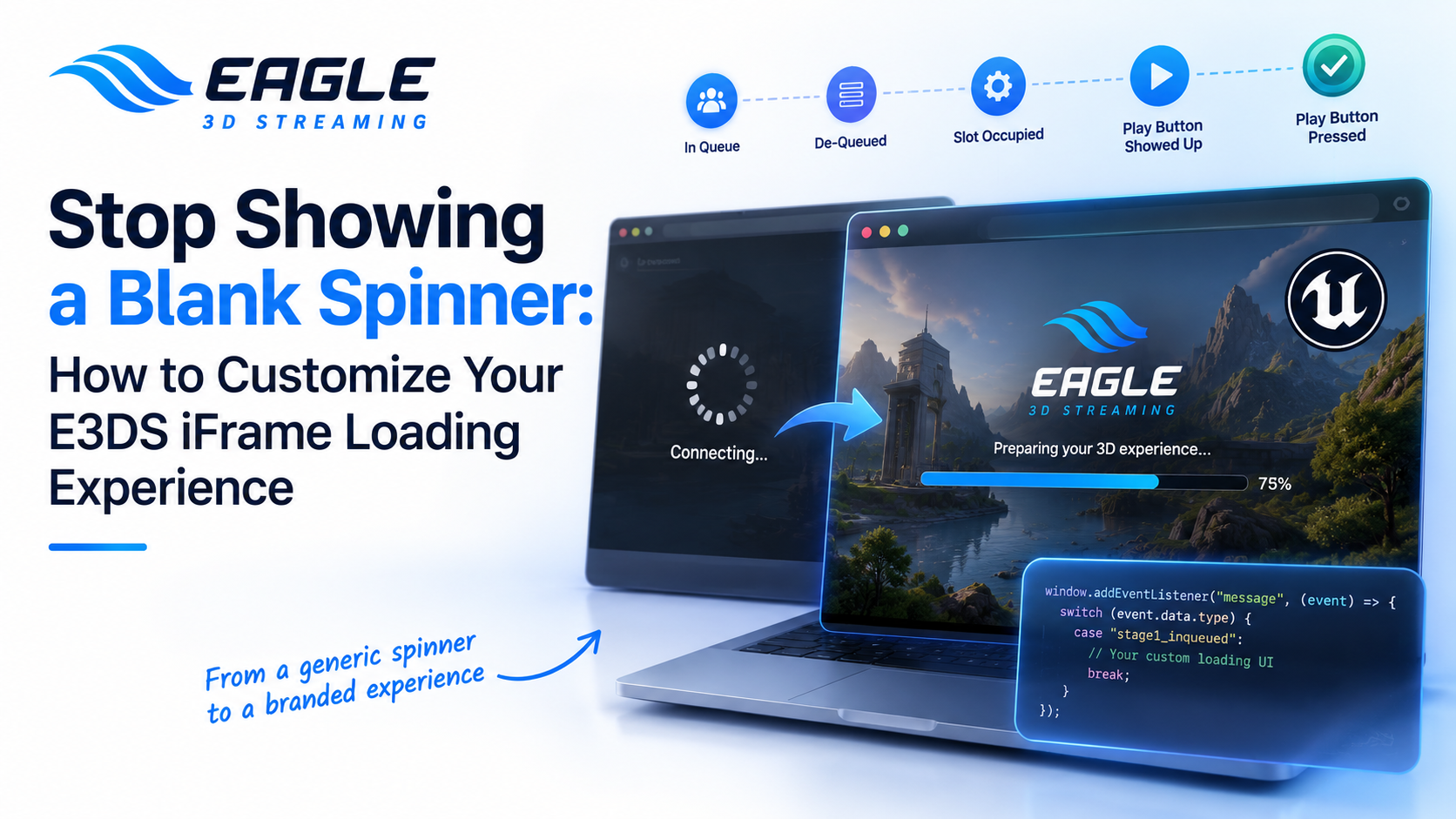
If you've embedded an Eagle 3D Streaming session into a website using an iframe, you've probably noticed the connection doesn't happen instantly. A user clicks your link, waits in a queue, gets assigned a server, and eventually lands on a live, interactive Unreal Engine app. By default, most of that process looks the same to the end user — some flavor of a loading spinner.
What a lot of teams don't realize is that E3DS fires a distinct event at every step of that process. Each one is a hook you can use to replace the generic spinner with something that actually tells the user what's happening — or matches your brand instead of looking like a bolted-on third-party widget.
Why the Loading Sequence Matters More Than It Looks
A pixel-streamed Unreal Engine app isn't a static asset. It has to be requested, queued if server capacity is tight, prepared on a streaming machine, and only then handed off to the browser. For a product configurator embedded on a sales page, or a training simulation linked from an internal portal, that sequence is the user's first impression of the product. A silent 15-second wait reads very differently from a wait screen that says "You're 3rd in line" and counts down.
E3DS exposes this entire sequence as a set of postMessage events sent from the iframe to the parent page, so you can react to each one in your own JavaScript.
The Five Connection Stages
Each stage corresponds to a specific point in the handoff between the user's browser and the streaming server. Here's what each one signals and what you can do with it. (Source: Iframe Lifecycle Stages)
Stage 1 — In Queue (stage1_inqueued) Fires when the user enters the queue to connect to the app. This is your first loading screen — a spinner, an estimated wait time, or just your logo instead of E3DS's default.
Stage 2 — De-Queued (stage2_deQueued) Fires when the user leaves the queue and app preparation is about to begin. Use it to end the queue-specific UI and transition into the next loading state.
Stage 3 — Slot Occupied (stage3_slotOccupied) Fires once the server has reserved a slot for the session. This is where you'd hide the queue screen entirely and switch to a loading animation or progress bar for the app itself.
Stage 4 — Play Button Showed Up (stage4_playBtnShowedUp) Fires when the app is ready and the play button becomes available. A common pattern here is to auto-click that button so the user never sees it:
case "stage4_playBtnShowedUp":
    loaderStep2.style.visibility = "hidden";
    iframeElem.style.visibility = "visible";
    let playButton = document.getElementById("playButtonParent");
    playButton.click();
    onPlayBtnPressed();
    break;
Stage 5 — Play Button Pressed (stage5_playBtnPressed) Fires once the app is running and interactive. This is the point where your custom UI (a sidebar, control panel, whatever you've built around the stream) should become visible:
case "stage5_playBtnPressed":
    sidebar.style.visibility = "visible";
    loaderStep2.style.display = "none";
    iframeElem.style.visibility = "visible";
    $('#iframe_1').focus();
    break;
It's worth flagging one detail here because it trips people up: you can't send data from your webpage into the Unreal Engine app until after stage 5 fires. If you're trying to pass a config or trigger an in-app action immediately on load and it's not working, this is usually why.
Handling a Session That Times Out
Streaming sessions expire, and how you handle that matters almost as much as the loading sequence itself. The sessionExpired event fires when a session times out, and the recommended pattern is to hide the default UI, show your own "session expired" message, and either reload the iframe automatically or give the user a retry button:
(Source: Iframe Lifecycle Stages)
case "sessionExpired":
  sidebar.style.visibility = "hidden";
  iframeElem.style.visibility = "hidden";
  document.getElementById("iframe_1").focus();
  document.getElementById("iframe_1").src = document.getElementById("iframe_1").src;
  break;
Reloading the iframe by resetting its own src restarts the connection flow from stage 1 without requiring a full page refresh.
Other Events Worth Hooking Into
Beyond the five core stages, a handful of secondary events are useful for a more detailed loading experience. (Source: Iframe Lifecycle Stages)
QueueNumberUpdated— reports the user's live position in the queue, so "4th in line" can count down to "1st" in real time.stage3_1_AppAcquiringProgress— reports download progress, but only fires if the app isn't already cached on the streamer machine.stage3_2_AppPreparationProgress— reports extraction progress, again only if the app is still being prepared.isIframe— confirms the page is running inside an iframe context.shortCuts— logs keyboard shortcut presses.Error_Redirect— handles connection errors and refocuses the iframe.
None of these are required for a working embed, but QueueNumberUpdated and the two progress events are the ones most worth building into a polished loading screen, since they let you replace a vague spinner with an actual percentage or position.
Putting It Together
All of these events pass through a single message handler attached to the browser's message event, typically structured as a switch statement keyed on event.data.type. The full reference implementation — including all five stages, the timeout handler, and the secondary events — is laid out in E3DS's documentation as a complete message.js example you can adapt directly.
If you're setting up an embed for the first time, this lifecycle sits inside the broader iframe integration guide, which also covers two-way communication between your webpage and the Unreal app, UI and UX customization options, and login integration for gated content.
Where to Go From Here
- Full lifecycle stages reference: Iframe Lifecycle Stages
- Related guide: Communication in Iframe
- Related guide: UI & UX Customization Using iFrame
- Related guide: Login Integration in iFrame
Need help?
If you need any assistance, feel free to reach out through any of the following channels:
🛠️ Support Portal: Contact Our Support Team
💬 Discord Community (Faster Support): Join Our Discord Community
📧 Email Support: support@eagle3dstreaming.com
Follow us on:
Share this article