How to Stream Unreal Engine Apps From Your Own Hardware With the E3DS Streaming Agent (EL Launcher)
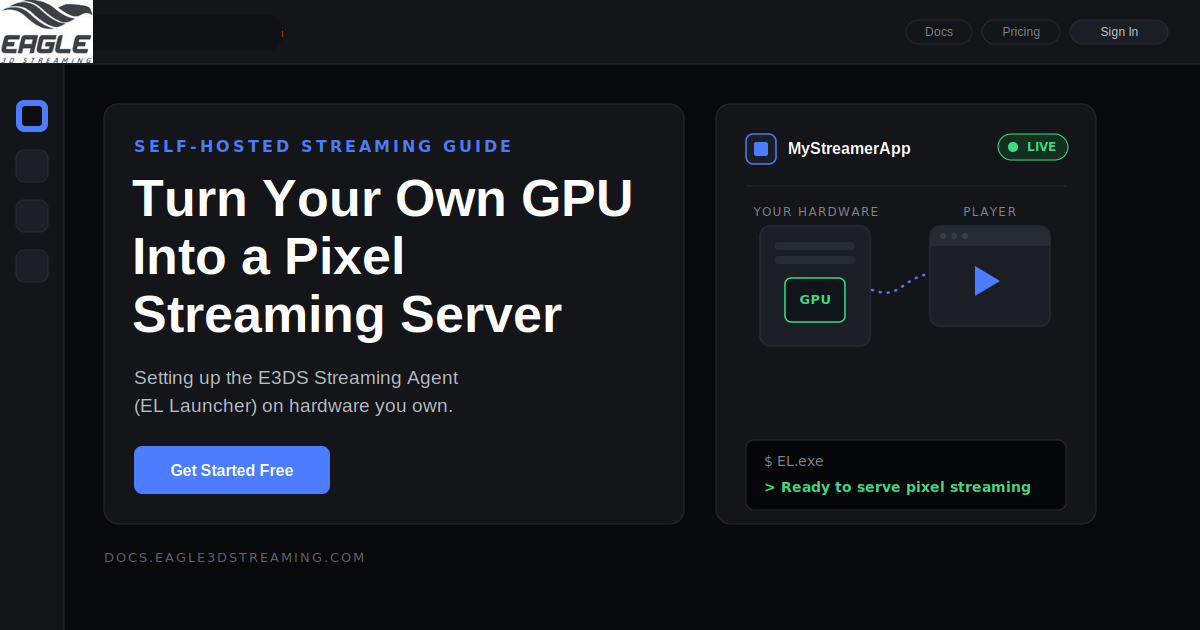
A practical guide to setting up the E3DS Streaming Agent (EL Launcher) and streaming Unreal Engine apps from your own GPU hardware.
 MD Rafshan Tashin Eshan
August 27, 2026
6 min read
Cloud GPUs solve a real problem, but they're not free, and not every team wants to hand a build over to someone else's data center. If you already own a capable GPU machine and just want to turn it into a pixel streaming server, Eagle 3D Streaming has a tool built exactly for that: the E3DS Streaming Agent, better known by its earlier name, EL Launcher (the executable is still called EL.exe).
This guide walks through what the agent does, what your machine needs to run it, and how to get from a fresh download to a live streaming URL.
What the E3DS Streaming Agent Actually Does
The E3DS Streaming Agent lets you stream Unreal Engine applications directly from your own hardware instead of Eagle's cloud infrastructure. You install a small agent on a Windows machine with a GPU, connect it to your E3DS account with an API key, and that machine becomes a dedicated streamer — reachable through a browser link just like a cloud-hosted app would be.
It's a good fit if you:
- Already have GPU hardware sitting idle and want to put it to work
- Need tighter control over where your app data physically lives
- Want to test pixel streaming without committing to a cloud GPU plan yet
Before You Start: Prerequisites
You'll need three things in place before touching the installer:
- An E3DS account. If you don't have one, create it through the official account setup guide.
- The EL zip file, downloaded to your C: drive from the Control Panel (there's a backup download link in the docs if the primary one fails).
- Enough free space on your C: drive. Apps are stored in
C:\e3ds_streaming_apps, and Eagle's own sizing rule is: required space = zipped app size + extracted app size + the largest extracted app size you'll ever run.
Machine Requirements
The agent needs a genuinely capable machine, not just any Windows box:
- A GPU-equipped machine or VM running Windows 10, 11, or Server
- A stable, reasonably fast internet connection
Eagle notes that all GPUs are supported in principle, but some applications won't stream reliably from an RTX 2080, and running Unreal Engine 4.27 apps on an AMD RX580 8GB is specifically flagged as unreliable. If you're shopping for streamer hardware, keep both of those in mind.
Setting Up the Agent, Step by Step
Once your machine is ready, the setup follows this sequence:
1. Install the dependencies. You'll need the Unreal Engine 5.5 and 5.6 prerequisite packages (linked from the Control Panel) and 7-Zip.
2. Add 7-Zip to your system PATH. Go to Control Panel → System and Security → System → Advanced system settings → Environment Variables, edit the relevant path variable, and add the 7-Zip install folder (typically C:\Program Files\7-Zip). Restart the machine afterward.
3. Extract the EL package. Unzip the EL.zip file you downloaded earlier.
4. Generate your config file. Double-click EL.exe once — this creates a config_EL.json file. Close the app again.
5. Get your API key. Follow the Getting API Key guide, then paste it into config_EL.json using Notepad and save.
6. Launch the agent for real. Double-click EL.exe again. Give it a minute or two — when the terminal shows "Ready to serve pixel streaming," your machine is live.
7. Confirm the connection. Check the Observer tool to see your machine listed and connected.
8. Upload and configure your app from the Control Panel if you haven't already.
9. Build your streaming URL using this format:
https://connector_binary.eagle3dstreaming.com/v5/<username>/<appName>/<configName>
For example: https://connector_binary.eagle3dstreaming.com/v5/demo/myDemoApp/default
10. Open the URL. The first launch takes longer, since the app has to download and extract onto your machine — subsequent launches are instant. If it plays, you're done. If not, the troubleshooting table below covers the usual culprits.
Things Worth Knowing Before You Rely on This
A few operational quirks that aren't obvious until you hit them:
- One agent, one user. A single running EL instance serves one concurrent user (1 CCU per license). Running multiple EL instances on the same PC is technically possible but tends to hurt performance, since they're all competing for the same CPU, GPU, and RAM.
- Don't close the terminal. Closing the EL window stops the stream immediately.
- Don't click inside the EL or app window. It can capture your mouse input. If it happens, tap Esc once to release focus.
- Sleep mode kills the stream. Disable sleep on the streamer machine, or the connection will drop unexpectedly.
Troubleshooting Common Issues
| Issue | Likely Cause | Fix |
|---|---|---|
| EL.exe won't start or closes immediately | Missing UE prerequisites, 7-Zip not on PATH, no admin rights | Install UE 5.5/5.6 prerequisites, add 7-Zip to PATH, restart, run as Administrator |
| "Ready to serve pixel streaming" never appears | Network issue, bad API key, inactive license | Check your connection and firewall, verify the API key in config_EL.json, wait the full 1–2 minutes |
| App stuck in the Acquiring/Preparing phase | Low disk space, permission issues, slow internet | Free up space on C:, confirm write permissions on C:\e3ds_streaming_apps, check the app exists in the Control Panel |
| App crashes after launch | Unsupported or outdated GPU, resource limits | Update GPU drivers, avoid RX580 8GB with UE 4.27 apps, close other GPU-heavy programs |
| Black screen, no video | EL window closed or accidentally clicked into | Keep the terminal open, press Esc if you click inside the stream window by mistake |
| Laggy or high-latency streaming | Network, hardware, or driver limitations | Use a wired connection, update GPU drivers, close background apps, try a lower quality preset |
| Stream stops unexpectedly | Windows sleep mode, EL closed, session timeout | Disable sleep mode, keep EL running, check your configured max session time |
When to Use This vs. Cloud Streaming
The Streaming Agent is a strong option when you already own the hardware and want a no-subscription way to pixel stream, or when you need your app running on infrastructure you physically control. If you'd rather not manage a dedicated machine — patch it, keep it awake, babysit the terminal window — Eagle's cloud GPU plans handle all of that for you. Neither approach is strictly better; it comes down to whether you're optimizing for control or convenience.
If you get stuck anywhere in setup, the Discord community tends to get faster answers than email, or you can reach the support portal directly.
Ready to try it on your own machine? Get started free and download the agent from your Control Panel.
Share this article