Wrong Startup Scripts in UE5 Pixel Streaming — 5 Mistakes and How to Fix Them
Rafshan Tashin - 7 min read - Pixel Streaming
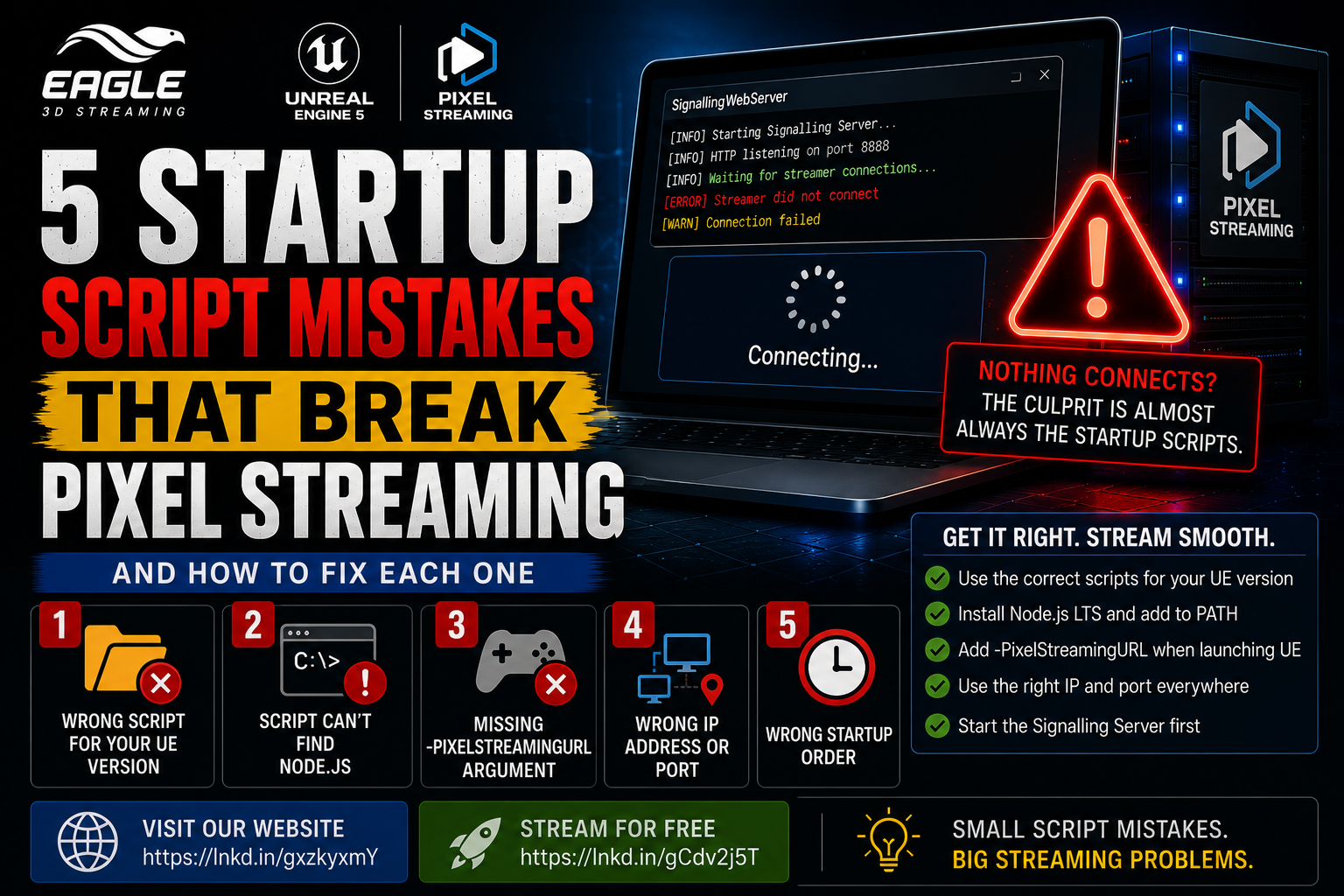
When Pixel Streaming doesn't connect, the startup scripts are the first place to look. You've packaged your UE5 application, the Signalling Server appears to be running, and the browser just sits there — no stream, no error, nothing. One wrong line in a startup script can silently break the entire connection without giving you any indication of where to look.
This guide covers the five most common startup script mistakes in UE5 Pixel Streaming and the exact fix for each — in the order you should check them.
What Are Startup Scripts in UE5 Pixel Streaming?
Pixel Streaming requires two things running simultaneously: your packaged UE5 application and a Signalling Server — a small Node.js application that handles WebRTC signalling between the UE5 app and the browser.
Startup scripts — .bat files on Windows or .sh files on Linux — are what launch both of these components with the correct settings. They handle the launch arguments, port configuration, IP addresses, and dependency setup that Pixel Streaming needs to function. Getting any part of them wrong is one of the most common mistakes when setting up Pixel Streaming for the first time, and the failures are often silent — the stream simply never connects with no clear error to follow.
5 Startup Script Mistakes That Break Pixel Streaming
1. Running the Wrong Script for Your UE Version
What you'll see: The Signalling Server fails to start, or starts but immediately throws confusing Node.js errors. Nothing connects to the browser.
Why it happens: Unreal Engine ships Pixel Streaming scripts inside the engine folder under Engine/Plugins/Media/PixelStreamingInfrastructure. Between UE4 and UE5 — and even between UE5 minor versions — the folder structure, script names, and Node packages changed significantly. Running an old run.bat from a previous version against a UE5 packaged build will fail silently or produce Node.js errors that point to the wrong problem entirely.
The fix:
Always use the scripts that shipped with your exact engine version. Find them inside your packaged output at:
YourGame/Samples/PixelStreaming/WebServers/SignallingWebServer/
For UE5.1 and above, the Pixel Streaming infrastructure was moved to a separate GitHub repository. Download the matching release from:
https://github.com/EpicGames/PixelStreamingInfrastructure
Pick the branch that matches your UE version exactly — for example, the UE5.3 branch for a UE5.3 project. Using a mismatched branch is the same mistake as using the wrong script version.
# UE5 — correct script location after packaging
YourGame/Samples/PixelStreaming/WebServers/SignallingWebServer/

# UE5.1+ — use the separate infrastructure repo
# https://github.com/EpicGames/PixelStreamingInfrastructure
# Pick the branch matching your UE version e.g. UE5.3

# Correct launch script (UE5)
start.bat
2. Signalling Server Script Can't Find Node.js
What you'll see: The script opens a terminal window, immediately prints an error, and closes before you can read it. The Signalling Server never starts.
Why it happens: The Pixel Streaming Signalling Server is a Node.js application. If Node.js isn't installed — or isn't added to your system's PATH — the .bat or .ps1 script opens, prints 'node' is not recognized as an internal or external command, and closes immediately. This is a common early mistake because the window disappears too fast to read the error.
The fix:
Install Node.js LTS from nodejs.org. During installation, make sure to check "Add to PATH".
After installing, open a new terminal and verify:
node --version
# Should print something like: v20.11.0
If it prints a version number, Node.js is installed correctly. If it still says not recognized, restart your PC and try again. Also run the dependency installer before your first launch:
# Install Pixel Streaming server dependencies
get_ps_servers.bat

# Then launch the Signalling Server
Run_local.bat
Skipping get_ps_servers.bat on first run is another common cause of the server failing immediately — it installs the Node packages the Signalling Server depends on.
3. UE5 App Launched Without the -PixelStreamingURL Argument
What you'll see: The UE5 application starts and runs normally. The browser shows "Connecting..." indefinitely. Nothing ever arrives.
Why it happens: Your packaged UE5 game will not automatically connect to the Signalling Server unless you explicitly tell it where to look. The -PixelStreamingURL argument is mandatory. Without it, the game launches as a normal standalone application, ignores Pixel Streaming entirely, and the browser waits for a connection that will never come.
The fix:
Never launch the packaged .exe by double-clicking it directly. Always launch it through a shortcut or script that includes the required arguments.
Create a shortcut of your .exe, open its properties, and in the Target field add the following after the .exe path:
-log -AudioMixer -PixelStreamingIP=localhost -PixelStreamingPort=8888 -RenderOffScreen -AllowPixelStreamingCommands
The full target field will look like:
"C:\YourGame\YourGame.exe" -log -AudioMixer -PixelStreamingIP=localhost -PixelStreamingPort=8888 -RenderOffScreen -AllowPixelStreamingCommands
Without -PixelStreamingIP and -PixelStreamingPort — or the equivalent -PixelStreamingURL=ws://127.0.0.1:8888 — the UE5 app has no Pixel Streaming connection to make.
4. Wrong IP Address or Port in the Script
What you'll see: Both the UE5 app and Signalling Server appear to start correctly. The browser loads the page but the stream never arrives. No connection is established.
Why it happens: Pixel Streaming scripts have IP addresses and port numbers in two places: the Signalling Server config.json (what the server listens on) and the UE5 launch argument (what the game connects to). A mismatch between these two — using localhost in one place and 127.0.0.1 in another, or using the wrong IP when accessing from another device — means the UE5 app and the Signalling Server never find each other.
The fix:
For local testing on the same machine, use 127.0.0.1 consistently in both places:
// config.json
{
  "PublicIp": "127.0.0.1",
  "StreamerPort": 8888,
  "HttpPort": 80
}
// UE5 launch argument
MyGame.exe -PixelStreamingURL=ws://127.0.0.1:8888
For access from another device on the same network (e.g. a phone on the same Wi-Fi), find your machine's LAN IP:
ipconfig
// Look for "IPv4 Address" — e.g. 192.168.1.42
Then replace 127.0.0.1 with that LAN IP in both config.json and the UE5 launch argument:
MyGame.exe -PixelStreamingURL=ws://192.168.1.42:8888
// Browser URL: http://192.168.1.42
Both sides must reference the same IP and port exactly.
5. Startup Order Is Wrong — UE5 App Launched Before the Signalling Server
What you'll see: Both scripts run without errors. The UE5 app is running. The Signalling Server is running. But the stream never connects and the browser shows no activity.
Why it happens: The UE5 app tries to connect to the Signalling Server exactly once at startup. If the Signalling Server isn't ready yet — because it's still loading its Node.js dependencies — the connection attempt fails silently and the game never retries. This is a very common mistake when both are launched together in a single .bat file with no delay between them, which almost always means the UE5 app reaches the server before it is ready to accept connections.
The fix:
Always start the Signalling Server first. Wait until you see this in the terminal before launching the UE5 app:
Waiting for streamer connections
If you're using a combined batch file that launches both, add a timeout between the two launches to give Node.js time to fully start:
:: Start Signalling Server
start cmd /k "cd SignallingWebServer && start.bat"

:: Wait for Node.js to fully start
timeout /t 10

:: Then launch UE5 app
start "" "MyGame.exe" -PixelStreamingURL=ws://127.0.0.1:8888 -RenderOffScreen
Then open http://127.0.0.1 in your browser once both are running.
Quick Reference: Startup Script Mistakes in UE5 Pixel Streaming
Mistake | Symptom | Root Cause | Fix |
|---|---|---|---|
Wrong script version | Server fails or throws Node.js errors | Scripts don't match UE version or minor version | Use scripts from your exact packaged output; UE5.1+ use GitHub infrastructure repo |
Node.js not found | Script window opens and immediately closes | Node.js not installed or not in PATH | Install Node.js LTS, check "Add to PATH", verify with |
Missing | Game runs, browser shows "Connecting..." forever | UE5 app launched without Pixel Streaming arguments | Launch via shortcut with full argument list including |
IP address or port mismatch | Server runs, stream never connects |
| Use |
Wrong startup order | Both running, stream still silent | UE5 app connects before Signalling Server is ready | Start Signalling Server first, wait for "Waiting for streamer connections", then launch UE5 app |
Conclusion: Startup Scripts Are Where Most Pixel Streaming Deployments Break First
Startup script mistakes are responsible for more broken Pixel Streaming deployments than any engine-level bug. The failures are silent, the errors are easy to miss, and the symptoms — a stream that never connects, a browser that waits forever — give no indication of where to look.
Work through this list in order before looking anywhere else. Check the script version first. Confirm Node.js is installed and on PATH. Verify the launch arguments are present. Make sure IP addresses match on both sides. And always start the Signalling Server before the UE5 app.
Every issue on this list has a specific cause and a clean fix. None of them require deep engine knowledge — just the right setup done in the right order.
Frequently Asked Questions
Q: Where do I find the correct startup scripts for my UE5 Pixel Streaming project? After packaging your UE5 application, find the scripts inside your packaged output at YourGame/Samples/PixelStreaming/WebServers/SignallingWebServer/. For UE5.1 and above, Epic moved the Pixel Streaming infrastructure to a separate GitHub repository at EpicGames/PixelStreamingInfrastructure. Download the release that matches your exact UE version — the branch name matches the engine version, for example UE5.3.
Q: My UE5 app starts but the browser just shows "Connecting..." — what's wrong? The most likely cause is that the UE5 application was launched without the required Pixel Streaming arguments. Without -PixelStreamingIP and -PixelStreamingPort (or -PixelStreamingURL=ws://127.0.0.1:8888), the game runs as a normal standalone app and makes no attempt to connect to the Signalling Server. Never launch the .exe by double-clicking — always use a shortcut or script that includes the full argument list.
Q: Both the UE5 app and the Signalling Server are running, but nothing connects — where do I check? Start with startup order. The UE5 app tries to connect to the Signalling Server exactly once at launch — if the server wasn't ready at that moment, the attempt fails and the game never retries. Restart both in the correct order: Signalling Server first, wait for "Waiting for streamer connections" in the terminal, then launch the UE5 app. If order isn't the issue, check that the IP address and port match exactly in both config.json and the UE5 launch argument.
Struggling with your Pixel Streaming infrastructure? Eagle 3D Streaming handles the deployment layer so your team can stay focused on building.
.
🎮 Join the Eagle 3D Streaming Community on Discord
Connect with other studios, get real-time support, share builds, and stay ahead of platform updates. Join the Discord
🛠️ Need Help? Talk to Support
Our technical team understands Unreal Engine workflows. Whether you're troubleshooting a deployment or planning a large-scale rollout, we're here. Contact Support → support@eagle3dstreaming.com
🚀 Upload Your App and Go Live
Ready to stream? Upload your packaged Unreal build, configure your settings, and have your experience live in minutes. Upload Your App