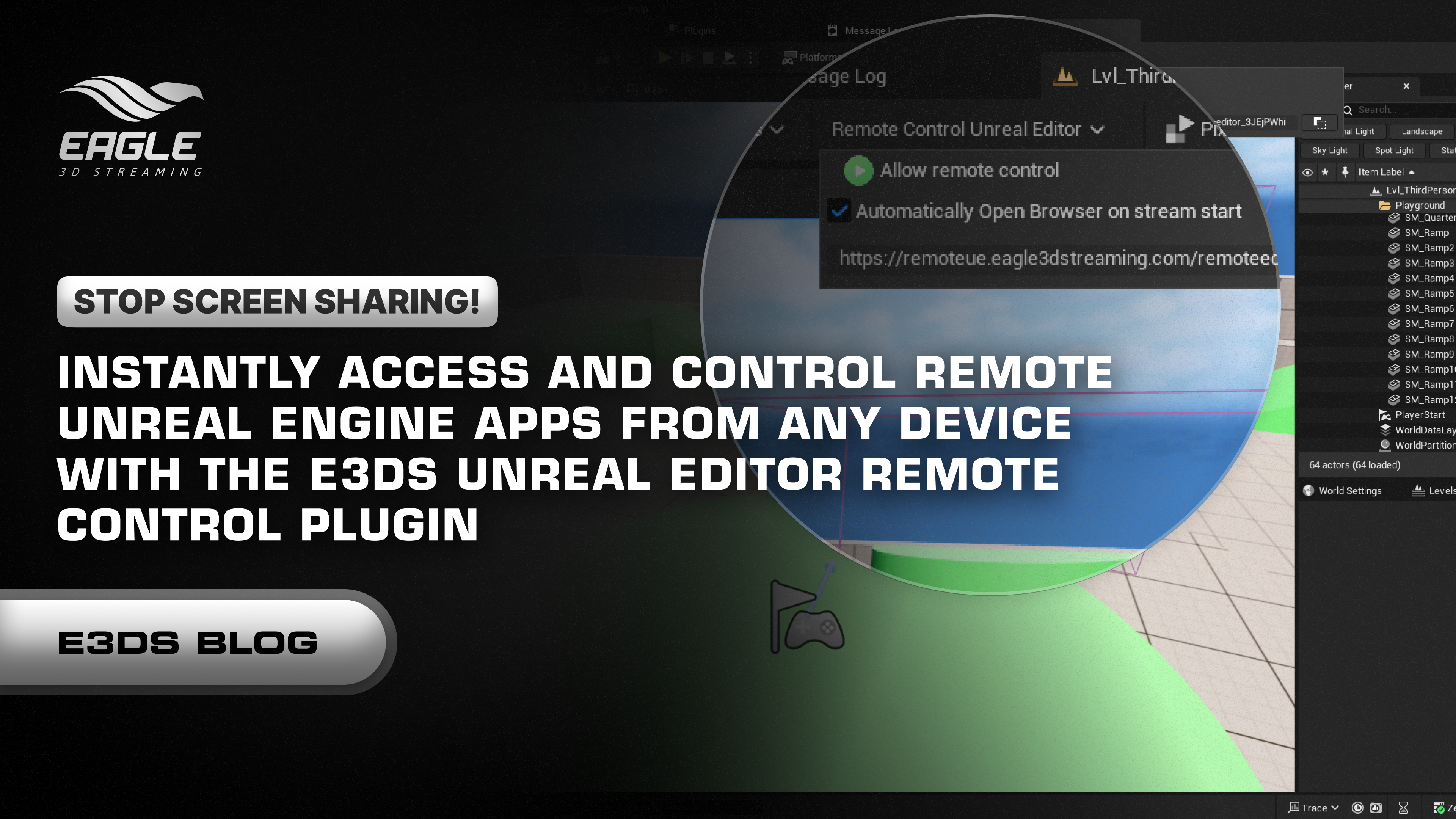
Stop Screen Sharing! Instantly access and control remote Unreal Engine apps from any device with the E3DS Unreal Editor Remote Control Plugin.
Author: Rafshan Tashin
Read Time: 10 min read
As an Unreal Engine developer, you’ve been there. A major project is nearing delivery—perhaps a high-stakes real estate walkthrough for a VIP client or a complex digital twin for city planning. The deadline is hours away, but one of your teammates is stuck. They are hitting a lighting bug, a blueprint error, or a collision glitch that simply can’t be solved over a vague voice call.
You try the standard playbook: screen-sharing tools like Zoom, TeamViewer, or Discord. But the reality is frustrating. The stream lags, the frame rate drops to single digits, color compression hides the details you need to see, and—worst of all—you can’t actually touch the editor to fix it yourself. You waste valuable hours explaining "click there... no, to the left" instead of just solving the problem.
For visualization studios that operate like SWAT teams—fast, agile, and quality-obsessed—this friction isn't just an annoyance; it’s a delivery risk.
Enter the E3DS Remote Control Unreal Editor Plugin. It’s time to stop screen sharing and start actually collaborating.
What is the E3DS Remote Control Plugin?
The E3DS Remote Control Unreal Editor Plugin is a purpose-built tool designed to bridge the gap between your local, heavy Unreal Engine workstation and the accessible web.
Under the hood, it leverages the same robust Pixel Streaming technology used to deliver final applications to clients. However, instead of streaming a packaged game, this plugin streams your live, active Editor session directly to a secure web browser.
It transforms the Unreal Editor from a local, isolated application locked to a specific machine into a collaborative, accessible web tool. This gives you (or your team) secure, real-time control over the Unreal Editor from virtually any device—whether it’s a powerful office workstation, a laptop on the go, a tablet, or even a mobile phone.
Get the Plugin Now: You can download the plugin directly from Fab here.
Why This Plugin is Critical for Immersive Studios
For our core customers—studios creating cutting-edge visualizations for AEC, Automotive, and other industries—speed, quality, and client satisfaction are the lifeblood of success. Traditional IT barriers shouldn't slow you down.
1. The End of Configuration Nightmares (Zero Setup)
In the past, remote access meant VPNs, port forwarding, and complex IT tickets. You don't have time for that. This plugin is designed for "Zero Setup." You simply enable it in the menu, and the plugin handles the rest, automating the connection process instantly.
2. Hardware Optimization & Accessibility
Immersive studios often have a divide in hardware: powerful render stations in the office and lighter laptops for remote work. With this plugin, you can run the heavy Unreal Editor on your powerful office machine and control it entirely from a low-spec MacBook or standard laptop at home. You get the power of an RTX 4090 on a device that barely runs a browser.
Core Features Designed for Agility
- Zero Setup Launch: Forget manual config files or command-line parameters. Launch a remote streaming session with two clicks.
- Cross-Device Freedom: Gain full control of the Unreal Editor viewport and interface from Windows, iOS, or Android devices.
- Secure Access & Termination: Security is paramount. You generate a specific URL for access. When the debugging session or demo is over, you can terminate the connection instantly from the plugin menu, ensuring no unauthorized access remains.
- Real-Time Collaboration: Multiple users can view the session simultaneously, making it the perfect tool for team design reviews or "over-the-shoulder" mentorship.
Key Capabilities at a Glance
Before diving into specific scenarios, here is what the plugin enables you to do right out of the box:
Remote Access Without the IT Headache:
Bypass complex server configurations, VPNs, and firewall rules. You get instant, secure access to your active Editor session without needing a dedicated DevOps engineer.
Heavy Projects on Light Devices:
Decouple your workflow from your hardware. Run demanding, ray-traced projects on your office workstation while you debug, iterate, or present from a standard laptop or tablet at home.
Live Presentations & Walkthroughs:
Stop sending static screenshots. Guide clients through the live environment, making real-time adjustments to materials or lighting based on their immediate feedback.
True Multi-Device Freedom:
Your editor follows you. Whether you are on a Windows PC, a Mac, an iPad, or an Android phone, you have full control over the viewport and interface.
Frictionless Remote Reviews:
Share progress without the wait. Teammates and clients can jump into your session via a simple link to review content instantly—no 100GB downloads or Engine installations required.
Real-World Use Cases: Saving the "Final Mile"
How does this actually look in production? Here are three specific scenarios where this plugin saves the day:
1. Instant Debugging (The "Over the Shoulder" Fix)
A Junior Developer is stuck on a blocking issue. Instead of a laggy screen share where the Senior Developer tries to verbally guide them, the Senior Dev can jump directly into the live Unreal Editor session via a simple link. They take control of the mouse and keyboard, fix the blueprint or adjust the lighting settings instantly, and the project moves forward. It turns a 30-minute struggle into a 2-minute fix.
2. Client Demos Without the Download
Sometimes a client wants to inspect an asset or a scene structure before the final build is deployed. asking them to download a 50GB project file or install Unreal Engine is impossible due to IT restrictions. Instead, you send them a secure browser link. They can rotate the camera, inspect the view, and give approval in minutes, all without downloading a single byte.
3. Interactive Training
Instructors can take control of a student’s editor to demonstrate complex workflows live. It replaces static slide explanations with hands-on, interactive learning, allowing for a "driver-navigator" style of teaching that is far more effective for complex engine concepts.
Step-by-Step Setup Guide
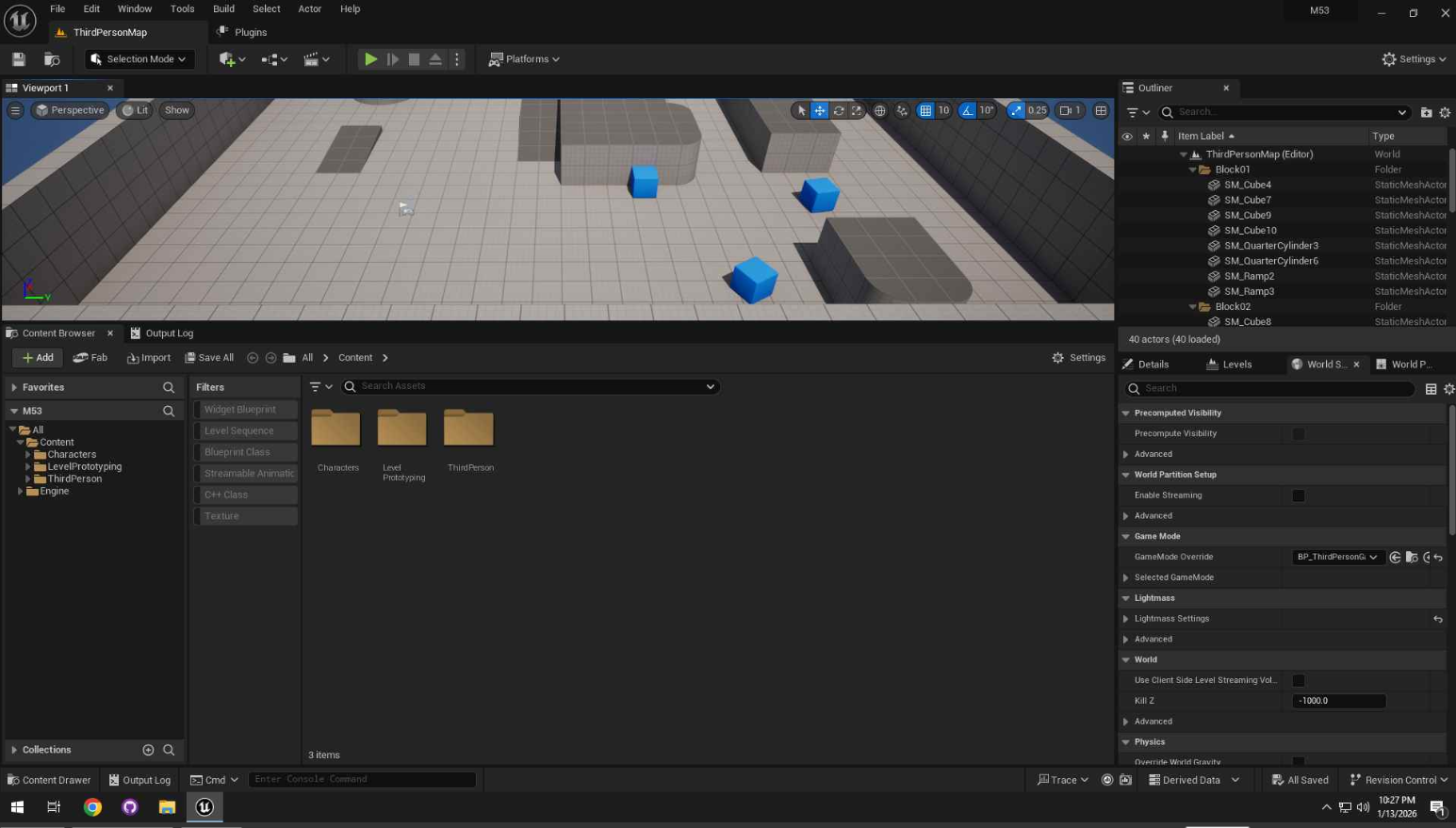
Step 1. Open Your Project
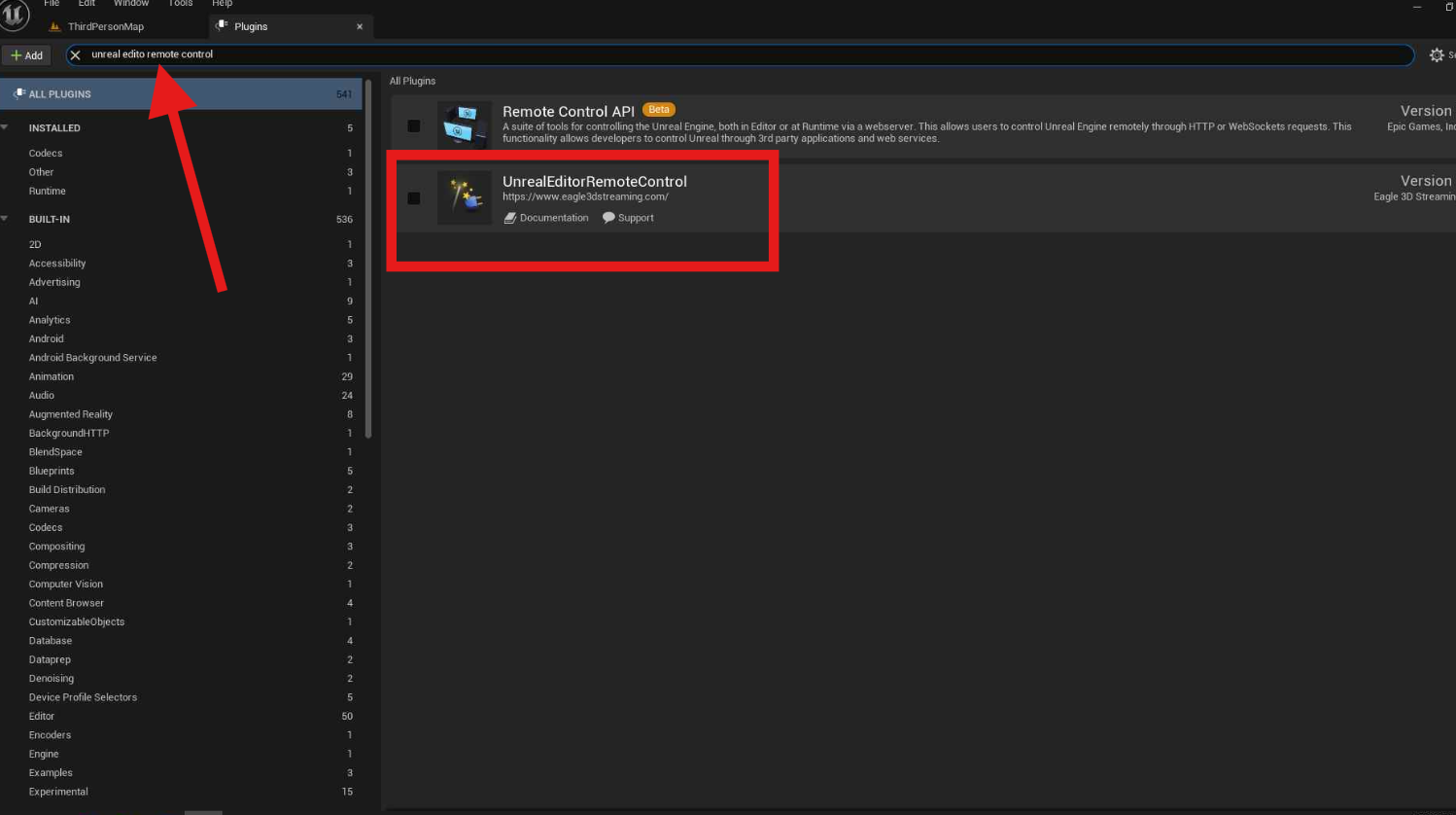
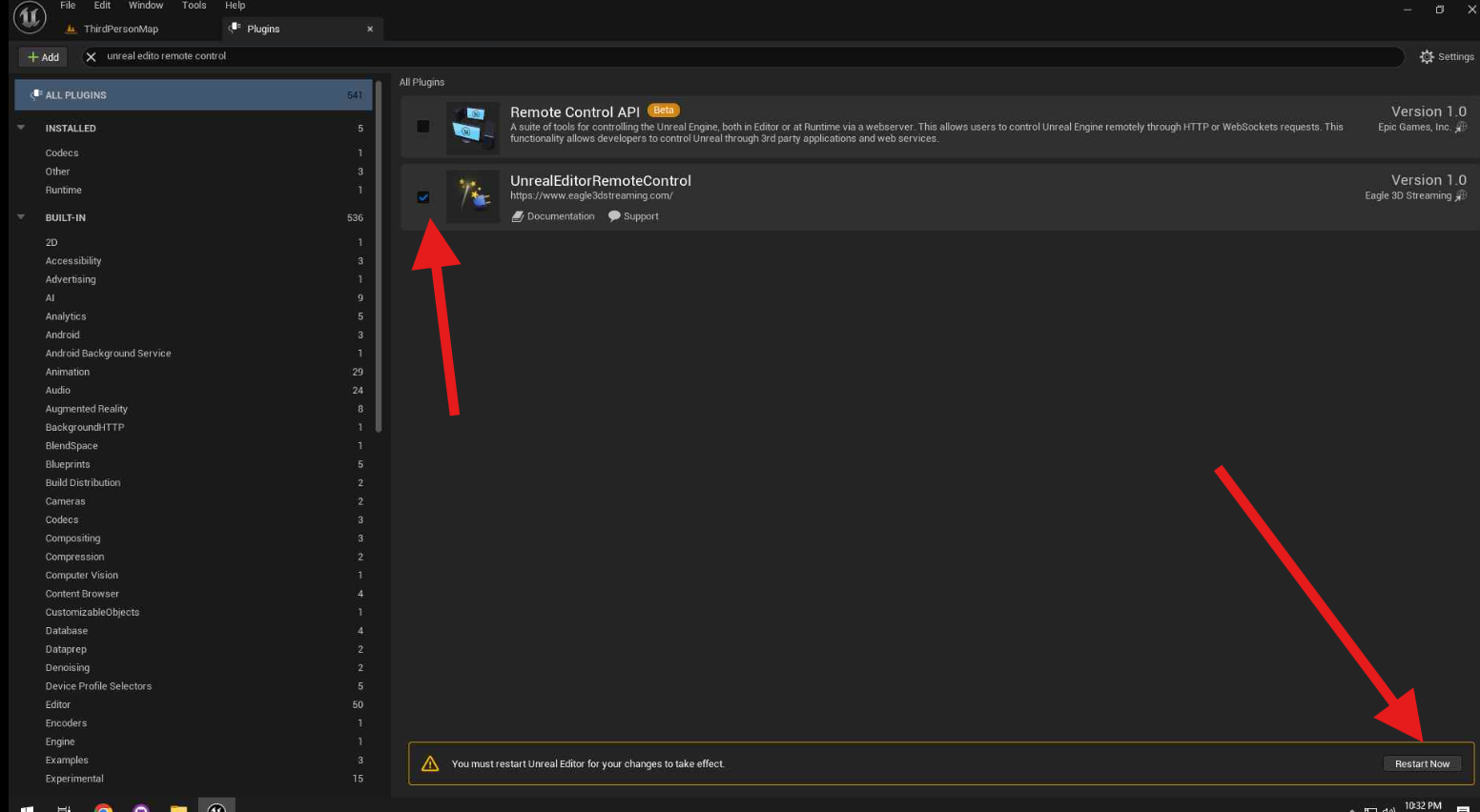
Step 2. From the Plugins section, search for Unreal Editor Remote Control
Step 3. Enable the plugin and restart the Unreal Editor
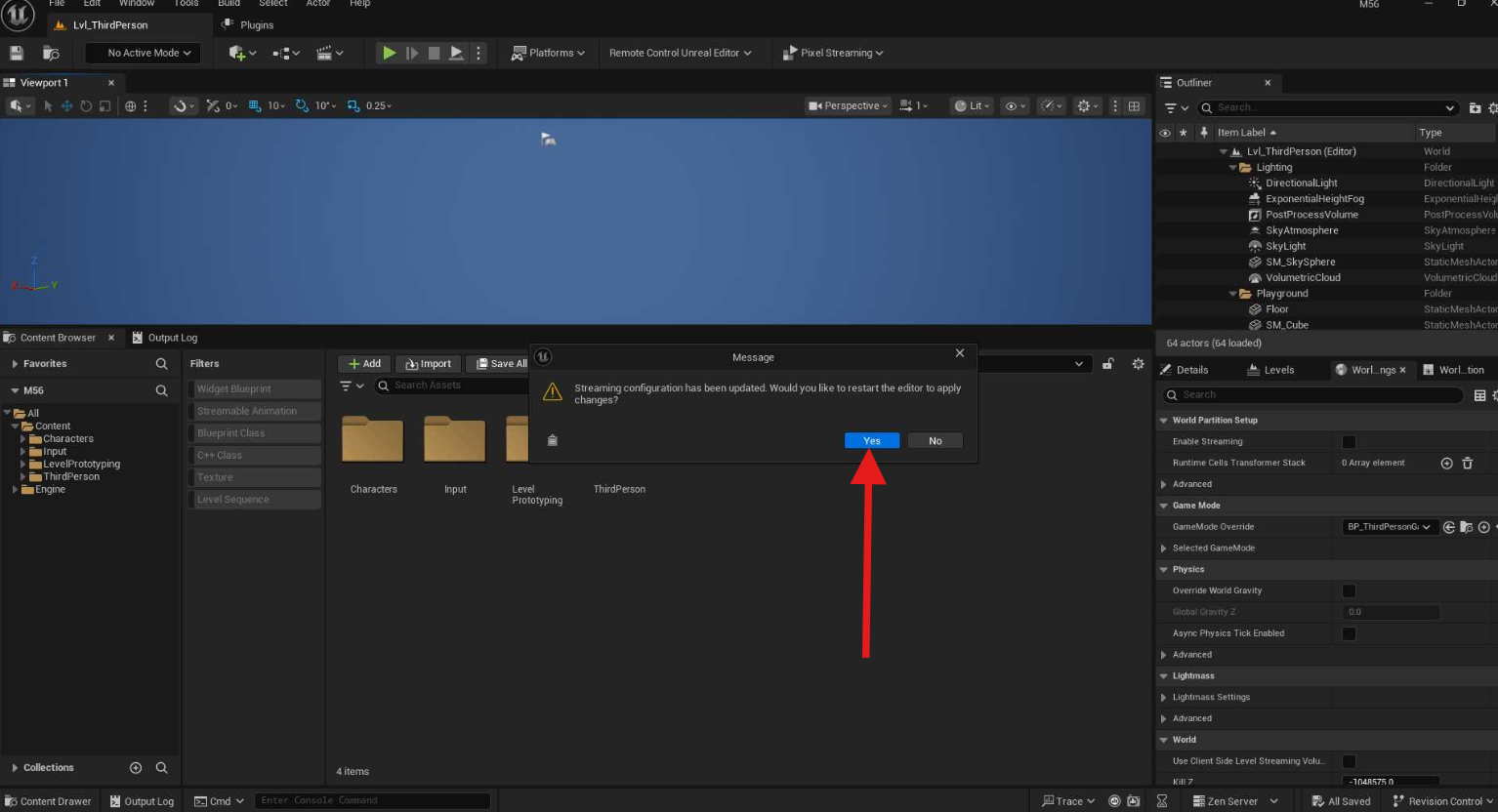
Step 4. Click “Yes” to apply the changes
Step 5. Open the Remote Control Unreal Editor dropdown menu
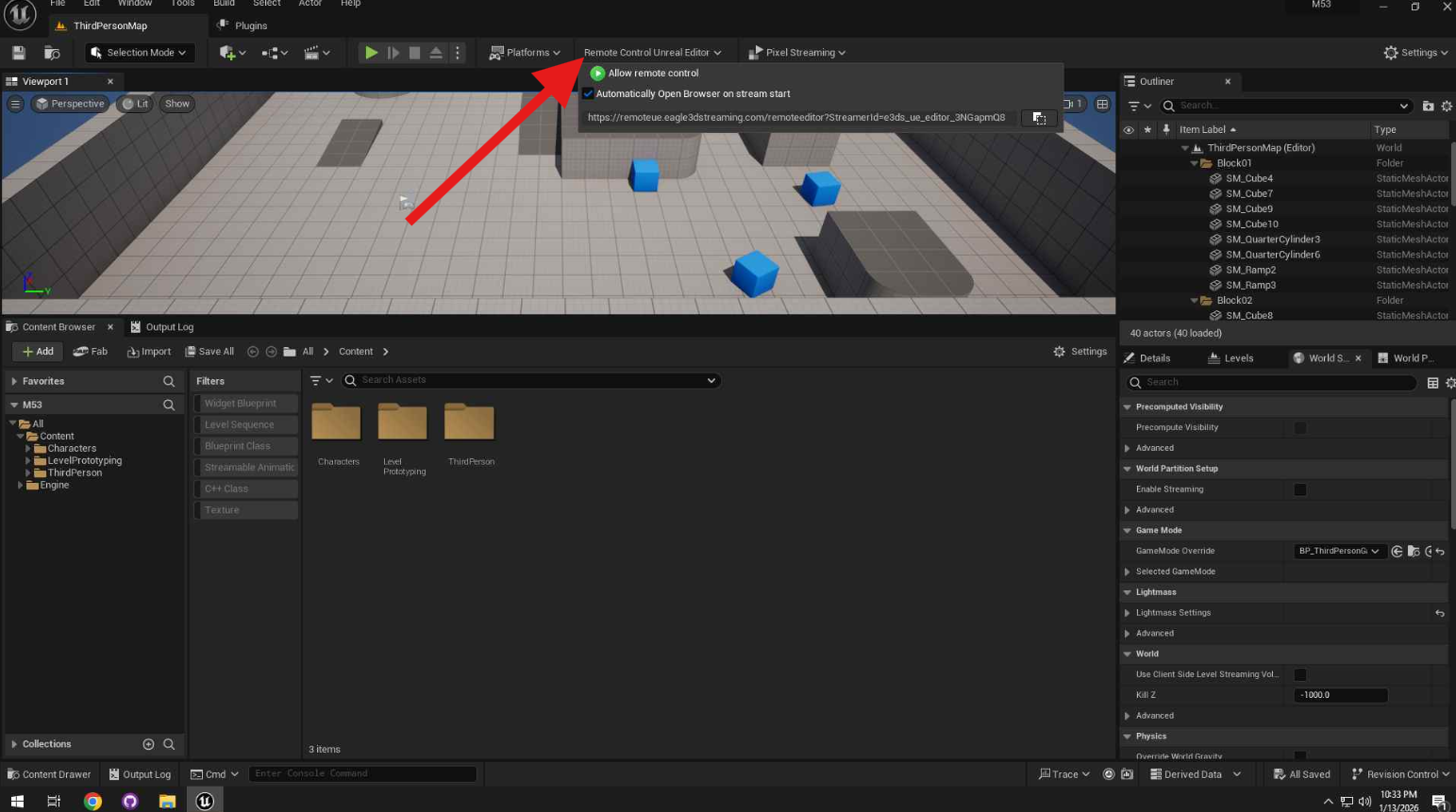
Step 6. Allow Remote Control
Enable Allow Remote Control.
By default, the plugin will:
- Automatically start the stream
- Automatically open your browser
- Launch the remote editor session
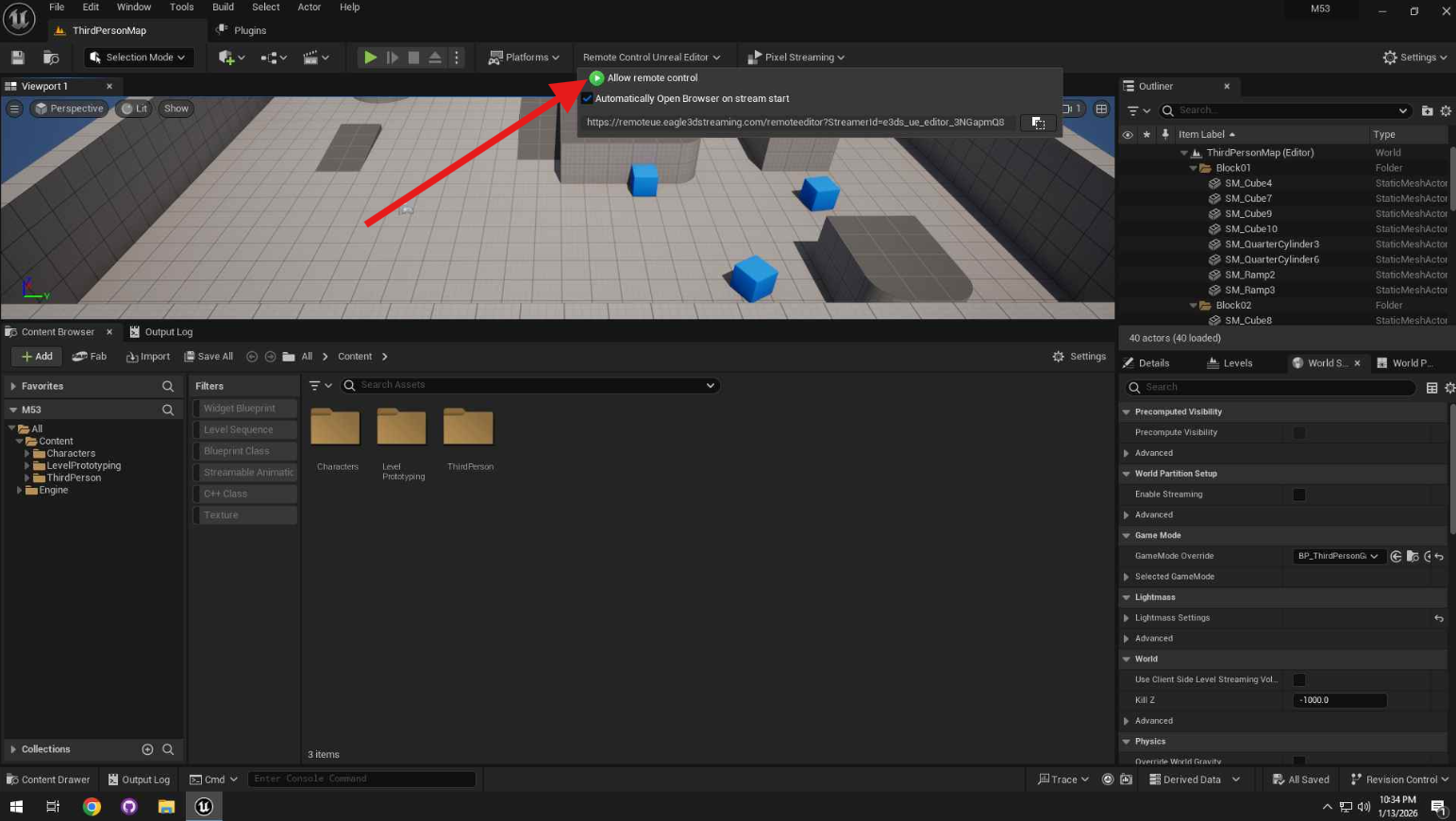
Disable Auto-Open Browser
- If you prefer to start the stream manually, disable:
- Automatically Open Browser on Stream Start
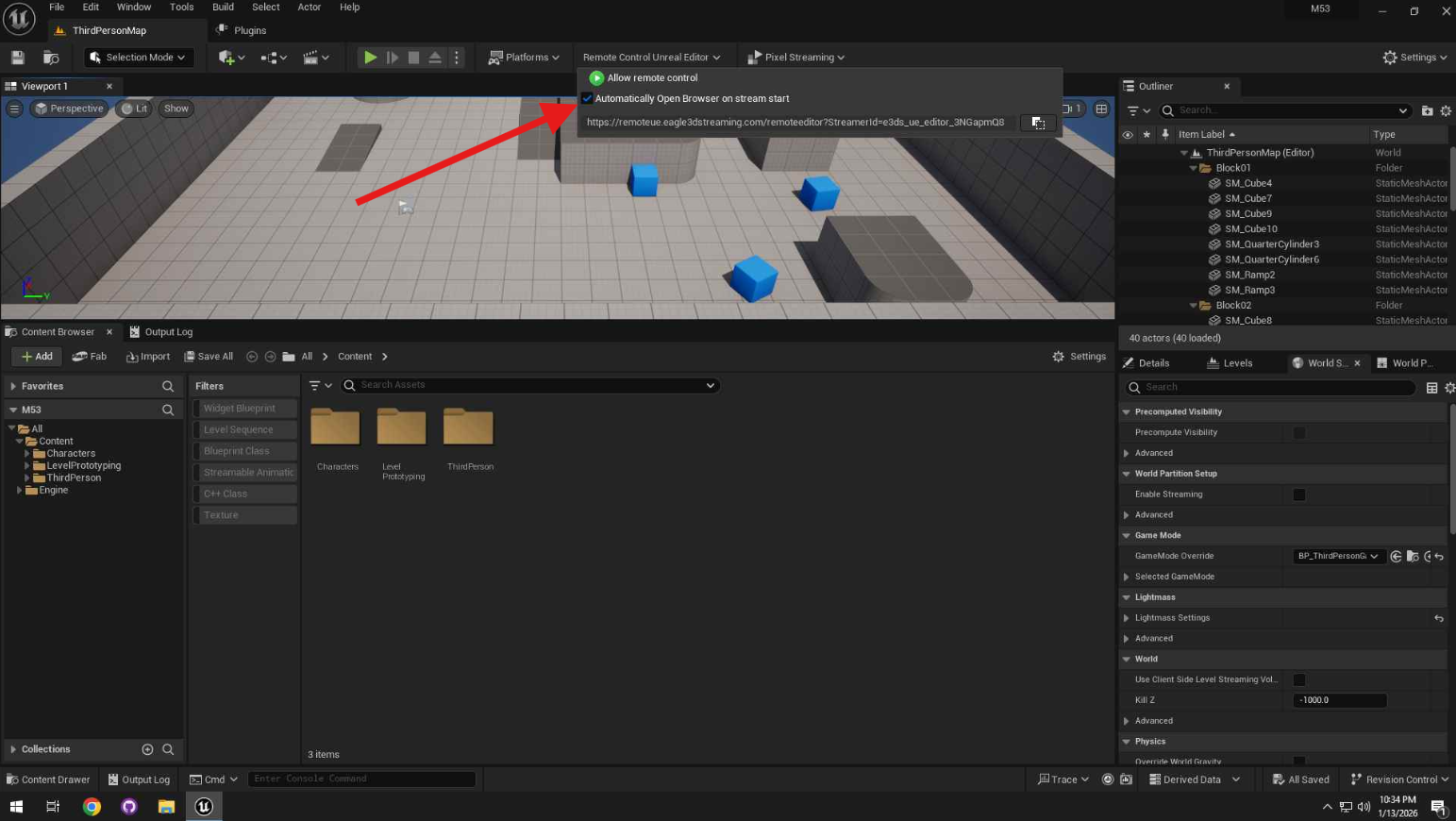
You can also manually open the session
Copy the generated URL and paste it into your browser.
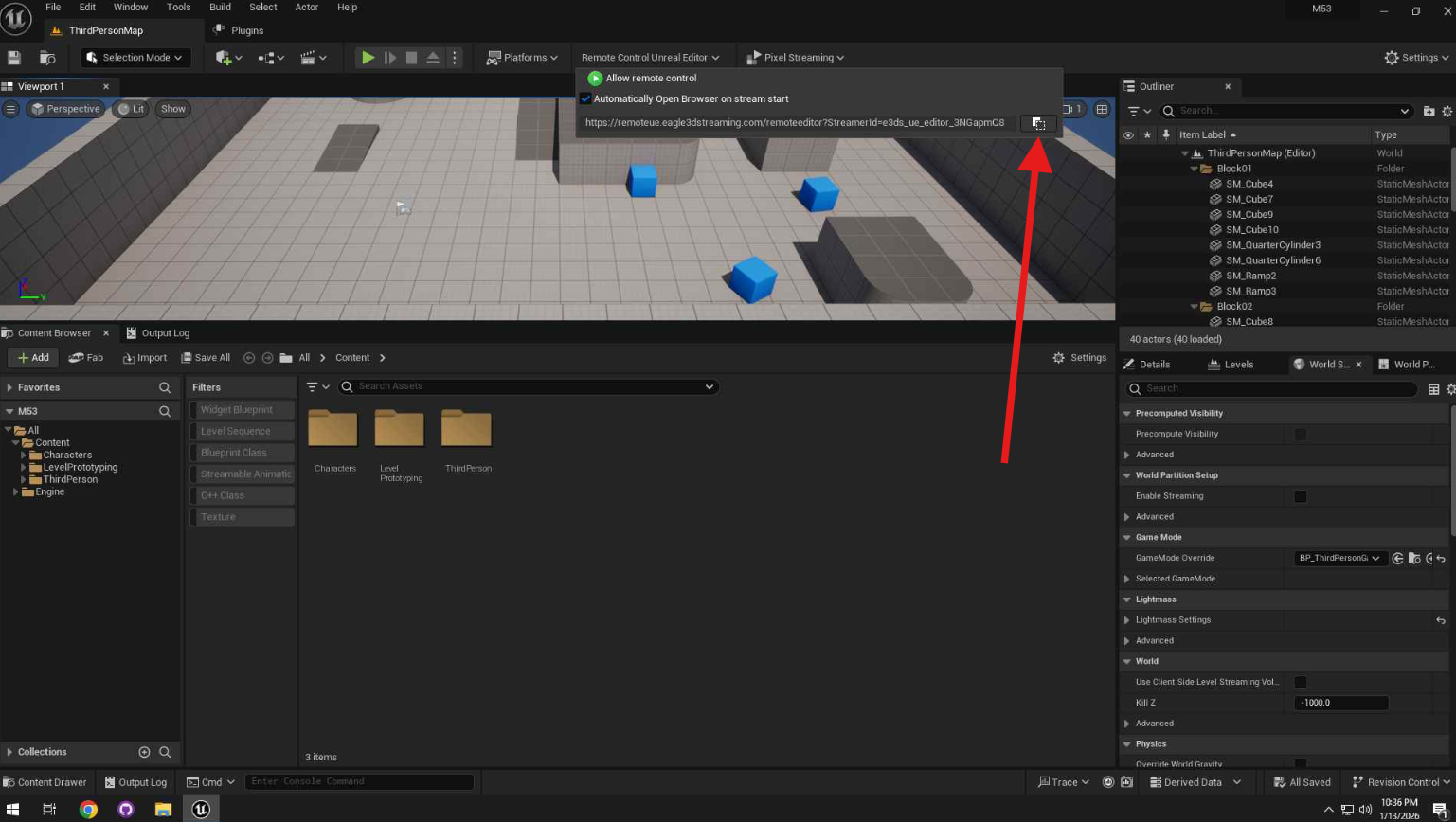
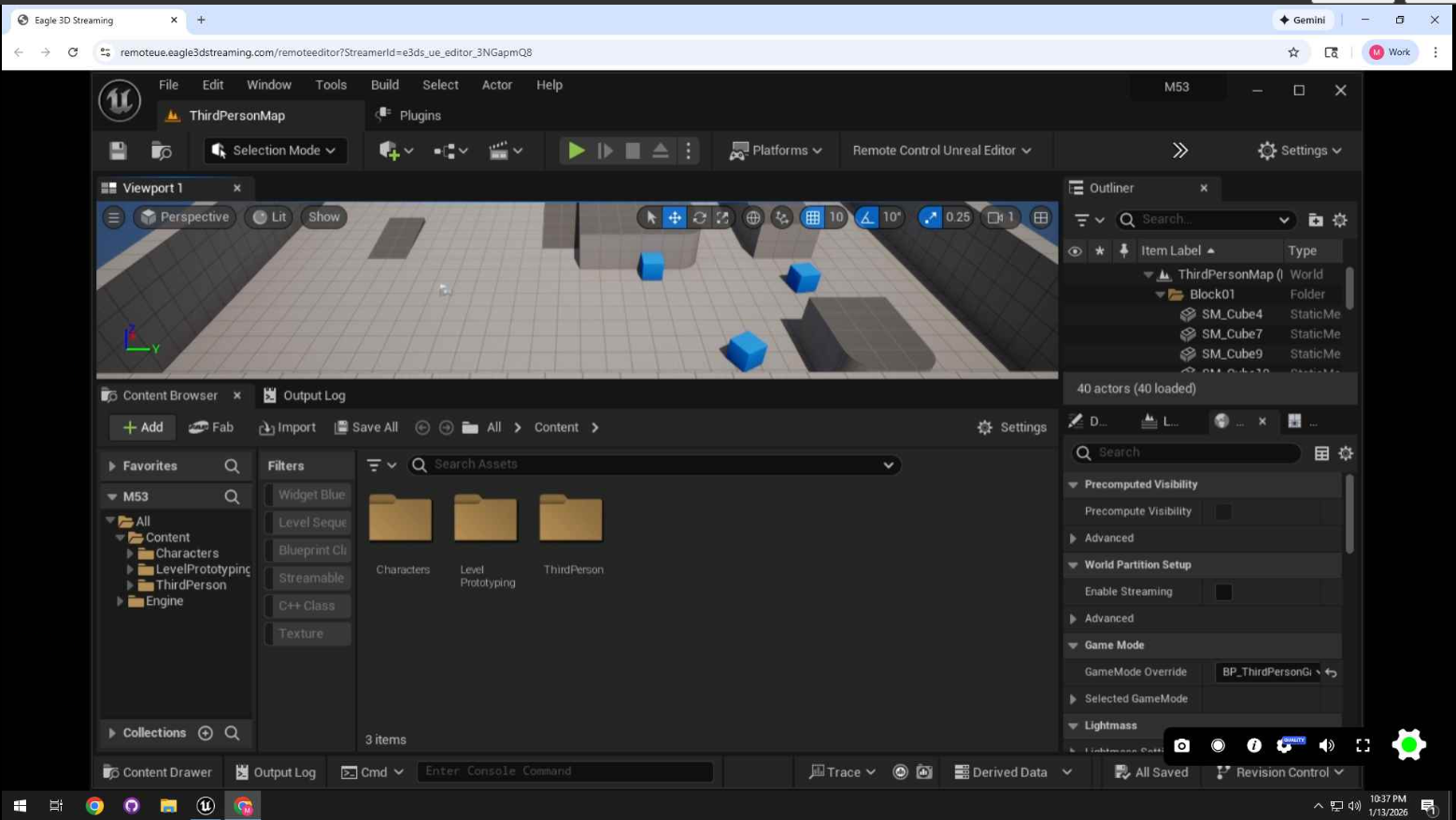
Step 7. Control the Unreal Editor Remotely
Once the session starts, you can fully control the Unreal Editor from any device with a browser.
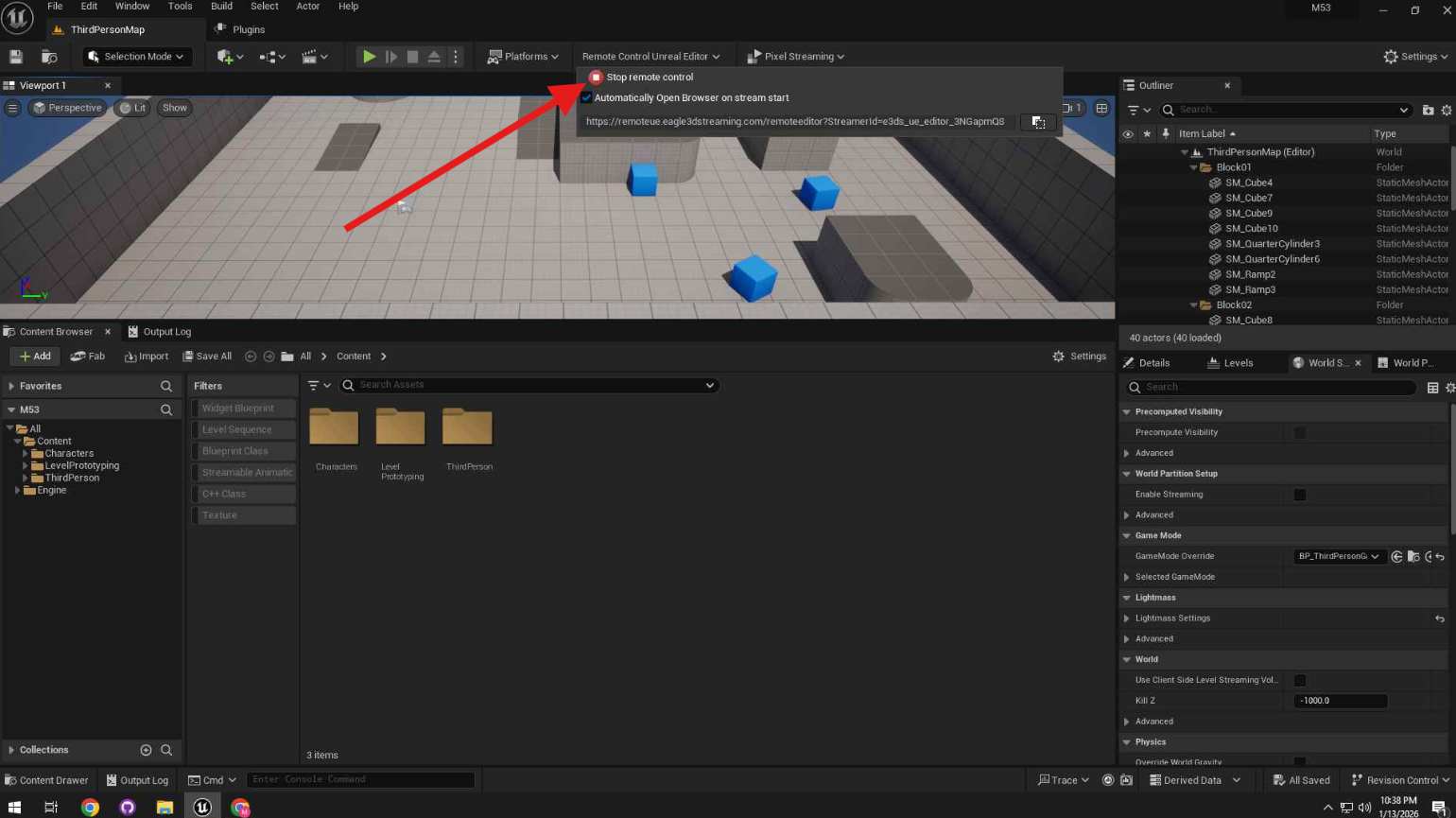
Step 8. Stopping Remote Control
To end the session:
- Open the Remote Control Unreal Editor dropdown
- Click Stop Remote Control
This will stop streaming and close the active browser session.
Need a visual walkthrough? Watch our full Video Guide on YouTube or read the comprehensive Documentation here.
Troubleshooting
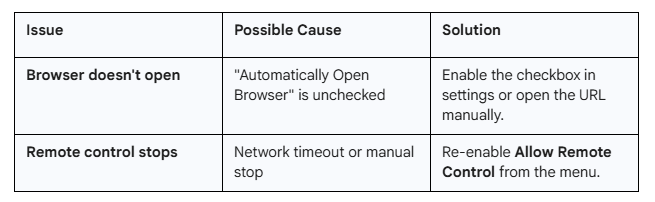
If you encounter issues while starting your remote session, refer to the table below for quick fixes.
Conclusion
In the world of high-fidelity visualization, technical hurdles shouldn't stop creative delivery. The E3DS Remote Control Plugin removes the barriers between your team and the Unreal Editor, ensuring that technical issues are solved instantly and projects are delivered on time.
Don't let distance, hardware limitations, or bad screen-sharing tools slow down your studio. Enable your team to collaborate from anywhere, on any device.
What should I do now?
If you are looking to leverage immersive technology for your business, here are three ways to move forward with Eagle 3D Streaming:
Join the Conversation
If you want to understand the technology better, connect with other developers, or contact us directly, join our Discord server: Join the Eagle 3D Community
New to Technology?
If you know about Pixel Streaming but want to understand how to optimize your project for the web, try our free guide: Get the Free Pixel Streaming Guide
Ready to Stream?
If you have a project ready and want to stream it to the world immediately, upload your project by signing up here: Sign Up & Upload Project