Your UE5 Game Runs Fine in PIE — Then Dies the Moment You Package It
Rafshan Tashin 8 min read UE5 Cloud Deployment · Pixel Streaming
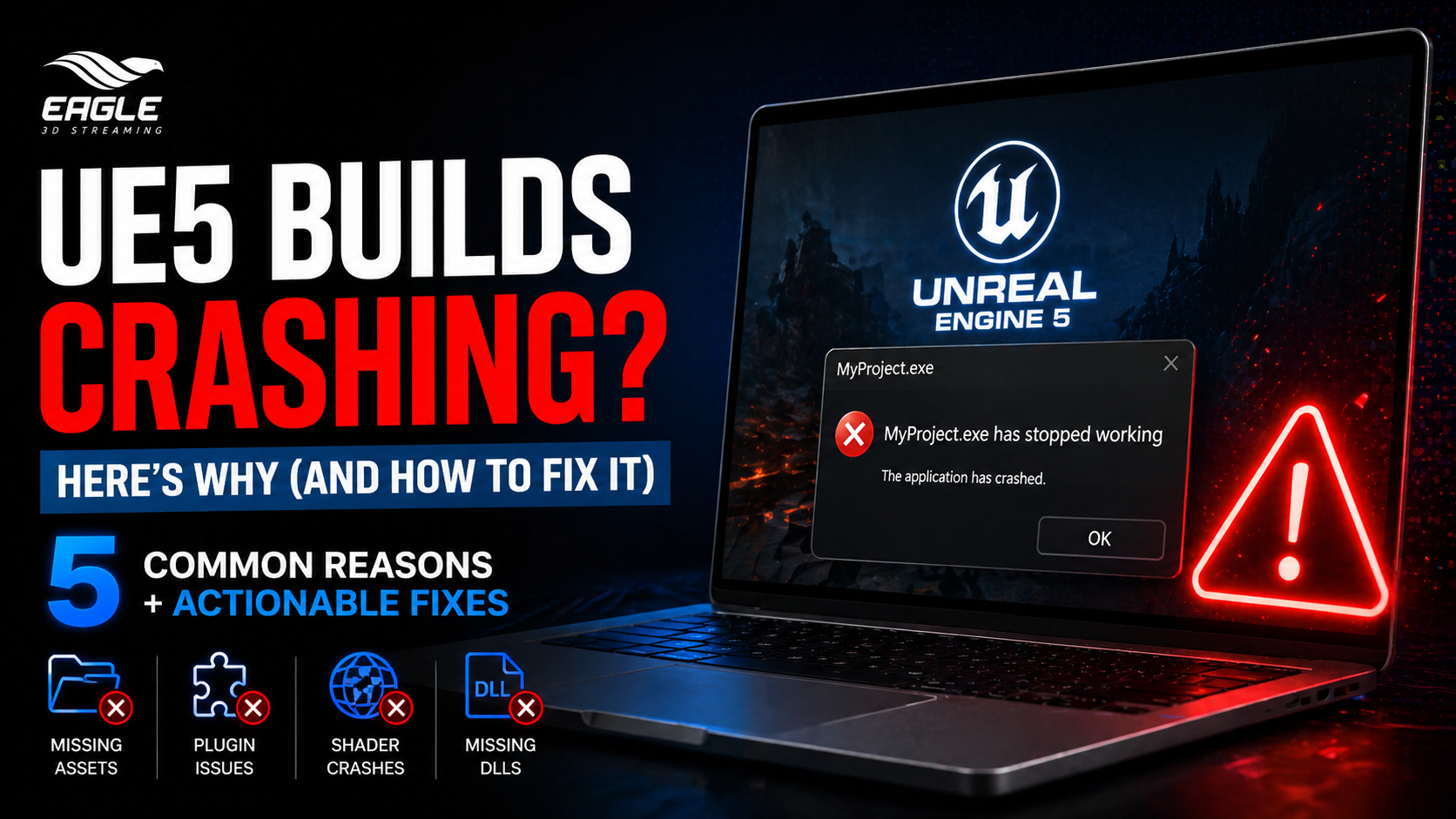
You've spent weeks building a project in Unreal Engine 5. PIE works. Simulating works. You hit Package Project, wait through the 45-minute cook, and launch the .exe on a clean machine.
Black screen. Crash. No error dialog.
This is one of the most common friction points in UE5 development — and it trips up both beginners and experienced devs alike. The packaged build environment is fundamentally stricter than the editor. Assets that the editor resolves at runtime, plugins that silently load in-editor, and shaders cached during development — none of that carries over automatically.
This post breaks down the top reasons packaged UE5 builds crash on launch or mid-session, what's actually happening under the hood for each, and how to fix them.
Getting Started with Pixel Streaming
Why Packaging Matters — And Why It's Not Just "Export"
Packaging a UE5 project isn't a simple build step. It's a full pipeline:
Cooking — converting raw assets to platform-specific binary formats
Staging — assembling the final file structure with only what the target needs
Compiling shaders — platform-specific shader compilation separate from your editor shader cache
Stripping editor-only content — plugins, modules, and code paths marked Editor Only don't make it into the package
The result is an environment that behaves differently from the editor in ways that matter. The editor is permissive by design — it resolves soft references on the fly, lazy-loads plugins, and has fallback paths everywhere. A packaged build has none of that safety net. If something is missing, it crashes.
This is why "works in PIE" is not the same as "works packaged." Treating them as equivalent is the first mistake.
The 5 Most Common Reasons Your Packaged UE5 Build Crashes
1. Missing or Uncooked Assets
What you see in the log:
Failed to find object '[AssetPath]'
Couldn't find file for package
The cooker only picks up assets it can trace through hard references from your maps and default classes. If you're loading assets via soft paths, StaticLoadObject(), or Blueprint string references, the cooker has no idea those assets need to be included.
What's actually happening: The asset exists on your dev machine because the editor has access to the full /Content directory. The packaged build only contains what was cooked — and the cooker never saw those assets in its reference pass.
Fix:
Go to Project Settings → Packaging → Additional Asset Directories to Cook and add any directories with dynamically loaded assets.
Add specific maps to Maps to include in packaged build.
Move dynamically loaded assets into /Content/Always Cook/ — the cooker always includes this directory.
As a debug step, enable Cook Everything in Project Content Directory — it's slower but rules out missing assets as the cause.
2. Plugins Enabled in Editor but Not Packaged
What you see in the log:
Couldn't load plugin: [PluginName]
Missing module: [ModuleName]
Some plugins are explicitly marked Editor Only in their .uplugin file and are excluded from packaged builds by design. Others have platform whitelists that exclude your target platform. Either way, if your game depends on them at runtime, it will crash.
Fix:
Open your [Project].uproject file and verify all required plugins have "Enabled": true.
Check the plugin's .uplugin — look for "WhitelistPlatforms" and make sure your target platform is listed (or the field doesn't exist, which means all platforms are allowed).
For C++ modules you've written, open [Project].Build.cs and confirm the module Type is not set to Editor — use Runtime or RuntimeAndProgram as appropriate.
// Wrong — this module won't be included in packaged builds
new ModuleRules {
Type = ModuleType.Editor
}
3. Shader / PSO Compile Crash
What you see in the log:
Shader compile error
GPU driver crash / device lost
The editor uses a local shader cache. Your packaged build needs to compile shaders fresh for the target platform — and any custom material nodes using editor-only features will fail.
What's actually happening: Shaders that compiled and cached in-editor aren't portable to the packaged build. On first launch, the engine recompiles them for the platform, and if any material uses editor-only graph nodes or has bad math that the editor's compiler was lenient about, it fails.
Fix:
In Project Settings → Packaging, enable Share Material Shader Code and Shared Material Native Libraries.
Audit any custom Material nodes — strip out anything that references editor-only functionality.
Use PSO (Pipeline State Object) caching for production builds to precompile shaders and avoid first-run hitches or crashes.
4. Blueprint Nativization / VM Errors
What you see: A specific Blueprint class instantiates fine in PIE, crashes in the packaged build. No shader or asset errors in the log.
What's actually happening: PIE runs Blueprints through the VM with extra safety checks and more forgiving null handling. Packaged builds with nativization enabled generate C++ from your Blueprints — and that generated code exposes bugs that the VM was quietly swallowing.
Common culprits:
Pure functions with side effects — they get optimized away in nativized C++ but run in PIE
Non-null assumptions — GetPlayerController() returning null in standalone but not in PIE
Circular BP dependencies — the load order in a packaged build is different
Fix:
Search your BPs for any node that assumes a valid reference without an IsValid() guard in code paths only hit in standalone (loading screen, game start, level transition).
If you're using inclusive Blueprint Nativization, either switch to exclusive (only specific BPs) or disable it and test whether the crash goes away.
Add null checks defensively around any GetComponent, GetPlayerController, or Cast outputs that feed directly into function calls.
5. Missing Third-Party DLLs / Redistributables
What you see: Immediate crash on .exe launch on a clean machine. Works fine on your dev machine.
The giveaway: It works on your machine because you have Visual C++ Redistributables installed (Visual Studio installs them). A clean machine doesn't.
What's actually happening: Your build depends on runtime DLLs — either Visual C++ runtimes or custom third-party .dll files — that aren't being staged with the packaged output.
Fix:
Ensure Visual C++ Redistributable 2022 is installed on the target machine. For distribution, bundle the VC++ installer or use a setup wizard.
For custom third-party DLLs, copy them to [Project]/Binaries/Win64/ and add a staging rule in [Project].Target.cs:
RuntimeDependencies.Add("$(ProjectDir)/Binaries/Win64/MyLib.dll");
Enable better crash diagnostics in DefaultEngine.ini:
bFullDebugCrashReporter=true
This gives you a proper callstack in the Saved/Crashes/ folder instead of a generic crash dialog.
Quick Diagnostic Reference
Before diving into any of the above, pull the log first. Every packaged build writes a log here:
%AppData%\Local\[ProjectName]\Saved\Logs\[ProjectName].log
The log usually tells you exactly what failed. Don't guess — read it.
Diagnostic Step | Where to Look |
|---|---|
Read the .log file | %AppData%\Local\[Project]\Saved\Logs\ |
Package in Development mode, not Shipping | Project Settings → Packaging |
Launch with -log -unattended flags | Shortcut or batch script targeting the .exe |
Pull the crash callstack | Saved/Crashes/ folder |
Shipping builds strip debug symbols and suppress logs by default. If you're actively diagnosing a crash, always test in Development configuration first — it gives you readable callstacks and live log output without the stripped-down behavior of Shipping.
Wrapping Up
Packaged build crashes almost always fall into one of these five categories. The pattern is the same across all of them: something the editor resolves automatically or silently patches over is absent in the packaged environment.
The fastest debugging loop is:
Read the log — the answer is usually there
Package in Development — never debug in Shipping
Isolate the crash — comment out systems, test on a minimal map
Match the symptom to the category — asset missing, plugin missing, shader fail, BP VM issue, or missing DLL
Once you've packaged a few projects through issues like these, the failure modes become predictable. The editor hides a lot of complexity from you during development — packaging is where that complexity surfaces.
Ready to Deploy Your Unreal Experience?
If you're a visualization studio and you're tired of watching great work fall short at the delivery stage, Eagle 3D Streaming is built for you.
🎮 Join the Eagle 3D Streaming Community on Discord
Connect with other studios, get real-time support, share builds, and stay ahead of platform updates. Join the Discord
🛠️ Need Help? Talk to Support
Our technical team understands Unreal Engine workflows. Whether you're troubleshooting a deployment or planning a large-scale rollout, we're here. Contact Support → support@eagle3dstreaming.com
🚀 Upload Your App and Go Live
Ready to stream? Upload your packaged Unreal build, configure your settings, and have your experience live in minutes. Upload Your App