Low FPS in Pixel Streaming? 5 Reasons Your Stream Is Dropping Frames
Getting choppy, laggy playback in Unreal Engine 5 Pixel Streaming? This guide covers the 5 most common causes of low FPS — from internet connection and browser settings to server load — with a clear fix for each.
 MD Rafshan Tashin Eshan
May 11, 2026
8 min read
You hit play, the stream loads, and instead of smooth motion you get a choppy, laggy mess. It's one of the most common complaints in Unreal Engine 5 Pixel Streaming — and one of the most frustrating, because the issue could be sitting anywhere between the server and the screen.
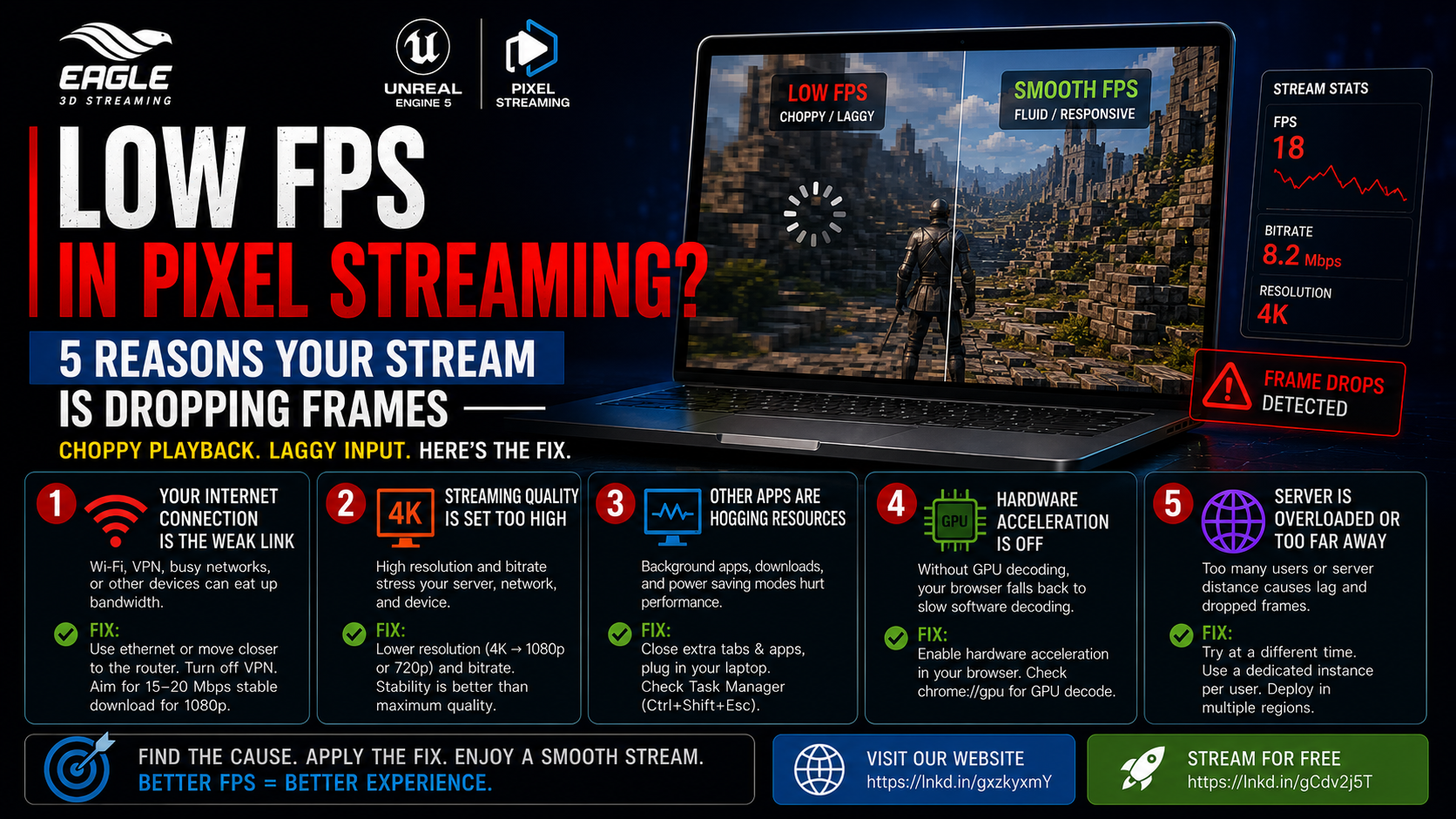
The good news is that most low FPS problems in Pixel Streaming come down to five everyday causes. None of them require deep engine knowledge — just a quick check and a small change. This guide walks through each one in the order you should check them, so you can stop guessing and find the fix.
Why FPS Matters More in Pixel Streaming Than in a Normal Application
In a traditional desktop application, the frame rate is determined by what your local machine can render. In Pixel Streaming, the UE5 application runs entirely on a remote server — your device never touches the render workload. What you're watching is a live video stream of that render, delivered over WebRTC to your browser in real time.
That means frame rate in Pixel Streaming is affected by an entirely different set of variables: the quality of your internet connection, how your browser handles video decoding, what else your machine is doing, and how loaded the server is. A powerful local machine offers no protection against a slow network or a misconfigured browser. Understanding where the bottleneck actually sits is the first step to fixing it.
5 Reasons Your Pixel Stream Is Dropping Frames
1. Your Internet Connection Is the Weak Link
What you'll see: Choppy or stuttering playback. Frames that freeze momentarily and then jump forward. Input that feels delayed or disconnected from what's on screen.
Why it happens: Pixel Streaming sends live video over the internet in real time, so the connection between you and the server matters more than anything else. Wi-Fi is the usual suspect — even a strong signal can have small interruptions that show up as stutter. A VPN, a busy network, or someone else streaming on the same router can all eat into the bandwidth your stream needs.
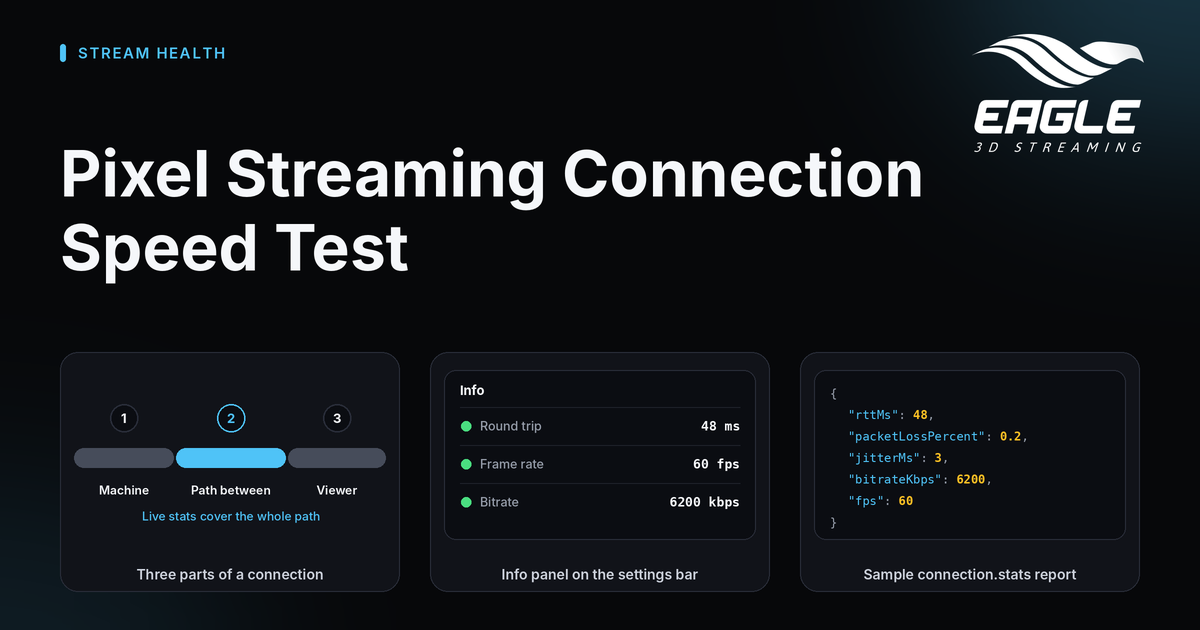
The fix: Plug into ethernet if you can, or move closer to the router. Turn off the VPN for a quick test. Run a speed test — you generally want at least 15–20 Mbps of stable download for a smooth 1080p stream, and stability matters more than raw speed. If your connection looks fine on a speed test but the stream still stutters, the problem is somewhere else on this list.
2. The Streaming Quality Is Set Too High for Your Setup
What you'll see: Consistent frame drops regardless of what's happening in the scene. Playback that degrades the longer the stream runs.
Why it happens: Higher resolution and bitrate look better, but they demand more from every link in the chain — the server's encoder, your network, and your device's decoder. If any one of those can't keep up, you get frame drops. A common mistake is pushing settings to maximum and then troubleshooting the wrong layer.
The fix: Drop the resolution from 4K to 1080p, or from 1080p to 720p, and see if it smooths out. Lower the bitrate too. You can always nudge settings back up once you know what your setup handles cleanly. The goal is a stable stream, not the highest possible numbers.
3. Something Else on Your Computer Is Hogging Resources
What you'll see: Frame drops that correlate with other activity on your machine — a download completing, another app opening, or the fan spinning up. The stream feels fine at some moments and rough at others.
Why it happens: Your browser still has to decode the incoming video, and that takes real CPU and GPU work. Thirty open tabs, a background download, a game running behind the browser, or a laptop on battery saver mode can all leave the browser without enough resources to keep up. The stream from the server may be perfectly healthy — your machine just can't unpack it fast enough.
The fix: Close other tabs and apps, plug your laptop in, and try again. Restart the browser if it has been open for days. On Windows, check Task Manager (Ctrl+Shift+Esc); on Mac, check Activity Monitor. If your CPU is sitting near 100%, that's your problem and you'll feel it across everything, not just the stream.
4. Your Browser Isn't Using Hardware Acceleration
What you'll see: Frame drops on streams that should run fine given your hardware. Smooth playback on one machine but choppy on another with similar specs.
Why it happens: Modern browsers can decode video using your GPU, which is fast and efficient. Hardware acceleration sometimes gets disabled — by an extension, a settings change, an outdated driver, or just by default on certain machines. When it's off, the browser falls back to software decoding, which is significantly more taxing and is a common hidden cause of low FPS in Pixel Streaming.
The fix: In Chrome, go to Settings → System and make sure "Use hardware acceleration when available" is turned on, then restart the browser. Visit chrome://gpu and look for "Video Decode: Hardware accelerated" — if it says software, your GPU drivers may need updating. Edge and Firefox have similar settings under their performance or system menus.
5. The Server Is Overloaded or Too Far Away
What you'll see: Lag and frame drops that affect everyone on the stream, not just one viewer. Playback that improves at off-peak times or when fewer users are connected.
Why it happens: Pixel Streaming runs on a server, and that server has limits. If too many users are connected to the same instance, or if the server is located in a region far from your users, you'll feel it as lag and dropped frames. You may also hit this right after deploying — sometimes the server takes a moment to warm up before it runs smoothly.
The fix: Try again at a different time of day, especially if it's a shared or demo environment. If you control the deployment, check whether you're sharing one server across too many users — Pixel Streaming generally works best with a dedicated instance per user, or a small number per powerful GPU. If your users are global, consider hosting servers in multiple regions so each user connects to one nearby.
Quick Checklist — Run Through These in Order
Most low FPS issues in Pixel Streaming are solved by the first two items. Work down the list until the problem is gone:
| Step | Check |
|---|---|
| 1 | Test your internet — ethernet or close to router. At least 15–20 Mbps stable for 1080p. |
| 2 | Lower the streaming quality — drop resolution and bitrate and test again. |
| 3 | Close background apps and tabs — check CPU/GPU usage in Task Manager or Activity Monitor. |
| 4 | Confirm hardware acceleration is enabled in your browser — check chrome://gpu. |
| 5 | Check server load — try at a different time, or verify instance capacity. |
Conclusion: Low FPS Is a System Problem, Not Just an Engine Problem
Frame drops in Pixel Streaming are rarely a mysterious bug. Almost every case traces back to one of these five causes — a connection issue, a quality setting that's too high, a resource-starved browser, a missing GPU decode path, or a server that's stretched too thin.
Work through the checklist in order. The fix is usually found within the first two steps. And if none of these resolve it, you at least know exactly which layer of the stack to look at next.
Frequently Asked Questions
Q: Why does my Pixel Stream play smoothly on ethernet but stutter on Wi-Fi? Pixel Streaming delivers live video in real time over WebRTC, which is highly sensitive to network instability. Wi-Fi introduces small interruptions and variable latency that show up as stutter and frame drops, even when signal strength appears strong. Ethernet eliminates that variability. If ethernet isn't an option, moving closer to the router and removing other devices from the network helps.
Q: My hardware is powerful but the stream still drops frames — what should I check? Start with hardware acceleration in your browser. When it's disabled, the browser decodes video entirely in software regardless of your GPU, which is a common hidden cause of frame drops on capable machines. In Chrome, check Settings → System and verify at chrome://gpu that video decode is hardware accelerated. Also check that nothing else is saturating your CPU in the background.
Q: How many users can share one Pixel Streaming server instance? Pixel Streaming generally works best with a dedicated instance per user. Sharing one instance across multiple users puts increasing load on the server's encoder and GPU, which degrades stream quality and frame rate for everyone connected. If you're deploying for multiple simultaneous users, plan for either multiple instances or a sufficiently powerful GPU that has been tested under your expected concurrent load.
Ready to Deploy Your Unreal Experience?
If you're a visualization studio and you're tired of watching great work fall short at the delivery stage, Eagle 3D Streaming is built for you.
🎮 Join the Eagle 3D Streaming Community on Discord
Connect with other studios, get real-time support, share builds, and stay ahead of platform updates. Join the Discord
🛠️ Need Help? Talk to Support
Our technical team understands Unreal Engine workflows. Whether you're troubleshooting a deployment or planning a large-scale rollout, we're here. Contact Support → support@eagle3dstreaming.com
🚀 Upload Your App and Go Live
Ready to stream? Upload your packaged Unreal build, configure your settings, and have your experience live in minutes. Upload Your App
Share this article