VR Pixel Streaming with Eagle 3D Streaming: The Complete Getting Started Guide (2026)
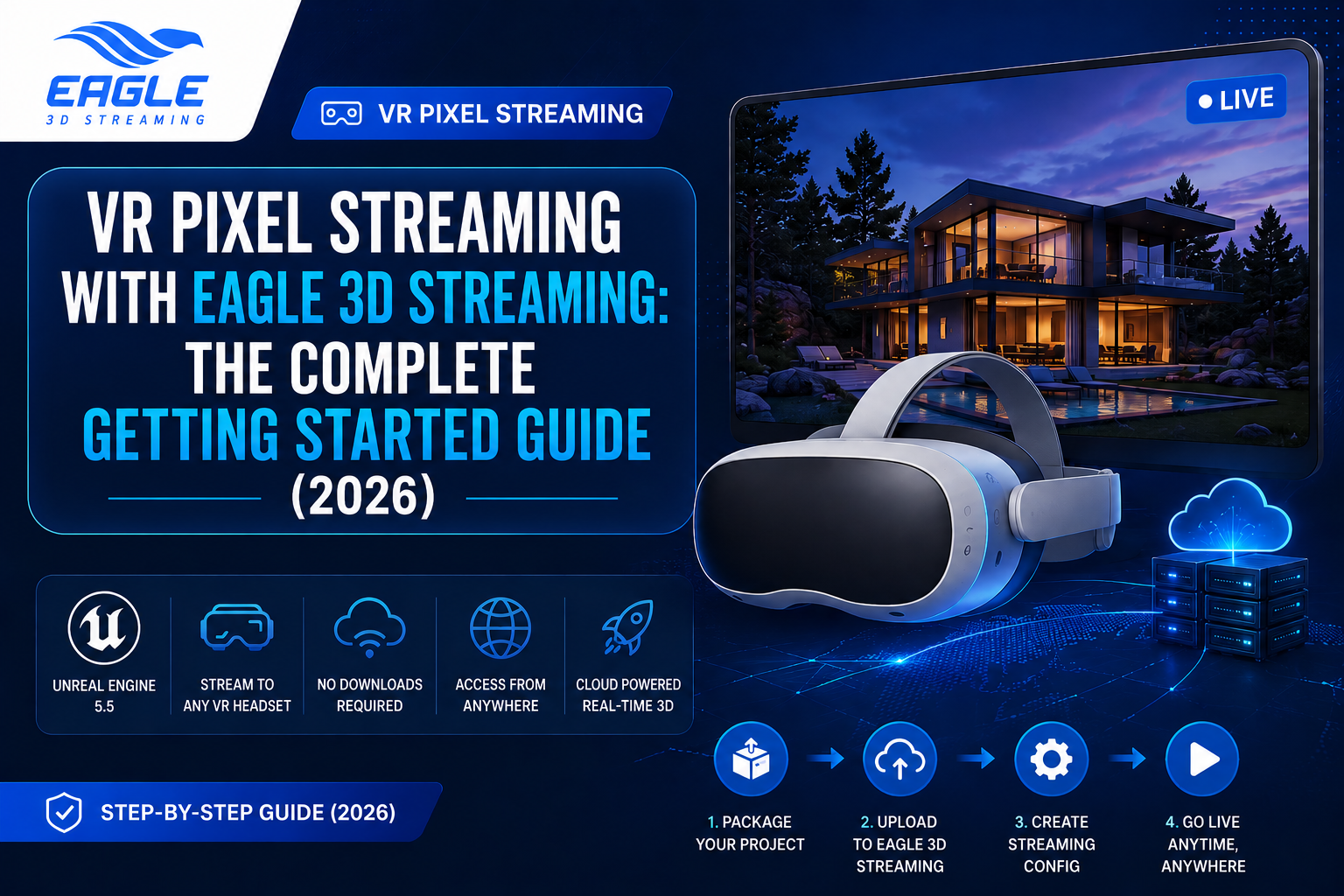
Learn how to set up VR Pixel Streaming with Unreal Engine 5.5 using Eagle 3D Streaming. This step-by-step guide covers project setup, packaging, uploading, streaming, and fixing common VR errors.
 MD Rafshan Tashin Eshan
June 12, 2026
8 min read
Introduction: Stream Your VR App to Any Device — No Downloads Required
Virtual Reality is no longer confined to high-end gaming rigs. Thanks to cloud-based pixel streaming, developers can now deliver immersive VR experiences directly through a browser — on any compatible VR headset — without asking users to install a single file.
Eagle 3D Streaming makes this possible by providing a powerful, cloud-hosted pixel streaming platform built for Unreal Engine projects. Whether you're building architectural visualizations, VR training simulations, or interactive 3D experiences, Eagle 3D Streaming lets you upload once and stream to anyone, anywhere.
This guide walks you through everything — from creating your VR project in Unreal Engine to streaming it live through the Eagle 3D Streaming platform.
Why Is VR Pixel Streaming Becoming Popular?
The traditional VR distribution model has a serious problem: it requires powerful local hardware. Users need a high-end PC, a compatible GPU, and a bulky setup just to run an experience. This creates a massive barrier to entry for both developers and end users.
VR Pixel Streaming solves all of that. Here's why it's rapidly becoming the preferred method for deploying VR applications:
No hardware limitations. The rendering happens on the cloud server, not the user's device. Users stream the visuals directly to their VR headset just like watching a video — but fully interactive.
Instant access. No app store. No download. No installation. Share a URL and anyone with a compatible VR headset can jump in.
Cross-platform reach. One build, accessible from Oculus Quest 2, Quest 3, and other WebXR-compatible headsets.
Lower deployment costs. Developers maintain one centralized build instead of managing multiple platform-specific releases.
Real-time updates. Update your app on the server and every user instantly gets the latest version — no patches, no re-downloads.
Eagle 3D Streaming is purpose-built for this model, combining WebRTC-powered streaming with a developer-friendly control panel that makes deploying VR apps as simple as uploading a ZIP file.
System Requirements and Compatibility
Before diving into setup, here's a quick overview of what you need:
| Requirement | Details |
|---|---|
| Unreal Engine Version | 5.5 only (other versions cause distortion/double vision) |
| VR Plugin | Pixel Streaming (enabled) + OpenXR (disabled) |
| Build Target | Windows (Linux not yet verified) |
| Tested VR Headsets | Oculus Quest 2, Oculus Quest 3 |
| Packaging Output | ZIP file from Windows build folder |
| Platform | Eagle 3D Streaming Control Panel |
| Local Testing | Recommended before uploading (via Epic's Signaling Server) |
How to Set Up VR Pixel Streaming: Step-by-Step Guide
Step 1 — Create a VR Project in Unreal Engine
- Open Unreal Editor
- Under the GAMES category, select Virtual Reality
- Enter your project name and click Create
You'll now have the basic VR template loaded in Unreal Engine.
Step 2 — Enable the Pixel Streaming Plugin
- Go to Edit > Plugins
- Search for "Pixel Streaming"
- Enable the Pixel Streaming plugin
Step 3 — Disable the OpenXR Plugin
- Still in the Plugins panel, search for "OpenXR"
- Uncheck the OpenXR plugin and confirm with "Yes"
- Click Restart Now to apply changes
- On restart, select Dismiss from any popup that appears
Why disable OpenXR? Eagle 3D Streaming's VR pixel streaming pipeline uses its own WebXR rendering path. Leaving OpenXR enabled causes conflicts that result in distorted or broken visuals.
Step 4 — Clean Up the Project
- Open the Content Drawer
- Search for "B_Asset" and delete B_Asset Guideline
- Search for "VRPawn", open it, then Compile and Save
Step 5 — Package the Project
- Navigate to Platforms > Windows > Package Project
- Choose an empty folder on your local machine as the output destination
- Wait for packaging to complete (monitor progress via Show Output Logs)
If packaging fails, it's likely a Visual Studio configuration issue. Refer to Epic's official guide on configuring Visual Studio for Unreal Engine.
Step 6 — Create the ZIP File
- Open the Windows output folder
- Select all files and folders
- Compress them into a single ZIP file
Your project is now ready to upload.
How to Upload and Stream Your VR App on Eagle 3D Streaming
Step 1 — Upload Your Project
Log in to the Eagle 3D Streaming Control Panel and upload your ZIP file. Full upload instructions are available in the Eagle 3D Streaming documentation.
Always test your VR project locally before uploading. Use Epic's Signaling Server to verify the experience works end-to-end on your headset first.
Step 2 — Access Your Streaming URL
Once uploaded, each app gets a unique streaming URL. It will look something like this:
https://connector.eagle3dstreaming.com/v5/demo/VRDemo/vrConfig
You can share this URL directly with users. To understand the different phases after accessing the URL, refer to the phases documentation.
Step 3 — Enter VR Mode
Open the URL on your VR headset browser. On the player interface, click the VR icon to switch to VR mode. The experience will activate and you're in.
Want to see it in action before building your own? Try the Eagle 3D Streaming live VR demo: https://connector.eagle3dstreaming.com/v5/demo/VRDemo/vrConfig
Common VR Pixel Streaming Errors and How to Fix Them
Even with a correct setup, a few issues tend to come up. Here are the most common ones and their solutions:
Error 1 — Player Spawns Stuck in the Ground
What happens: At the start of the experience, or after teleporting, the player's view is underground or they can't move.
Why it happens: The teleportation system moves the center of the player capsule to the target location without accounting for the capsule's height, causing it to partially clip into the ground geometry.
Fix — Part 1: Adjust the Player Start Location
- In your level, find the Player Start actor
- Move it upward on the Z-axis by approximately +110 units
- You'll know it's correct when the red "Bad Size" warning disappears from the actor
Fix — Part 2: Patch the Teleportation Function
- Open the VRPawn Blueprint
- Find the
TryTeleportfunction - Add the same +110 Z-axis offset to the Destination variable (look for the "Collision Adjustment" comment block)
📖 Full walkthrough: Fixing Ground Stuck Issue in VR
Error 2 — 360° View Distortion or Double Vision
What happens: The VR view is warped, stretched, or shows double images.
Why it happens: You're using an Unreal Engine version other than 5.5. This is a known engine-level compatibility issue with VR pixel streaming.
Fix: Use Unreal Engine 5.5 exclusively. No other version is currently supported for VR pixel streaming on Eagle 3D Streaming.
Error 3 — Player Spawns in Wrong Position at Stream Start
What happens: The character appears at an unexpected or incorrect location when pixel streaming begins.
Why it happens: The VR template's default character spawn position is not adjusted for the pixel streaming pipeline.
Fix: Before packaging, manually adjust the player actor's starting position in the level to the correct spawn location. Make sure the Player Start actor is positioned properly above the ground (see Error 1 fix).
Error 4 — Packaging Fails
What happens: Unreal Engine throws errors during the packaging step.
Why it happens: Visual Studio is not properly configured to work with Unreal Engine.
Fix: Follow Epic's Visual Studio setup guide to ensure your development environment is correctly configured.
Error 5 — VR Headset Not Working
What happens: The VR mode doesn't activate or the headset isn't recognized.
Why it happens: Eagle 3D Streaming has been tested on Oculus Quest 2 and Quest 3. Other headsets may or may not be compatible.
Fix: If you're using a Quest 2 or Quest 3 and still experiencing issues, or if you're on a different headset, reach out to the team at support@eagle3dstreaming.com so they can investigate.
What Makes Eagle 3D Streaming the Right Choice for VR Streaming?
If you're comparing options for deploying cloud-streamed VR, here's what sets Eagle 3D Streaming apart:
Purpose-built for Unreal Engine. The platform is designed specifically around Unreal Engine's pixel streaming pipeline, so the setup process is streamlined and well-documented.
Simple upload workflow. Package your project, ZIP it, upload via the Control Panel, and stream. No complex server configuration required.
WebRTC-powered delivery. Low-latency streaming over WebRTC means smooth, responsive VR experiences even over typical internet connections.
Dedicated documentation. The Eagle 3D Streaming docs cover every step from initial project setup to advanced configurations.
Active support community. Get answers fast through the Discord community or the official support portal.
Conclusion: Start Streaming Your VR App Today
VR pixel streaming is one of the most exciting shifts in how immersive experiences are delivered. Instead of asking users to install heavy applications or buy expensive hardware, you can stream a fully interactive VR experience directly to their headset from the cloud.
With Eagle 3D Streaming, the path from Unreal Engine project to live VR stream is straightforward: build in UE5.5, enable Pixel Streaming, package, upload, and share a URL.
Ready to get started?
🆓 Create your free account on Eagle 3D Streaming — no credit card required.
📖 Browse the full documentation for detailed guides on every feature.
💬 Join our Discord community for fast support, tips from other developers, and the latest platform updates.
🛠️ Contact our support team if you run into any issues along the way.
📧 Or email us directly at support@eagle3dstreaming.com
Published by Eagle 3D Streaming | eagle3dstreaming.com
Share this article