Performance & Optimization for Pixel Streaming: The Complete Guide
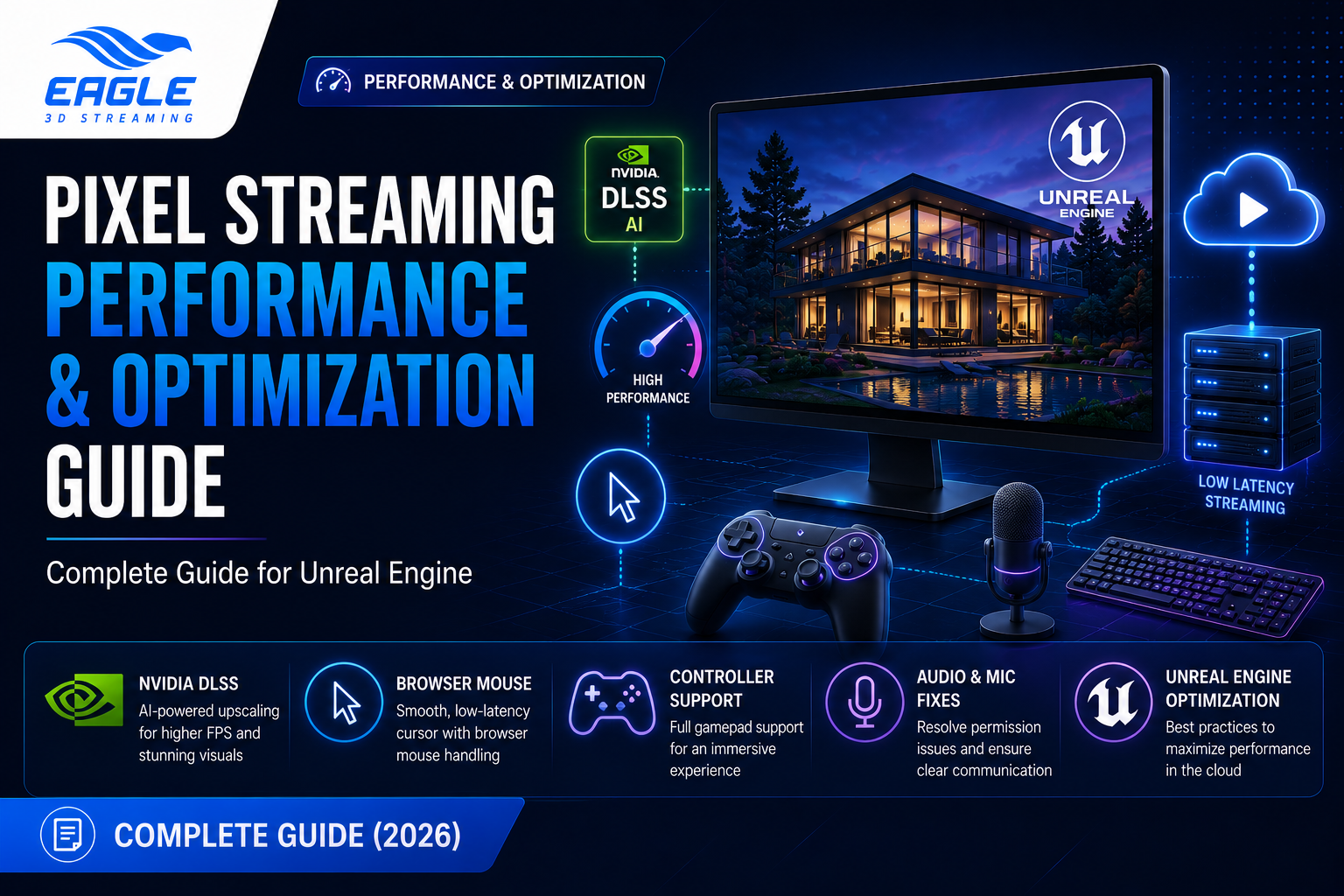
Learn how to optimize Unreal Engine Pixel Streaming performance with Eagle 3D Streaming — covering NVIDIA DLSS, mouse handling, on-screen keyboard, controller support, and audio/mic fixes.
 MD Rafshan Tashin Eshan
June 22, 2026
13 min read
Pixel Streaming lets you run a full Unreal Engine application in the cloud and deliver it to any browser, on any device, with no local GPU required. But raw streaming alone isn't enough — how your project handles rendering, input, audio, and UI directly determines whether users experience a smooth, responsive session or a laggy, frustrating one.
This guide walks through the core performance and optimization techniques documented for Eagle 3D Streaming, based on the official Performance & Optimization developer guides. You'll learn how to boost visual quality without sacrificing frame rate, fix common input and cursor issues, enable on-screen keyboards and game controllers correctly, and resolve audio/microphone permission failures that can silently break a stream.
If you're new to the platform, start with Getting Started before diving into optimization.
Why Performance Optimization Matters for Pixel Streaming
Every Pixel Streaming session involves a round trip: user input travels to the cloud-hosted Unreal Engine instance, gets processed, and the rendered frame streams back as video. Because of this loop, small inefficiencies — an unoptimized render pipeline, the wrong mouse cursor setup, or a missing browser permission — are magnified by network latency in ways that don't happen in locally-run applications.
Optimization for Pixel Streaming falls into four practical categories:
- Rendering performance — using AI upscaling to maintain frame rate at high visual fidelity
- Input handling — making sure mouse, keyboard, and controller input feel instant rather than delayed
- Cross-device usability — supporting touch devices and gamepads without extra engineering
- Reliability — preventing silent failures caused by browser audio and permission policies
The sections below cover each of these, in the order they appear in Eagle 3D Streaming's developer documentation.
Boosting Visual Quality with NVIDIA DLSS Integration
One of the most effective ways to improve perceived performance in a streamed Unreal Engine project is NVIDIA DLSS (Deep Learning Super Sampling). DLSS uses AI and machine learning to upscale lower-resolution renders to near-native quality, which means your project can achieve smoother frame rates, enhanced image fidelity, and an improved user experience without requiring more raw GPU horsepower per stream.
How DLSS Integration Works in Unreal Engine
According to the official Integrating NVIDIA DLSS into Unreal Engine Project guide, the setup follows eight steps:
| Step | Action |
|---|---|
| 1 | Download the DLSS plugin matching your Unreal Engine version |
| 2 | Locate the downloaded plugin folder |
| 3 | Copy all DLSS plugin files into your project's Plugins directory |
| 4 | Copy the widget plugin from samples into your project |
| 5 | Clone the Blueprint folder from sample content into your project directory |
| 6 | Enable Pixel Streaming and DLSS (NVIDIA) plugins, then restart the engine |
| 7 | Configure the Level Blueprint to display the DLSS widget |
| 8 | Test the integration in Standalone Game Mode |
Once integrated, the DLSS overlay widget can be toggled at runtime — pressing H hides or shows it, which is useful for client demos where you want a clean view without debug overlays.
Should You Use DLSS for Every Project?
DLSS is most valuable for visually demanding Unreal Engine applications — architectural visualizations, product configurators, and simulations where image fidelity matters as much as frame rate. If your project is UI-driven rather than render-heavy, your optimization budget is better spent on the input handling fixes covered next.
Fixing Mouse Cursor Latency in Pixel Streaming
Mouse handling is one of the most common sources of perceived "lag" in Pixel Streaming, and it has nothing to do with your network connection — it's a configuration choice. In Unreal Pixel Streaming, mouse input can be handled at two distinct layers, and mixing them up is what causes a sluggish cursor.
Unreal Mouse vs. Browser Mouse: What's the Difference
| Setup | Experience | Recommendation |
|---|---|---|
| Unreal mouse only | Cursor latency, delayed movement | ❌ Not recommended |
| Browser mouse only | Smooth, responsive interaction | ✅ Recommended |
| Both enabled | Double cursor, input conflicts | ❌ Not recommended |
When the cursor is rendered inside the Unreal application (via Show Mouse Cursor on the Player Controller), it becomes part of the video stream itself. Every pixel of cursor movement has to travel through the render-and-encode pipeline before it reaches the browser, introducing visible latency that gets worse on higher-latency networks.
The recommended approach is to let the browser handle the cursor locally while Unreal only receives the input events. This means cursor movement is instant and smooth, because it's never part of the encoded video frame — only the resulting clicks and movement events are sent to Unreal. This is especially important for menus, configurators, and any UI-heavy application.
For step-by-step setup instructions, see the dedicated Enable Browser Mouse guide. Never enable both cursor modes simultaneously — doing so causes two visible cursors, misalignment, and inconsistent clicks in production environments.
Enabling On-Screen Keyboard (OSK) for Touch Devices
If your Pixel Streaming application includes text input fields — login forms, search bars, or configurator inputs — supporting touch devices means enabling the On-Screen Keyboard (OSK), which lets users type without a physical keyboard.
Unreal Engine Version Compatibility
OSK support depends entirely on your Unreal Engine version. Using an unsupported version doesn't just disable the feature — it can crash the application:
| Unreal Version | Supported | Note |
|---|---|---|
| 5.3 | No | Input interaction appears, but typed text is not applied to the field |
| 5.4 | No | Input appears, but the application crashes after typing |
| 5.5 | No | Input appears, but the application crashes after typing |
| 5.6 | Yes | Fully supported and stable |
| 5.7 | Yes | Fully supported and stable |
If you're planning a touch-friendly deployment, upgrading to UE 5.6 or above is not optional — it's the only stable path.
How the On-Screen Keyboard Works
Once a text field is focused inside the streamed application, the OSK appears automatically, captures input in real time, and works natively in supported browsers with no plugins required. Mobile browsers may need full-screen mode for the keyboard to display correctly, and a connected physical keyboard always takes input priority over the OSK.
Common OSK Issues and Fixes
| Issue | Possible Cause | Solution |
|---|---|---|
| OSK does not appear | Unsupported Unreal Engine version | Upgrade to UE 5.6 or above |
| Keyboard appears but inputs aren't registered | Unsupported Unreal Engine version | Upgrade to UE 5.6 or above |
| Keyboard partially hidden on mobile | Viewport or scaling issue | Enable full-screen mode or adjust viewport scaling |
| Typing lag or delayed input | Network latency or heavy rendering load | Ensure a stable connection and close background bandwidth-heavy apps |
Game Controller Support: Plug-and-Play Input
Pixel Streaming applications aren't limited to mouse and keyboard. Eagle 3D Streaming supports all major controller types — PlayStation, Xbox, and other standard gamepads — with no additional platform-side configuration required.
How Controller Detection Works
Once a controller is connected via USB or Bluetooth, the browser automatically detects it through the Gamepad API and maps inputs to the streamed application the moment the user opens the streaming URL. No drivers, plugins, or platform settings are needed on the Eagle 3D Streaming side.
When You Need Extra Setup — and When You Don't
This is the part developers most often get wrong, so it's worth being precise:
- No setup required if you're using an Epic Games Unreal Engine template (such as the Third Person Template) with default controller input mappings intact. Package the project, upload it, and controller input works immediately — Epic's templates ship with controller support enabled out of the box.
- Additional setup required if you're using a custom project, a third-party project kit, or a custom source template where controller input mappings were removed or altered. In these cases, the original mappings must be restored or reconfigured in Unreal Engine before controllers will work in the streamed build.
Controller validation was tested using both Xbox and PlayStation controllers across independent sessions, confirmed with external tools like gpadtester.com and hardwaretester.com/gamepad, with no conflicts or detection issues observed across devices.
Controller Troubleshooting Reference
| Issue | Possible Cause | Solution |
|---|---|---|
| Controller not detected | Not connected properly | Confirm USB/Bluetooth pairing and OS-level recognition |
| Buttons or joysticks not responding | Browser session not detecting controller | Refresh the tab, reconnect, use Chrome or Edge |
| Inconsistent inputs | Multiple controllers connected | Disconnect extras and test with a single controller |
| Works in OS but not in-game | Input mapping issue in the project | Check Unreal Engine input settings |
| Lag or delayed response | Network latency | Ensure a stable connection and close bandwidth-heavy apps |
Solving Audio and Microphone Issues
Two distinct audio-related behaviors trip up first-time Pixel Streaming users — and confusing them often leads to wasted debugging time. One is expected browser behavior; the other is a fixable configuration issue.
Why Pixel Streaming Starts Muted
This is not a bug — it's a browser policy. Modern browsers (Chrome, Edge, Firefox, Safari) block autoplaying media with sound to prevent unexpected audio, and since Pixel Streaming runs inside the browser, video can autoplay but audio stays muted until the user interacts with the page.
Audio unmutes automatically after any valid interaction:
- Clicking a Play/Start button (see the Autoplay and Play Button Guide for implementation details)
- Clicking inside the streaming area
- Interacting with any page UI element
No Unreal Engine or platform configuration changes are needed — this behavior is consistent across all modern browsers.
Fixing Streaming Failures Caused by Blocked Microphone Permission
A more serious issue occurs when your application has Microphone enabled in its configuration, but the browser's microphone permission is blocked, ignored, or disabled. In this scenario, the stream can get stuck during initialization and fail outright after a few minutes — which looks like a platform error but is actually a permissions issue.
Scenarios that cause stream failure:
| Scenario | Result |
|---|---|
| User clicks "Block" on the mic permission prompt | Stream may fail to start |
| User ignores the permission prompt | Stream may fail to start |
| Browser pop-ups are blocked | Stream may fail to start |
| Microphone permission disabled in browser settings | Stream may fail to start |
How to fix it:
- Open the streaming page and click the lock/settings icon beside the address bar
- Open Site settings
- Set Microphone and Pop-ups to Allow
- Make sure pop-ups and redirects aren't blocked if the permission prompt isn't appearing
- Reload the stream
If your application doesn't actually need microphone access — for example, if it was built for voice features you haven't implemented yet — disable the microphone option in the application configuration entirely. This prevents the startup failure from happening in the first place. This is especially relevant if you're integrating real-time voice with tools like Convai; see Integration of Mic in a Project Using Convai for a dedicated walkthrough.
Performance & Optimization Checklist
Use this as a pre-launch reference before deploying a Pixel Streaming application:
| Area | Recommended Configuration |
|---|---|
| Rendering | Integrate DLSS for render-heavy projects to balance fidelity and frame rate |
| Mouse cursor | Use browser mouse only — never Unreal mouse, never both |
| Text input | Upgrade to UE 5.6+ if On-Screen Keyboard support is needed |
| Controllers | Keep Epic template input mappings intact; restore mappings on custom projects |
| Audio | Treat the muted autostart as expected; require one user interaction |
| Microphone | Allow browser mic permission, or disable the mic option if it's unused |
Frequently Asked Questions
Why does my Pixel Streaming app have no sound when it first loads?
This is expected browser behavior, not a bug. Modern browsers (Chrome, Edge, Firefox, Safari) block autoplaying audio to prevent unexpected sound, so video starts automatically while audio stays muted until the user clicks a Play/Start button or interacts with the page. Once that first interaction happens, audio unmutes automatically with no extra configuration needed.
Why does my Pixel Streaming app fail to start when the microphone is enabled?
This usually happens when the application configuration has Microphone enabled, but the browser's microphone permission was blocked, ignored, or disabled in settings. The stream gets stuck during initialization and fails after a few minutes. The fix is to allow microphone and pop-up permissions in your browser's site settings, then reload the stream. If the app doesn't actually need a mic, simply disable the microphone option in the configuration to prevent this failure entirely.
Why is my mouse cursor lagging in Pixel Streaming?
Cursor lag happens when the mouse is rendered inside the Unreal application itself (using Show Mouse Cursor), which makes the cursor part of the video stream and subject to network latency. The fix is to use the browser's native mouse cursor instead, so Unreal only receives input events while the cursor moves locally and instantly in the browser.
Can I use both the Unreal mouse cursor and the browser mouse cursor together?
No. Enabling both at the same time causes two visible cursors, misalignment, and inconsistent click behavior. Only one method should be active — browser mouse is the recommended setup for Pixel Streaming.
What Unreal Engine version do I need for the On-Screen Keyboard to work?
The On-Screen Keyboard is only fully supported in Unreal Engine 5.6 and above. Versions 5.3 through 5.5 either fail to apply typed text or crash the application after typing, so there's no reliable workaround below UE 5.6.
Do I need to configure anything for game controllers to work?
Not if you're using an Epic Games Unreal Engine template (such as the Third Person Template) with its default controller input mappings unchanged — controller support works out of the box once the project is packaged and uploaded. You only need extra setup if you're using a custom project, a third-party kit, or a template where controller mappings were removed or altered.
Which game controllers does Eagle 3D Streaming support?
All major controller types are supported, including PlayStation and Xbox controllers, plus other standard gamepads, without any additional platform-side configuration. The browser detects the controller automatically via the Gamepad API once it's connected over USB or Bluetooth.
Does adding NVIDIA DLSS slow down my Pixel Streaming app?
No — DLSS is designed to do the opposite. It uses AI upscaling to maintain or improve frame rate while preserving image quality, which is especially useful for visually demanding Unreal Engine projects streamed at scale.
Why is my on-screen keyboard or controller input lagging?
In both cases, the most common cause is network latency or heavy rendering load on the streamed instance. Make sure you have a stable internet connection and close background applications that may be consuming bandwidth, since this directly affects input responsiveness in any browser-based Pixel Streaming session.
Final Thoughts
Most Pixel Streaming performance complaints trace back to one of five fixable issues: render settings, cursor configuration, engine version mismatches, missing controller mappings, or blocked browser permissions. None of these require deep platform-level changes — they're configuration decisions you make once, correctly, before deployment.
For deployment requirements before you optimize, check System Requirements. And if you run into an issue not covered here, the FAQ and Developer Guides hub cover the rest of the platform's documented behavior.
Need help optimizing your Pixel Streaming deployment? 🛠️ Support Portal · 💬 Discord Community · 📧 support@eagle3dstreaming.com
Share this article