Missing WebRTC Dependencies in UE5 Pixel Streaming — 5 Causes and Fixes
Rafshan Tashin - 7 min read - Pixel Streaming
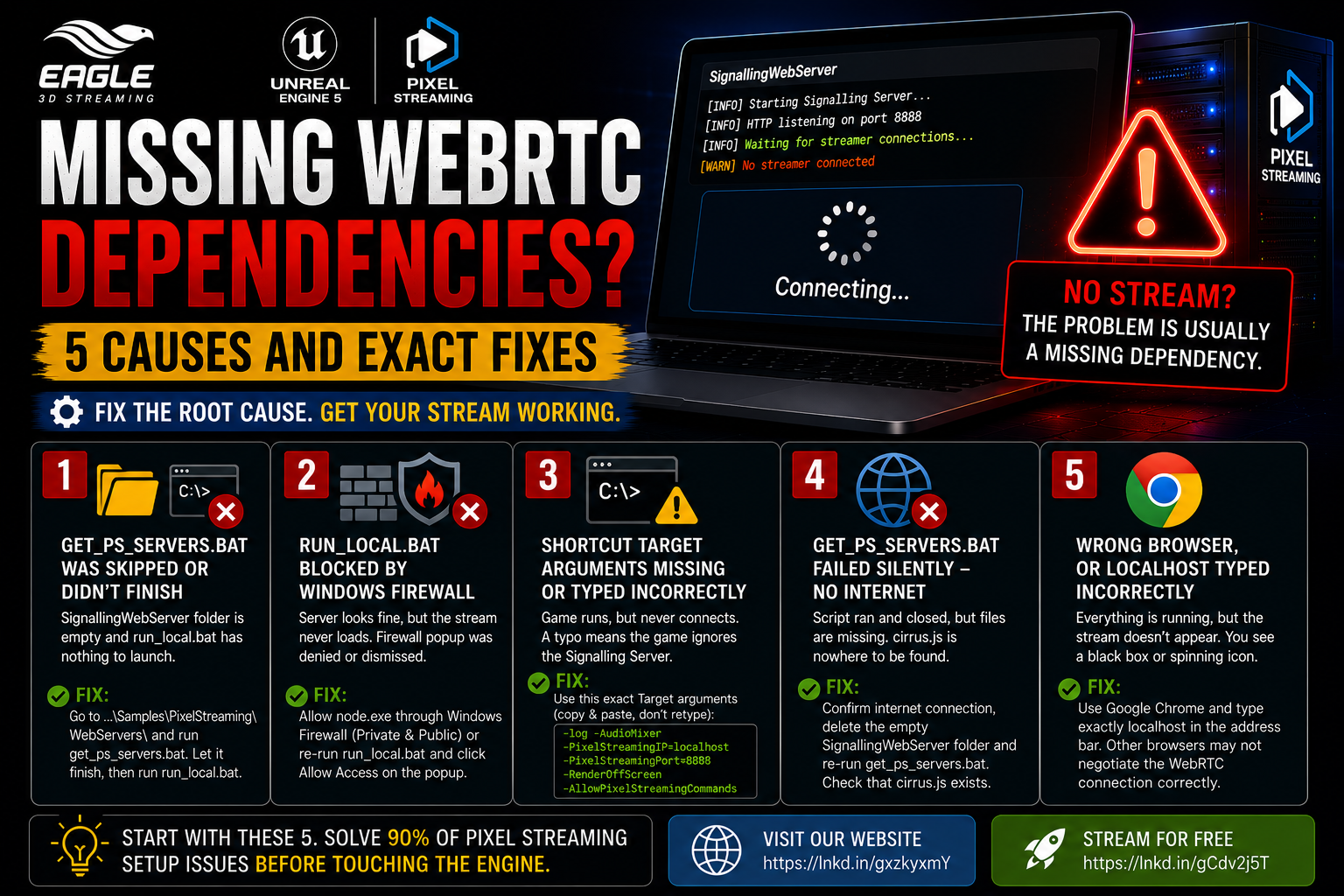
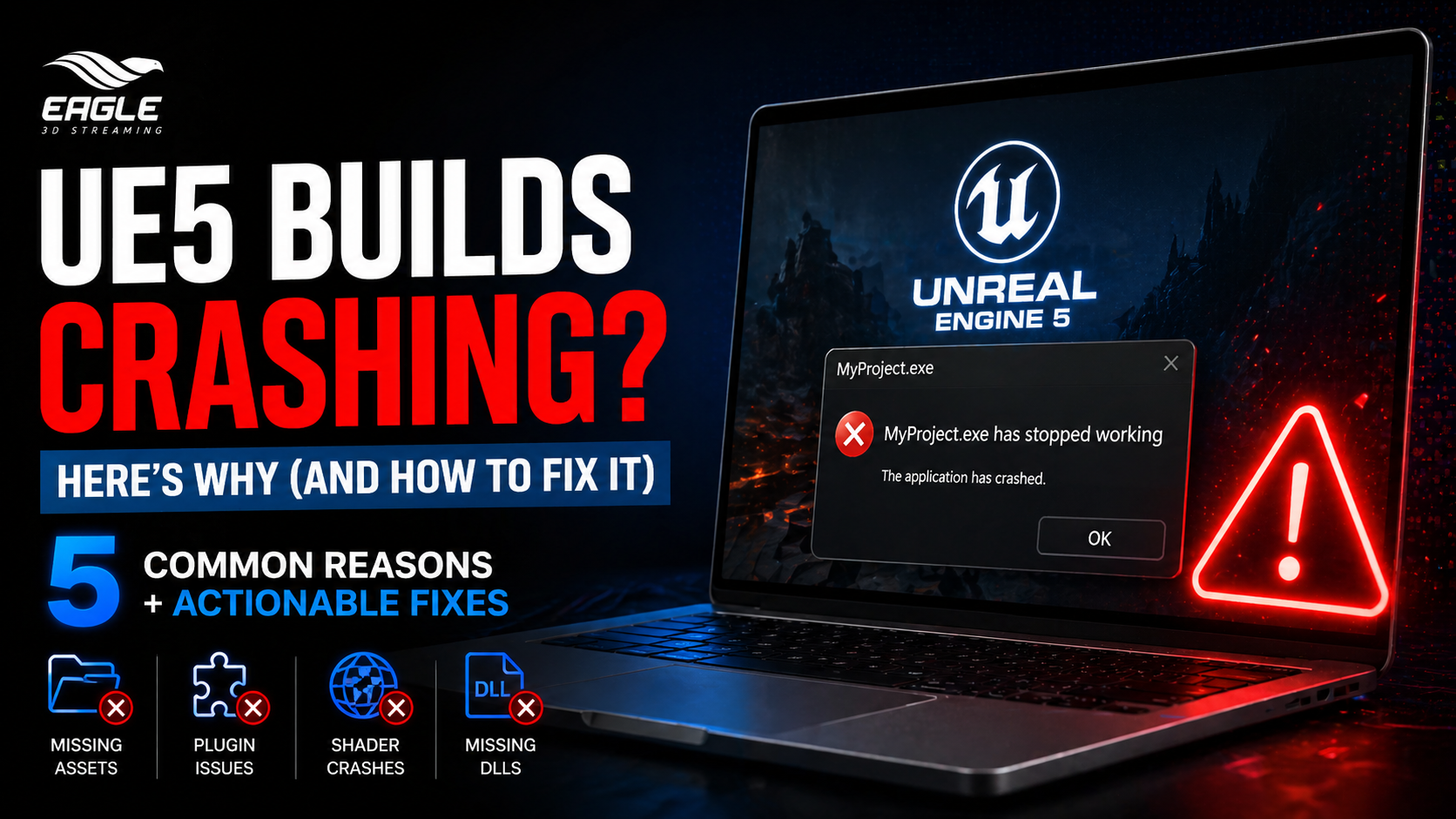
You launch the Signalling Server, the window opens, and nothing connects. The browser sits there waiting. No stream, no error, no indication of what went wrong. Missing or broken WebRTC dependencies are behind more failed Pixel Streaming setups than anything else — and most of them trace back to the same five causes.
This guide covers each one in the order you should check them, with the exact fix for each.
What Are WebRTC Script Dependencies in Pixel Streaming?
The Pixel Streaming Signalling Server is built on Node.js and relies on several helper packages to handle WebRTC connections, SSL, and browser communication. These packages are not bundled with Unreal Engine — they must be downloaded separately.
If any of them are missing, the server either won't start or will fail to pass a stream to the browser. The failures are usually silent: a window that opens and closes too fast to read, a server that appears to be running but produces no stream, or a browser page that loads but never plays anything.
5 Reasons Your WebRTC Scripts Are Broken
1. get_ps_servers.bat Was Skipped or Didn't Finish
What you'll see: run_local.bat crashes immediately on launch. The SignallingWebServer folder is empty or missing. cirrus.js is not found.
Why it happens: get_ps_servers.bat is the script responsible for downloading all the WebRTC server files — including the Signalling Server, its Node.js packages, and the browser-side scripts — directly from Epic's servers. It opens a window, runs, and closes on its own. Many beginners panic when it closes quickly and assume it failed, or skip it entirely. Without it, the SignallingWebServer folder is empty and run_local.bat has nothing to launch.
The fix:
Go to your packaged output folder and run get_ps_servers.bat:
...\Samples\PixelStreaming\WebServers\
Let it open, run, and close on its own — this is normal behaviour, not a crash. After it finishes, verify these folders now exist before running anything else:
...WebServers\SignallingWebServer\              ✓
...SignallingWebServer\platform_scripts\cmd\    ✓
Only once those folders are present is it safe to run run_local.bat.
2. run_local.bat Blocked by Windows Firewall
What you'll see: The Signalling Server window opens without errors. The browser page loads but the stream never appears. The server terminal shows "No streamer connected" or "Waiting for Streamer" indefinitely.
Why it happens: When run_local.bat is run for the first time, Windows Firewall shows a security popup asking whether Node.js should be allowed to communicate on the network. If you clicked Cancel, Don't Allow, or closed the popup — the Signalling Server starts but cannot receive a connection from your packaged UE5 game. The server window looks completely normal but the two sides can never talk to each other.
The fix:
Option 1 — Re-run and allow access on the popup:
Close the Signalling Server window and run run_local.bat again. The firewall popup will reappear. This time click Allow Access.
Option 2 — Manually allow Node.js through the firewall:
Start → Windows Defender Firewall
→ Allow an app or feature through Firewall
→ Change Settings → find node.exe
→ Tick both Private ✓ and Public ✓ → OK
3. Shortcut Target Arguments Are Missing or Typed Incorrectly
What you'll see: The UE5 game launches and runs normally. The Signalling Server is running. But the browser shows "Connecting..." forever and no stream arrives.
Why it happens: The packaged UE5 game doesn't know it's supposed to use Pixel Streaming unless you explicitly pass the correct launch arguments in the shortcut's Target field. A single typo — a missing space before -log, a wrong port number, or -RenderOffscreen with a lowercase s instead of -RenderOffScreen — means the game runs as a normal standalone application and ignores the Signalling Server entirely.
The fix:
Right-click your shortcut → Properties → Target field. The field should end with .exe followed by a single space, then the arguments — no line breaks, no extra quotes.
Copy and paste the arguments exactly as shown below. Do not retype them manually:
"pack.exe" -log -AudioMixer -PixelStreamingIP=localhost -PixelStreamingPort=8888 -RenderOffScreen -AllowPixelStreamingCommands
Common mistakes to check:
"…exe"-log               ← missing space before -log
PixelStreamingPort=8080  ← wrong port (must be 8888)
-RenderOffscreen         ← wrong capitalisation (must be -RenderOffScreen)
4. get_ps_servers.bat Failed Silently — No Internet Connection
What you'll see: The bat ran and closed normally. But the SignallingWebServer folder is either empty or missing key files. cirrus.js is not found. run_local.bat opens and immediately closes.
Why it happens: get_ps_servers.bat requires an active internet connection to download the WebRTC server files from Epic's servers. If your machine was offline, on a restricted network, or behind a VPN that blocks external downloads at the time you ran it — the script appeared to complete but downloaded nothing. The SignallingWebServer folder may exist but be completely empty or missing cirrus.js.
The fix:
Verify your internet connection first — open a browser and load any page. If that works, proceed:
Step 1 — Delete the empty or broken SignallingWebServer folder:
C:\...\Samples\PixelStreaming\WebServers\SignallingWebServer\
Right-click → Delete

Step 2 — Run get_ps_servers.bat again with internet active

Step 3 — Confirm cirrus.js now exists inside the SignallingWebServer folder
If you are on a restricted network or VPN, disconnect from the VPN first, run get_ps_servers.bat, then reconnect.
5. Wrong Browser Used — or Localhost Typed Incorrectly
What you'll see: Everything appears to be running correctly. The page loads in the browser but shows a black box, a spinning icon, or nothing at all. The Signalling Server shows an active connection but no stream plays.
Why it happens: Pixel Streaming's browser-side WebRTC scripts are optimised for and tested on Google Chrome. Firefox and Safari handle WebRTC differently and may fail to negotiate the peer connection at all. Additionally, typing http://127.0.0.1 instead of localhost can behave differently with the Signalling Server's cookie and origin settings, causing the stream to silently fail even when the server and game are both running correctly.
The fix:
Always use Google Chrome for local Pixel Streaming tests. Open Chrome and type exactly:
localhost
Nothing else. Not 127.0.0.1, not http://localhost:80, not any other variation — just localhost. Edge (Chromium-based) usually works, but Chrome is always the safest choice for local testing.
Quick Reference: Missing Dependency Issues in UE5 Pixel Streaming
Issue | Symptom | Root Cause | Fix |
|---|---|---|---|
|
| WebRTC server files never downloaded | Run |
Windows Firewall blocked Node.js | Server runs, stream never connects | Firewall popup was dismissed or denied on first run | Re-run |
Wrong or missing shortcut arguments | Game runs, browser shows "Connecting..." forever | UE5 app launched without Pixel Streaming launch arguments | Paste exact arguments into shortcut Target field — do not retype manually |
| Folder exists but | Script ran offline or behind a VPN — downloaded nothing | Delete empty folder, ensure internet is active, re-run |
Wrong browser or wrong URL | Page loads but stream doesn't play | Firefox/Safari WebRTC behaviour, or | Always use Chrome, always type |
Conclusion: Missing Dependencies Are a Setup Problem, Not an Engine Problem
Almost every missing dependency failure in UE5 Pixel Streaming happens before the engine is even involved. get_ps_servers.bat was skipped. A firewall popup was dismissed. An argument was retyped with a typo. The internet wasn't connected when the files were downloaded. Or the wrong browser was used.
Work through this list before looking anywhere else. These five causes cover the vast majority of broken Pixel Streaming setups on a fresh install. And whenever something breaks after an update or reinstall, the first move is always to delete the SignallingWebServer folder and run get_ps_servers.bat again from scratch.
Frequently Asked Questions
Q: get_ps_servers.bat opens and closes immediately — did it fail? Not necessarily. This is normal behaviour — the script downloads the WebRTC server files, finishes, and closes on its own. It's not a crash. After it closes, check whether the SignallingWebServer folder now exists and contains files including cirrus.js. If the folder is empty, the script likely ran without an internet connection — delete the folder, confirm your connection is active, and run it again.
Q: The Signalling Server window is open and looks fine, but the browser shows "Waiting for Streamer" forever — what's wrong? This is almost always the Windows Firewall issue. When run_local.bat was first run, a firewall popup appeared asking whether Node.js should be allowed to communicate on the network. If that popup was dismissed or denied, the Signalling Server starts but cannot receive a connection from the UE5 app. Close the server window, re-run run_local.bat, and click Allow Access when the popup reappears. Alternatively, manually allow node.exe through Windows Defender Firewall.
Q: Which browser should I use for local Pixel Streaming testing? Always use Google Chrome. Pixel Streaming's browser-side WebRTC scripts are built and tested for Chrome. Firefox and Safari handle WebRTC peer connection negotiation differently and may fail entirely. When opening the stream locally, type localhost exactly in the Chrome address bar — not 127.0.0.1, not any other variation.
Struggling with your Pixel Streaming infrastructure? Eagle 3D Streaming handles the deployment layer so your team can stay focused on building.
🎮 Join the Eagle 3D Streaming Community on Discord
Connect with other studios, get real-time support, share builds, and stay ahead of platform updates. Join the Discord
🛠️ Need Help? Talk to Support
Our technical team understands Unreal Engine workflows. Whether you're troubleshooting a deployment or planning a large-scale rollout, we're here. Contact Support → support@eagle3dstreaming.com
🚀 Upload Your App and Go Live
Ready to stream? Upload your packaged Unreal build, configure your settings, and have your experience live in minutes. Upload Your App