Port Already in Use" in UE5 Pixel Streaming — Causes and Fixes
Getting a "port already in use" error in Unreal Engine 5 Pixel Streaming? This guide covers every common cause — from leftover server sessions to Windows Firewall blocks — with clear fixes for UE5 developers and visualization studios.
 MD Rafshan Tashin Eshan
May 8, 2026
10 min read
Rafshan Tashin 8 min read UE5 Cloud Deployment · Pixel Streaming
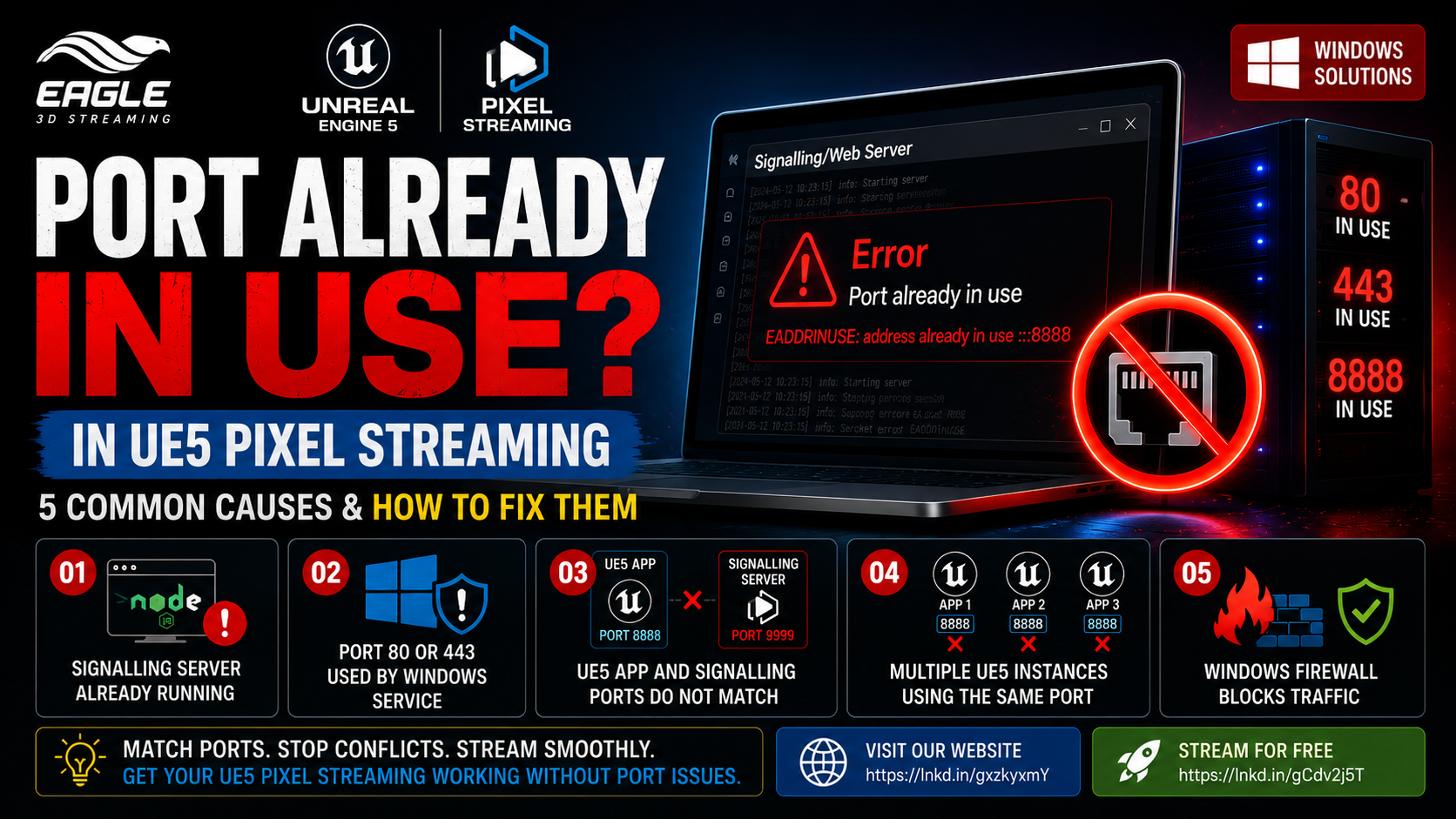
You've packaged your Unreal Engine 5 application, fired up the Pixel Streaming infrastructure, and hit a wall: the Signalling Server won't start, or the stream won't connect, and somewhere in the logs is a variation of "port already in use."
It's one of the most common deployment errors in UE5 Pixel Streaming — and one of the most disruptive, because it can kill a launch without a clear indication of what actually went wrong. The page might load. The server might appear to start. But the stream never arrives.
For Unreal Engine developers and visualization studios deploying real-time 3D experiences to the browser, understanding exactly why port conflicts happen — and how to resolve each one — is essential. This guide covers every common cause and the precise fix for each.
How Ports Work in UE5 Pixel Streaming — and Why Conflicts Break Everything
Unreal Engine 5 Pixel Streaming is built on a set of networked components that must communicate with each other over specific ports. The main pieces are:
- The packaged UE5 application — runs the Unreal Engine content and streams encoded video
- The Pixel Streaming Signalling/Web Server — acts as the WebRTC signalling server and serves the browser frontend
- The browser client — receives the stream and sends input back
Each of these components binds to specific TCP/UDP ports to function. The UE5 application uses a streamer port (commonly 8888) to connect to the Signalling Server. The Signalling/Web Server binds to HTTP/HTTPS ports (80 or 443) to serve the browser-facing frontend.
If any of those ports are already occupied — by a previous session, a competing Windows service, or another UE5 instance — the component trying to bind fails. The result is a broken deployment that ranges from "the stream never starts" to "the server won't launch at all."
On Windows — the most common deployment environment for UE5 Pixel Streaming setups — port conflicts are especially frequent because background services, previous sessions, and the Windows Firewall all interact with the same port space your infrastructure depends on.
The 5 Reasons You're Getting Port Conflicts in UE5 Pixel Streaming
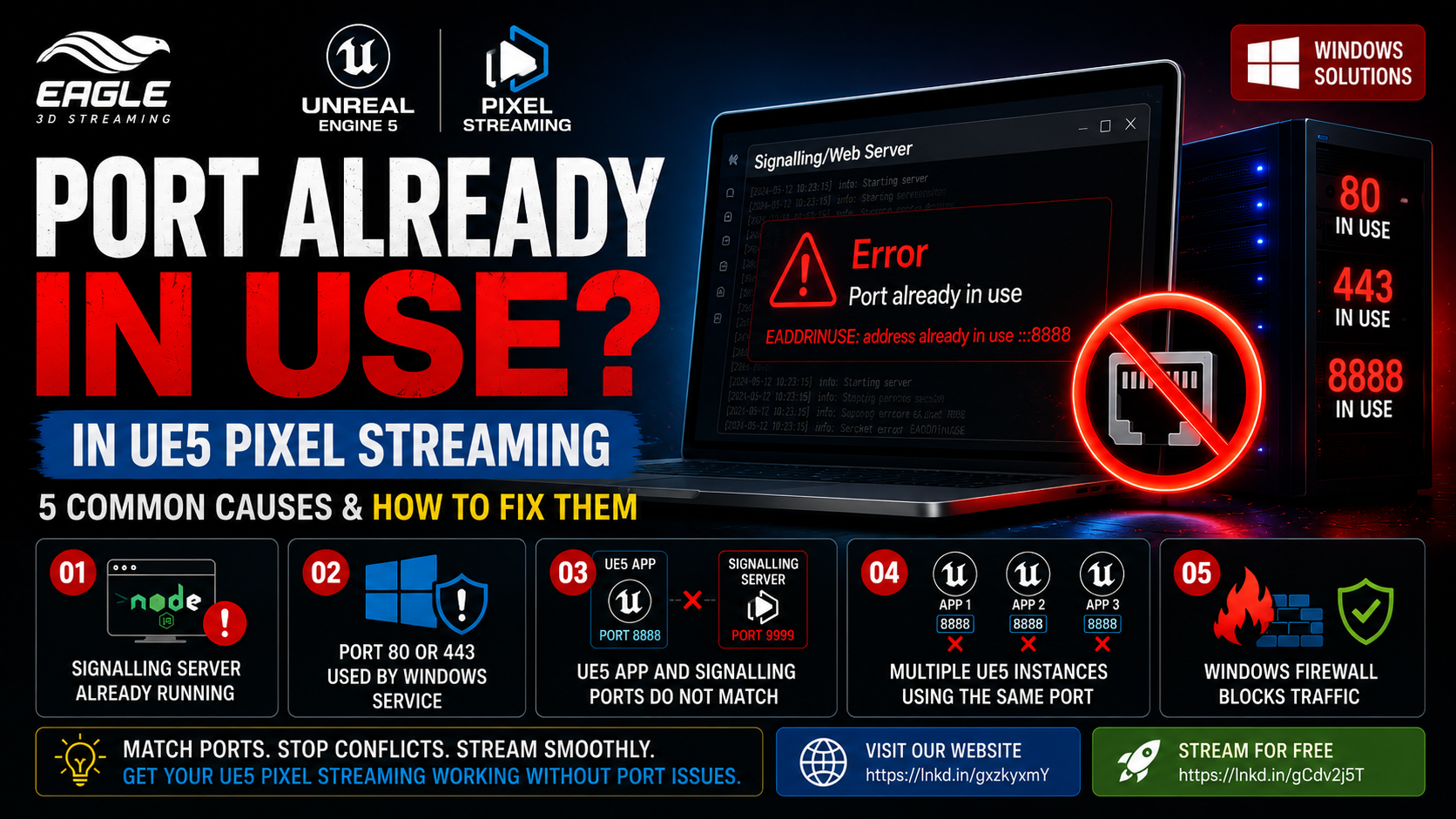
1. A Previous Signalling Server Session Is Still Running
What you'll see: The Pixel Streaming Signalling/Web Server fails to launch after a restart or crash. The streamer port is occupied and the new process cannot bind to it.
Why it happens: UE5 Pixel Streaming on Windows uses the Pixel Streaming Infrastructure scripts under SignallingWebServer\platform_scripts\cmd\. If a previous Signalling/Web Server session wasn't properly terminated — due to a crash, a forced window close, or an incomplete shutdown — the Node.js process remains alive in the background, holding the streamer port open. The next launch attempt hits the occupied port and fails.
The fix:
- Check which process is currently using the Pixel Streaming streamer port:
netstat -ano | findstr :8888
- Note the PID returned.
- Kill only the process that belongs to the old Pixel Streaming / Node.js Signalling Server session:
taskkill /PID <PID> /F
- Restart the UE5 Pixel Streaming infrastructure cleanly.
Do not kill processes blindly — confirm the PID belongs to Node.js or the Signalling Server before terminating.
2. Port 80 or 443 Is Already Occupied by a Windows Service
What you'll see: The Signalling/Web Server's web-facing side fails to start. The streamer may come up, but the browser frontend is unreachable because the HTTP or HTTPS port cannot be bound.
Why it happens: On Windows, another service may already be bound to port 80 or 443. When your UE5 Pixel Streaming Signalling/Web Server is configured to use the same port, it fails to bind immediately on launch — even if every other part of the setup is correct.
The fix:
Check whether the port is occupied:
netstat -ano | findstr :80
netstat -ano | findstr :443
Then choose one of two approaches:
- Stop the conflicting service if it's not needed and relaunch your Pixel Streaming infrastructure.
- Change the Pixel Streaming web server port in your Signalling Server config to an unoccupied port, rather than stopping a system service that may be needed.
3. The UE5 Application and Signalling Server Are Using Different Ports
What you'll see: The browser page loads correctly. The Signalling Server appears to be running. But the stream never connects — the browser stalls waiting for a stream that never arrives.
Why it happens: The packaged UE5 application must connect to the Signalling Server using the exact streamer port the server is listening on. If the UE5 app is launched with one port and the Signalling Server is configured for another, they never complete the WebRTC handshake. No error is thrown visibly — the stream simply never starts.
The fix:
Ensure both sides reference the same streamer port. Launch your packaged UE5 application with the matching port:
MyPixelStreamingApp.exe -PixelStreamingIP=127.0.0.1 -PixelStreamingPort=8888
Or using the newer URL-style launch argument (recommended for UE5):
MyPixelStreamingApp.exe -PixelStreamingURL=ws://127.0.0.1:8888
Then confirm your Signalling Server configuration is also set to listen on port 8888. Both sides must match exactly.
4. Multiple UE5 Instances Are Competing for the Same Streamer Port
What you'll see: You launch multiple instances of the packaged UE5 Pixel Streaming application on one machine. Only the first instance connects. All subsequent instances fail to stream, with port binding errors in the logs.
Why it happens: Each running instance of a UE5 Pixel Streaming application needs its own dedicated streamer port. When multiple instances are launched with the same -PixelStreamingPort value, they all attempt to bind to the same address simultaneously — and only the first one succeeds. The rest fail silently from the browser's perspective.
The fix:
Assign each instance a unique streamer port and configure a corresponding Signalling Server for each:
:: Instance 1
MyPixelStreamingApp.exe -PixelStreamingURL=ws://127.0.0.1:8888

:: Instance 2
MyPixelStreamingApp.exe -PixelStreamingURL=ws://127.0.0.1:8889

:: Instance 3
MyPixelStreamingApp.exe -PixelStreamingURL=ws://127.0.0.1:8890
Each Signalling Server setup must also be configured for its corresponding port. Trying to share one Signalling Server across multiple UE5 instances on different ports requires a Matchmaker setup and is a separate architecture concern.
5. Windows Firewall Is Blocking the Pixel Streaming Ports
What you'll see: The UE5 application and Signalling Server both start without errors. The browser loads the page but cannot reach the stream. WebRTC connections fail or timeout.
Why it happens: Windows Firewall can block inbound and outbound traffic on the ports your Pixel Streaming setup relies on — even when everything else is configured correctly. The HTTP/HTTPS ports (80, 443) and the streamer port (e.g., 8888) all require explicit firewall rules to allow traffic through.
The fix:
Open only the ports your specific Pixel Streaming setup uses. Run these in an elevated Command Prompt:
:: Allow HTTP port 80 (if your Pixel Streaming web server uses it)
netsh advfirewall firewall add rule name="PS HTTP" dir=in action=allow protocol=TCP localport=80

:: Allow HTTPS port 443 (if your Pixel Streaming web server uses it)
netsh advfirewall firewall add rule name="PS HTTPS" dir=in action=allow protocol=TCP localport=443

:: Allow streamer port 8888 (adjust if your setup uses a different port)
netsh advfirewall firewall add rule name="PS Streamer" dir=in action=allow protocol=TCP localport=8888
Only open the ports that your actual configuration uses — do not open ports broadly as a blanket fix.
Quick Reference: Port Conflict Issues in UE5 Pixel Streaming
| Issue | Symptom | Root Cause | Fix |
|---|---|---|---|
| Previous session still running | Signalling Server fails to start | Old Node.js process holding the streamer port | Find PID via netstat, kill only the old Signalling Server process |
| Port 80 / 443 occupied by Windows service | Web frontend unreachable | IIS or another service bound to the same HTTP/HTTPS port | Stop the conflicting service or change Pixel Streaming web server port |
| UE5 app and Signalling Server port mismatch | Page loads, stream never connects | App and server configured for different streamer ports | Set matching port on both sides using -PixelStreamingURL |
| Multiple UE5 instances on one port | Only first instance streams | Multiple instances competing for the same streamer port | Assign each instance a unique port (8888, 8889, 8890…) |
| Windows Firewall blocking traffic | Stream unreachable despite server running | Firewall rules blocking HTTP/HTTPS or streamer ports | Add explicit inbound rules for only the ports your setup uses |
Conclusion: Port Conflicts Are Systematic — Debug Them That Way
"Port already in use" in UE5 Pixel Streaming isn't random. Every instance of it has a specific, traceable cause — and each cause has a clean fix. The challenge is that the failure modes look similar on the surface: the stream doesn't start, or the server won't launch, and the browser gives you nothing useful to work with.
Working through this list in order covers the vast majority of real-world port conflict scenarios on Windows. Check for leftover sessions first. Confirm there are no competing services on port 80 or 443. Verify the streamer port matches on both the UE5 app and the Signalling Server side. Assign unique ports to multiple instances. And confirm your Windows Firewall rules aren't silently blocking the traffic you need.
For Unreal Engine developers and visualization studios shipping Pixel Streaming experiences to clients, getting the port configuration right before deployment is the difference between a smooth launch and an emergency debugging session.
Frequently Asked Questions
Q: Why does my UE5 Pixel Streaming stream fail after a server restart without any code changes? Most likely a previous Signalling Server session didn't shut down cleanly and is still holding the streamer port. The new launch attempt fails because the port is already occupied by the old Node.js process. Run netstat -ano | findstr :8888 (or whichever port your setup uses), find the PID of the old process, and terminate it before restarting.
Q: Can I run multiple UE5 Pixel Streaming instances on the same Windows machine? Yes, but each instance must use a different streamer port. You cannot share a single port across multiple instances — only the first to bind will succeed. Launch each instance with a unique -PixelStreamingURL value (e.g., ws://127.0.0.1:8888, ws://127.0.0.1:8889) and configure the corresponding Signalling Server for each port.
Q: The Pixel Streaming page loads but the stream never starts — where do I check first? Start by confirming the streamer port matches on both sides. The packaged UE5 application must connect to the exact port the Signalling Server is listening on. A mismatch causes the handshake to silently fail — the page loads because the web frontend is served correctly, but the UE5 app and Signalling Server never establish the connection needed to deliver the stream.
Ready to Deploy Your Unreal Experience?
If you're a visualization studio and you're tired of watching great work fall short at the delivery stage, Eagle 3D Streaming is built for you.
🎮 Join the Eagle 3D Streaming Community on Discord
Connect with other studios, get real-time support, share builds, and stay ahead of platform updates. Join the Discord
🛠️ Need Help? Talk to Support
Our technical team understands Unreal Engine workflows. Whether you're troubleshooting a deployment or planning a large-scale rollout, we're here. Contact Support → support@eagle3dstreaming.com
🚀 Upload Your App and Go Live
Ready to stream? Upload your packaged Unreal build, configure your settings, and have your experience live in minutes. Upload Your App
Share this article