5 UE5 Project Packaging Mistakes That Break Your Pixel Stream — And How to Fix Them
Rafshan Tashin 8 min read UE5 Cloud Deployment · Pixel Streaming
In this article
#1 Mute When in Background — silent cloud streams
#2 Packaging as Development — bloated builds on cloud GPUs
#3 Uncapped Frame Rate — unstable streaming performance
#4 Unset Game Default Map — blank-screen launches
#5 Wrong Target OS — incompatible cloud deployment
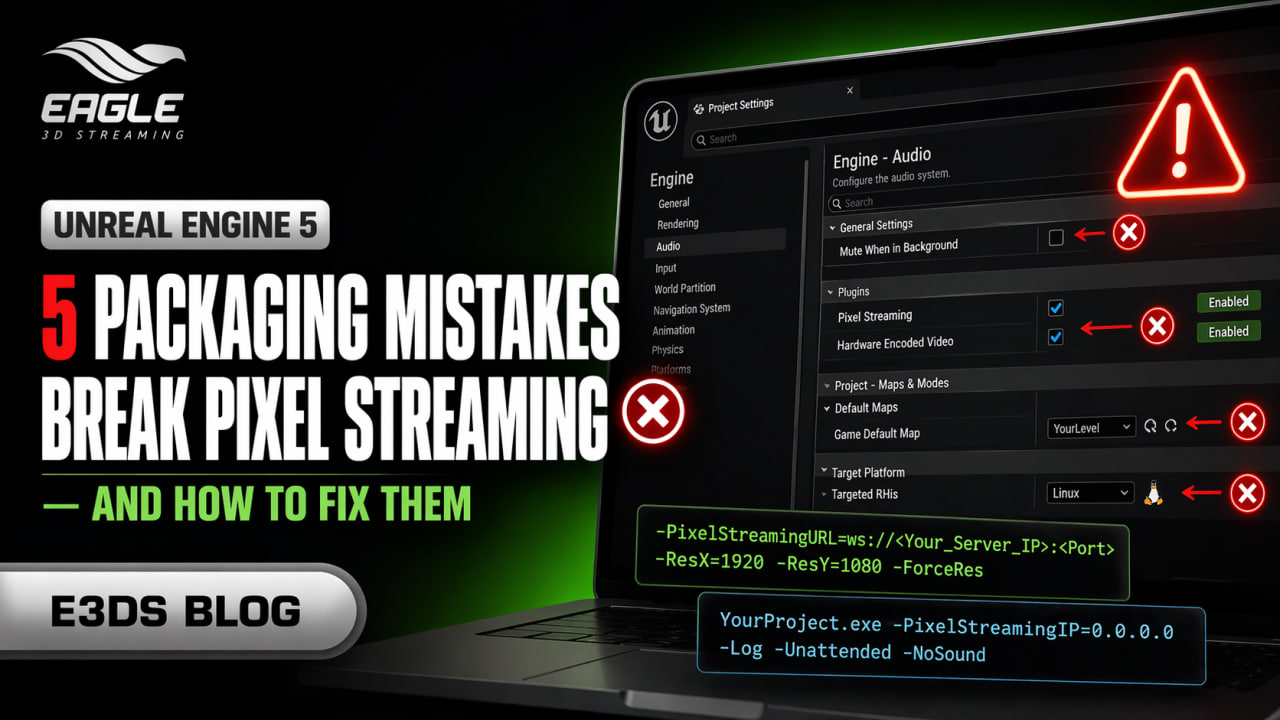
Unreal Engine 5's default project settings are optimized for local PC play — not for headless cloud rendering and WebRTC delivery. Every setting that feels harmless on your workstation can silently destroy the experience for every viewer connecting to your pixel streaming service. The five mistakes below cover the most common packaging issues we see across architectural visualization teams, enterprise digital twin projects, and interactive product demos.
The 5 packaging mistakes to fix before your next cloud deployment
1)Mute When in Background — the silent cloud stream
Audio drops immediately after load or mid-session
The problem
On a desktop, UE5 politely silences audio when the game window loses focus. On a headless cloud server, your pixel streaming application constantly "loses focus" to background OS processes. The result: audio works for a few seconds, then vanishes permanently mid-stream — with no error in the log.
The fix
Project Settings → Engine → Audio → uncheck "Mute When in Background"
This forces the UE5 audio engine to keep feeding output through the WebRTC pipeline regardless of server window state. It's a single checkbox — but one that derails more enterprise demos than almost any other setting.
2) Packaging as Development for cloud builds
Low framerates and wasted GPU budget on the server
The problem
Development builds carry an enormous amount of debug tooling, symbol tables, and unoptimized code paths. On your local machine this is fine — you want console access and hot-reload. On a cloud GPU server, that overhead directly competes with the rendering and NVENC video encoding work your stream depends on.
The fix
Platforms → Windows (or Linux) → Build Configuration → Shipping
Shipping strips all debug overhead, enables the compiler's full optimization passes, and ensures your digital twin visualization or architectural walkthrough runs as efficiently as the hardware allows. Use Development locally; deploy Shipping — every time, without exception.
If you need runtime diagnostics on the server, use -log and ue5 shipping log output rather than a Development build. You get the data without the performance hit.
3) The Frame Rate Chaos (Uncapped FPS)
The Problem:
Your stream feels inconsistent—smooth one moment, laggy the next—with random spikes in latency and bitrate even when the scene hasn’t changed.
Unreal Engine, by default, allows your application to run at an uncapped or highly variable frame rate. While this might seem beneficial on a local machine, it becomes a serious liability in a Pixel Streaming environment. Every frame must be encoded and transmitted in real time.
When your FPS fluctuates wildly, it creates instability in the video encoding pipeline. The GPU encoder struggles to keep up with inconsistent frame pacing, leading to uneven bitrate, increased latency, and unnecessary resource spikes. The result is a stream that feels unreliable, even on powerful cloud hardware.
The Fix:
Navigate to Project Settings > Engine > General Settings and enable Use Fixed Frame Rate. Set it to a stable value such as 30 FPS or 60 FPS, depending on your performance targets.
For additional control, you can also enforce a frame cap via command-line arguments:
-t.MaxFPS=60
Locking your frame rate ensures a consistent encoding workload, stabilizes bandwidth usage, and delivers a smoother, more predictable experience for every viewer.
4)Forgetting to set the Game Default Map
Viewers connect to a blank black screen or default UE template
The problem
On a local PC you typically launch directly from the editor into your level. A packaged server build has no editor — it boots to whatever map Project Settings tells it to load. If you never updated that field, your cloud stream will confidently load the checkerboard floor of an empty UE template instead of your architecture, product, or digital twin.
The fix
Project Settings → Project → Maps & Modes → Default Maps → Game Default Map → [your level]
Set this explicitly before every packaging run. You can also override it at launch with a ?Game=YourLevel command-line argument, but baking it into the package is the safest failsafe — especially when the stream is being served by automated infrastructure that doesn't expose manual launch flags.
5)Ignoring Linux cross-compilation for cloud targets
20 GB upload that simply won't run on the server
The problem
Most devs work on Windows—and that’s the industry standard for Unreal Engine workflows. While Linux is common in cloud environments, it isn’t the most reliable or fully supported option for UE5 deployments. Unreal Engine does support Linux, but a Windows build won’t run natively on a Linux instance—making that 20–30GB upload completely useless if your infrastructure isn’t aligned with your build target.
The fix
Standardize your build target to Windows for Unreal Engine 5 projects. Package your application as a Windows executable and deploy it on Windows-based cloud instances. This ensures full compatibility with UE5 features, plugins, and pixel streaming workflows, while avoiding cross-compilation complexity and unexpected runtime issues on Linux.
If your infrastructure currently relies on Linux for scaling or cost reasons, align your deployment environment to support Windows instances instead—this will save significant time in debugging, reduce integration friction, and provide a more stable and predictable deployment pipeline for UE5 experiences.
Why packaging mistakes destroy QA timelines
For visualization studios and technical marketing teams, these aren't subtle edge cases — they're expensive. UE5 pixel streaming projects are large. A high-fidelity digital twin or architectural visualization typically packages in 30 minutes to several hours, then requires another long window to upload to a cloud server. A single missed checkbox means repeating that entire cycle just to verify the fix.
Package time- 30m – 3h - per full build cycle
Upload size- 15 – 50 GB - typical packaged project
Common cause- 1 checkbox - triggers the whole loop
This QA loop burns billable hours, frustrates clients waiting on iterative updates, and creates a bottleneck that's especially brutal for agencies running multiple concurrent unreal engine streaming projects. The five fixes above take under five minutes to audit — do it before every packaging run, not after.
A quick pre-packaging checklist
Before hitting Package Project for any cloud-bound UE5 pixel streaming build, run through these settings:
✓ Audio: Mute When in Background → unchecked
✓ Build config: Shipping (not Development)
✓ Frame rate: Fixed Frame Rate enabled (30–60 FPS recommended)
✓ Default map: Game Default Map explicitly set to your level
✓ Target platform: Windows — aligned with your cloud deployment environment
Stop debugging deployments. Start streaming.
At Eagle 3D Streaming, our platform is built specifically for Unreal Engine pixel streaming — from automated server configuration to rapid project updates without the full repackage cycle. We've seen every one of these mistakes, and our infrastructure is designed to eliminate the QA loop entirely. You focus on building high-fidelity 3D content. We handle the enterprise-grade cloud streaming infrastructure.
Ready to Deploy Your Unreal Experience?
If you're a visualization studio and you're tired of watching great work fall short at the delivery stage, Eagle 3D Streaming is built for you.
🎮 Join the Eagle 3D Streaming Community on Discord
Connect with other studios, get real-time support, share builds, and stay ahead of platform updates. Join the Discord
🛠️ Need Help? Talk to Support
Our technical team understands Unreal Engine workflows. Whether you're troubleshooting a deployment or planning a large-scale rollout, we're here. Contact Support → support@eagle3dstreaming.com
🚀 Upload Your App and Go Live
Ready to stream? Upload your packaged Unreal build, configure your settings, and have your experience live in minutes. Upload Your App