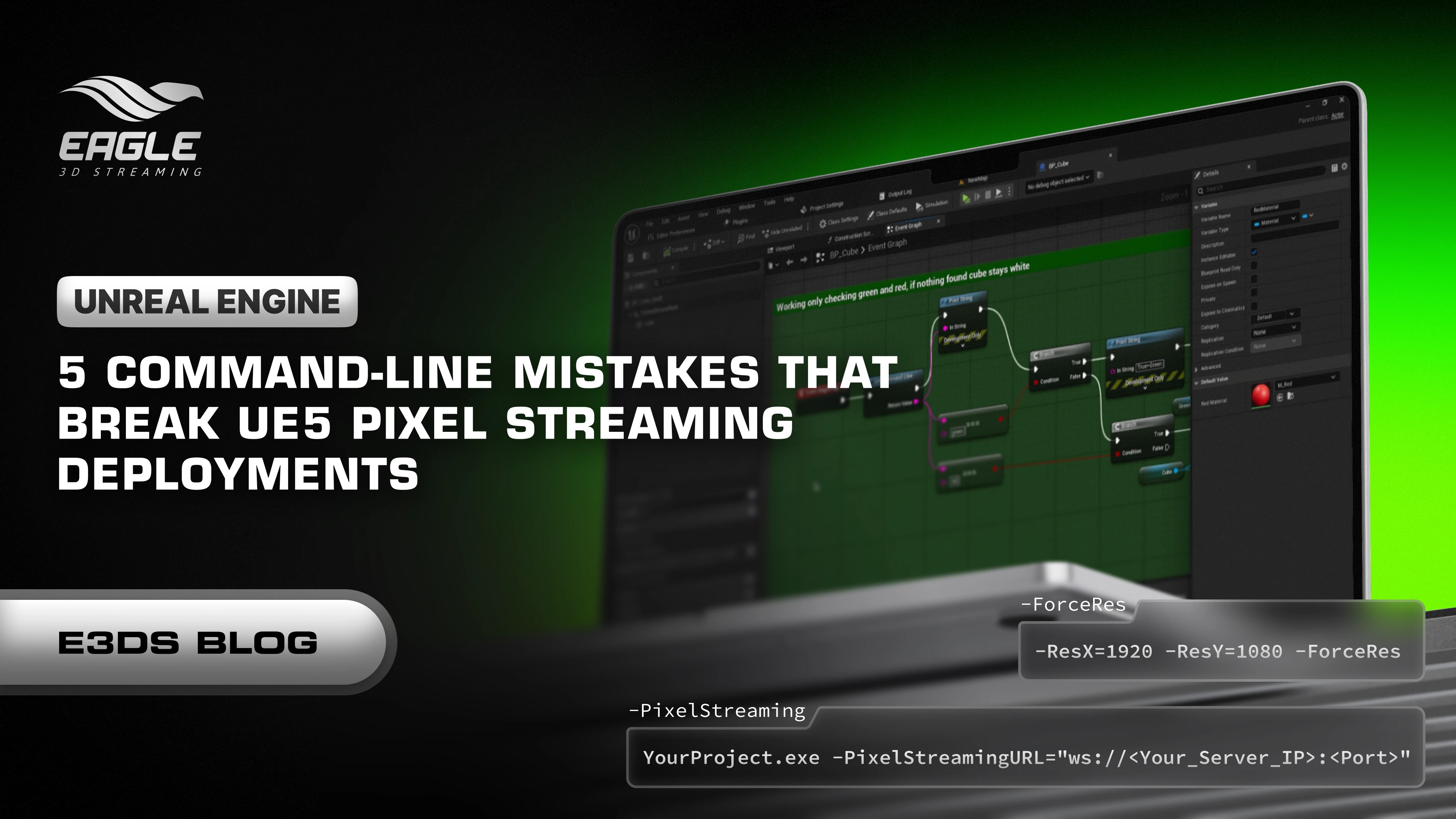
5 Command-Line Mistakes That Break UE5 Pixel Streaming Deployments
Everything runs beautifully on the local machine—great lighting, smooth motion, crisp textures. The moment it goes live on a cloud server, though? Frames start dropping, the image stretches, or the stream loses sound entirely.
That’s not Unreal Engine failing. It’s the command-line setup.
Arguments that work fine on a home GPU don’t translate well to headless cloud instances. The environment changes completely: no monitor, no sound card, different virtual drivers. A few bad parameters can turn an impressive demo into a broken presentation.
Understanding How Pixel Streaming Works
Pixel Streaming pushes rendered frames from Unreal Engine to a browser through WebRTC. It lets anyone interact with high-quality 3D applications without installing Unreal or any plugin.
Platforms like Eagle 3D Streaming handle the heavy lifting—servers, GPUs, scaling, and automatic configuration—so the experience runs directly in a browser with zero downloads.
Every launch argument matters. They control how the stream behaves, how much GPU power is used, and how stable the session remains under load. If the build isn’t configured right, every layer of performance suffers.
Why Local Builds Fail in Virtual Environments
On a local setup, Unreal Engine uses real GPU hardware, a monitor’s aspect ratio, and physical sound devices. A cloud instance is headless—it runs in a virtual environment with simulated components.
If the same local arguments are passed to a cloud deployment, Unreal tries to behave exactly like a desktop app. That mismatch leads to rendering stalls, silent audio, and even launch failure.
Getting the configuration right is key to running Pixel Streaming smoothly on platforms like Eagle 3D Streaming or other production servers.
The 5 Deadliest Command-Line Mistakes in UE5 Pixel Streaming
1. Skipping -RenderOffScreen — The Invisible GPU Killer
- Problem: Unreal Engine tries to draw a desktop window even though the server doesn’t have one. That wastes GPU and CPU cycles on fake visuals.
- Impact: Frame loss, higher compute load, slower stream performance.
- Fix: Always include -RenderOffScreen. It tells UE5 to run headless, sending all GPU power straight into the stream instead of a nonexistent display. This one flag can drastically improve performance.
2. Hardcoding -PixelStreamingIP=127.0.0.1 — The Localhost Trap
- Problem: A leftover localhost flag keeps Unreal Engine talking to itself instead of an external signaling server.
- Impact: Streams load forever or show a black screen.
- Fix: Replace it with your actual signaling server URL. Example:
text
YourProject.exe -PixelStreamingURL="ws://<Your_Server_IP>:<Port>"
Eagle Streaming automates this process so connections are properly routed every time.
3. Missing -ForceRes — The Resolution Ruiner
- Problem: Virtual machines override your set resolution and distort the UI or visuals.
- Impact: Stretched layouts, blurred textures, and misaligned click points.
- Fix: Add -ForceRes along with your resolution flags:
text
-ResX=1920 -ResY=1080 -ForceRes
It locks the resolution exactly to what the project was built for—essential when streaming digital twins, metaverse scenes, or high-fidelity demos via Eagle3dstreaming.
4. Omitting -AudioMixer — The Silent Stream Bug
- Problem: Cloud servers have no audio hardware, so UE5 skips sound rendering entirely.
- Impact: The stream runs mute, even if the project includes audio assets.
- Fix: Include -AudioMixer. UE5 then uses a software mixer that sends sound through the WebRTC pipeline so browser users hear the full experience.
5. Leaving -Framerate Uncapped — The Hidden Compute Drain
Problem: Unreal Engine keeps rendering faster than the browser can stream.
Impact: Wasted GPU energy, higher hosting costs, and unstable stream output.
Fix: Lock it to match the stream rate, usually 60 FPS:
text
-Framerate=60
Capping the rate keeps resources under control and makes the stream smoother across all devices.
The Ideal Command-Line Configuration for UE5 Cloud Deployment
A clean, stable setup should include all essential flags in one line:
text
YourProject.exe -RenderOffScreen -AudioMixer -ResX=1920 -ResY=1080 -ForceRes -Framerate=60 -PixelStreamingURL="ws://<Your_Server_IP>:<Port>"
This base configuration covers resolution, frame rate, audio, and cloud compatibility. It’s proven stable across enterprise-level deployments with Eagle 3D Streaming and other Pixel Streaming services.
Why Developers Struggle with Command-Line Management
Command-line tuning eats time. It’s not creative work—it’s troubleshooting, and every misconfiguration slows production down.
Common pain points:
- DevOps Distraction: Hours lost fixing cloud flags instead of working on visuals or logic.
- Client Pressure: Enterprise clients expect perfect browser playback. Any glitch reflects badly on the agency.
- Scaling Issues: Manually updating dozens of configurations for multiple servers quickly becomes unmanageable.
Cross-provider Conflicts: What works on AWS might fail on Azure, forcing more testing and adjustments.
Best Practices for Stable Pixel Streaming Deployments
Smooth Pixel Streaming at scale isn’t luck—it’s consistency. A few baseline practices make life easier:
- Always use the essential arguments: RenderOffScreen, AudioMixer, ForceRes, and Framerate.
- Replace localhost IPs with actual signaling server URLs.
- Match frame rate to stream bandwidth to prevent lag.
- Test on multiple cloud instances before final deployment.
- Use automation when possible—like Eagle 3D Streaming, which applies optimized parameters automatically.
Automating Stability with Eagle 3D Streaming
Instead of juggling command lines and server configs, Eagle 3D Streaming automates everything behind the scenes. It manages GPU resources, injects correct arguments, and streams Unreal experiences directly to the browser.
That means no downloads, no manual setup, and no technical frustration.
For developers and studios, it’s production-grade Pixel Streaming done right—the creative stays creative, the tech stays invisible, and the client gets flawless performance every single time.
Command-Line Precision Powers Real Cloud Performance
Pixel Streaming shows Unreal Engine at its best—high-end visuals, instant access, everything running inside a browser. But great performance depends on the right configuration. One missing flag can make or break a demo.
Get those parameters right, or use a platform built to handle them automatically, and the results speak for themselves.
Eagle 3D Streaming takes care of the setup so developers can focus on what really matters—building dynamic, unforgettable UE5 experiences that perform flawlessly everywhere.
Ready to Deploy Your Unreal Experience?
If you're a visualization studio and you're tired of watching great work fall short at the delivery stage, Eagle 3D Streaming is built for you.
🎮 Join the Eagle 3D Streaming Community on Discord
Connect with other studios, get real-time support, share builds, and stay ahead of platform updates. Join the Discord
🛠️ Need Help? Talk to Support
Our technical team understands Unreal Engine workflows. Whether you're troubleshooting a deployment or planning a large-scale rollout, we're here. Contact Support → support@eagle3dstreaming.com
🚀 Upload Your App and Go Live
Ready to stream? Upload your packaged Unreal build, configure your settings, and have your experience live in minutes. Upload Your App